
What Command Centre Is
Command Centre is where you run an employee's whole time with your company — from joining to leaving. Each stage happens in one place instead of across email threads, spreadsheets, and separate forms — with a record of who did what, and what's still outstanding.
Your employees are already in it. They come from Sprout HR, along with who can do what — so there's nothing to import.
You sign in with your Sprout HR details. Go to app.sprout.ph, enter your company name when prompted, then sign in as you normally would.
Who Does What
| Role | What they do here |
|---|---|
| HR administrator | Sets things up and runs them: builds the templates, starts a new hire or a departure, reviews what comes back, and moves each one along |
| Manager | Works the items assigned to them — reviewing a new hire's documents, completing clearance, signing a quitclaim. They don't set anything up, and their menu is limited to To-Dos, Marketplace and My Apps |
You don't add anyone else to Command Centre. Managers already have access through Sprout HR. New hires and departing employees don't need an account at all — they get an email with a link to their own task.
Before You Start
- You already have access. Your Sprout HR administrators are Command Centre administrators — nothing to request. Add or remove people in Sprout HR and it carries across; changes here never affect Sprout HR.
- Build your templates first. A template is the checklist or form a module runs on, and each module needs its own before you can start. Build them under Workflows — the Employee Onboarding and Employee Offboarding guides cover which ones you need.
How It Works
Lifecycle covers an employee's time with you, from joining to leaving. Two stages are live today:
| Available now | Coming soon |
|---|---|
| Onboarding — bringing new hires in | |
| Offboarding — managing exits | Hire |
| Movements | |
| Compensation | |
| Benefits | |
| Perform | |
| Learn | |
| Engage | |
| Employee Relations |
Work reaches you two ways:
- Email — tells you something needs doing
- To-Dos — where you actually do it
Everything assigned to you lands in To-Dos, so you can work from there instead of your inbox.
Step by Step
Find what needs your attention
- Open Dashboard for the overall picture — a snapshot of your workforce activity, including what's happening in onboarding and offboarding.
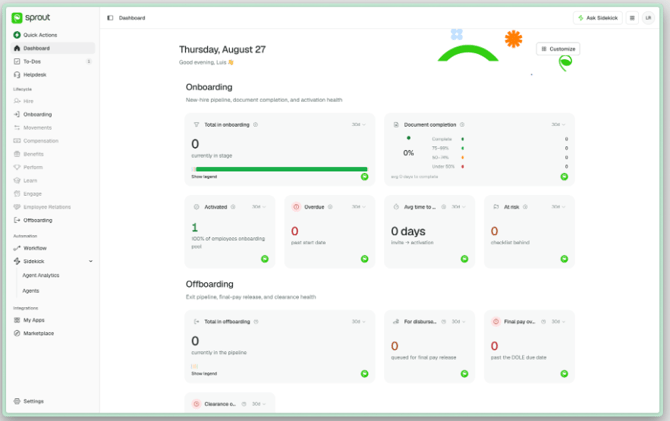
- Open To-Dos for your own list. Items are grouped by when they're due: overdue, due today, this week, later.
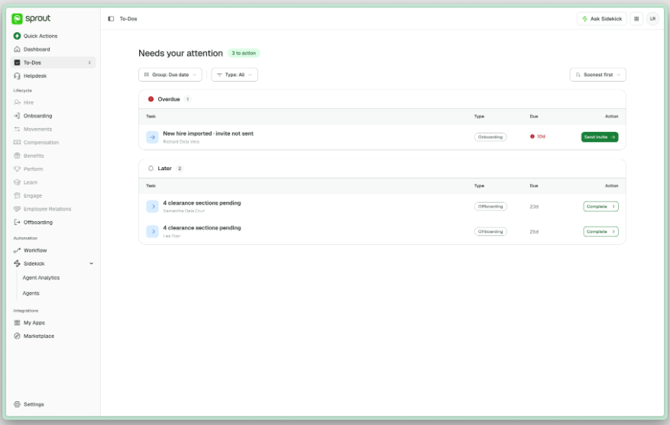
- Select an item to go straight to the record, section, or document it concerns.
Customize your dashboard
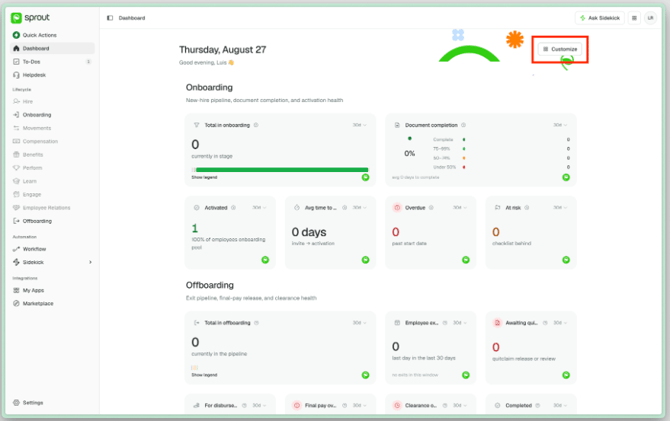
- On Dashboard, choose Customize.
- Choose Add widget to open the widget library, and pick the tiles you want.
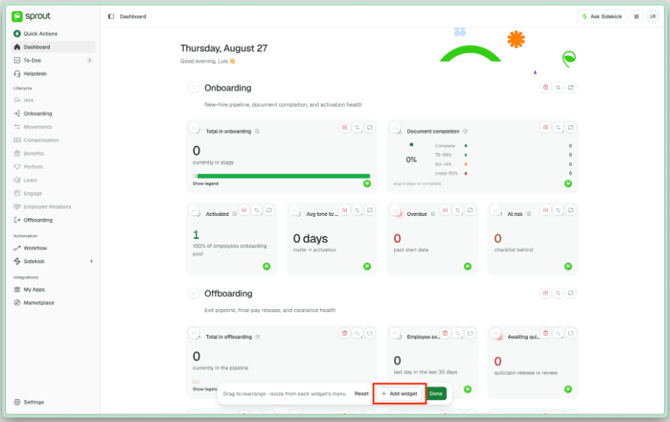
- Drag tiles to rearrange them. Add headers and dividers to group them into sections.
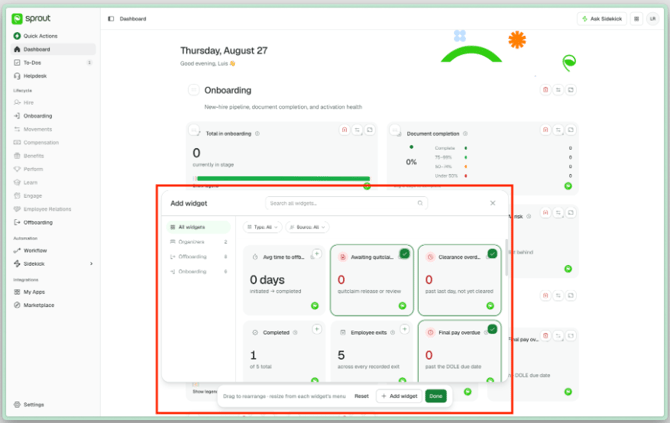
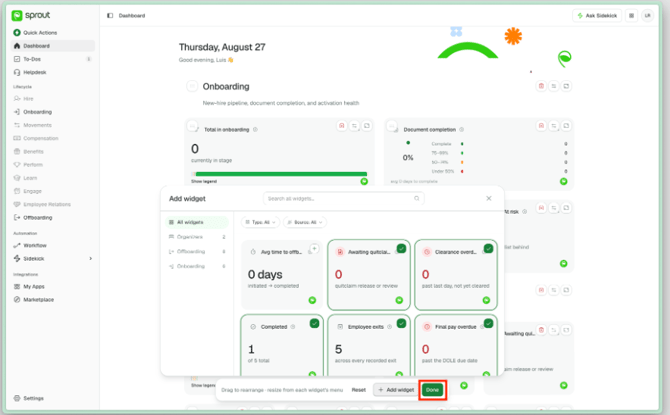
- Choose Done to save.
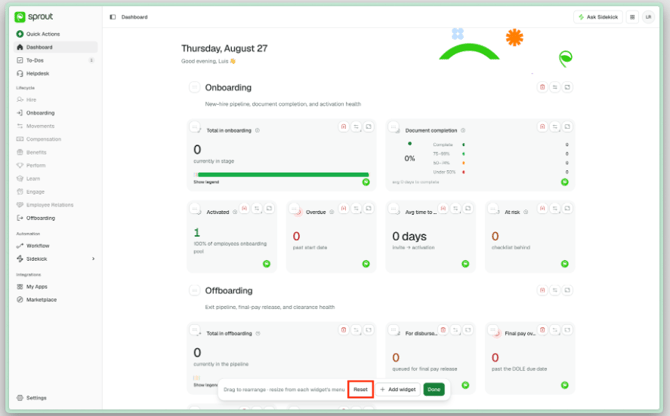
- Changed your mind? While customising, Reset offers two options — go back to your last saved layout, or return to the Sprout default.
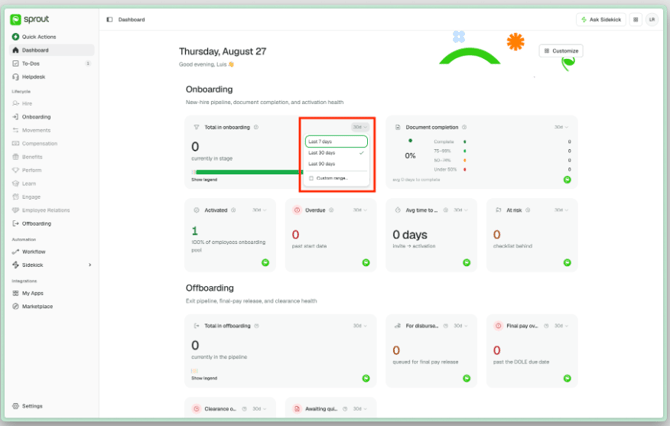
- Tiles that cover a period have their own date filter, so you can change the range you're looking at.
Check who has access
- Open Settings.
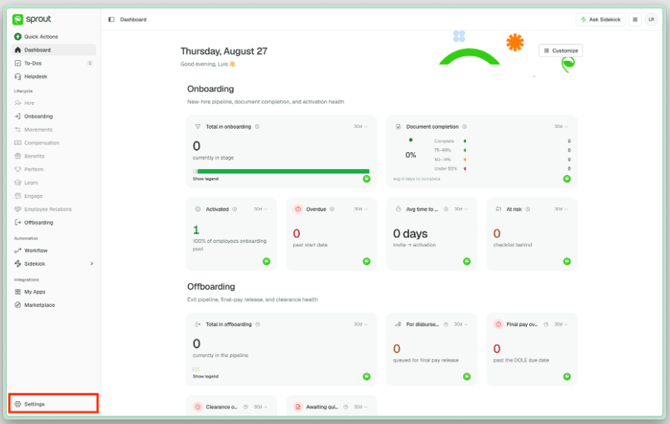
- The Roles tab lists everyone with access to your workspace and the level each one holds.
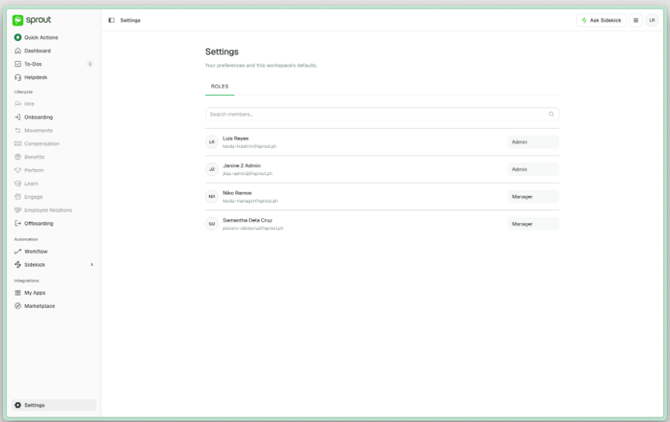
- Roles can't be edited here. To add or remove someone, or change what they can do, make the change in Sprout HR.
Update your own details
- Open My Profile from your avatar.
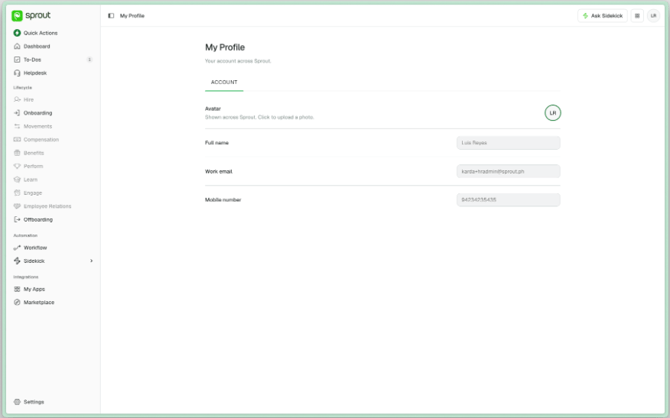
- Click your photo to upload a new one.
- Your name, work email, and mobile number are shown but not editable here — they're maintained in Sprout HR. Ask your HR administrator to correct anything that's wrong.
Review what happened
- Go to Automation → Workflow → Audit trail.
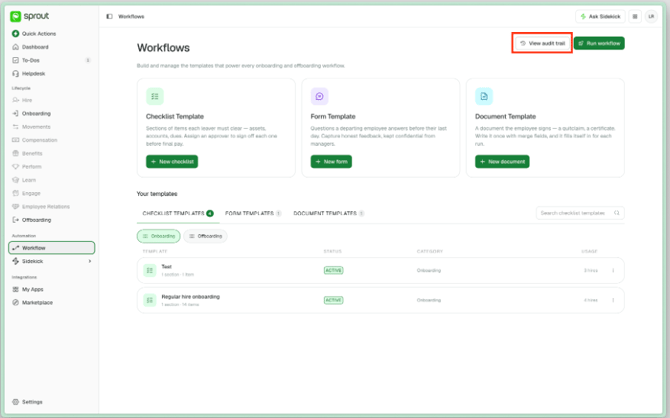
- Search by person, action or detail, and filter by category.
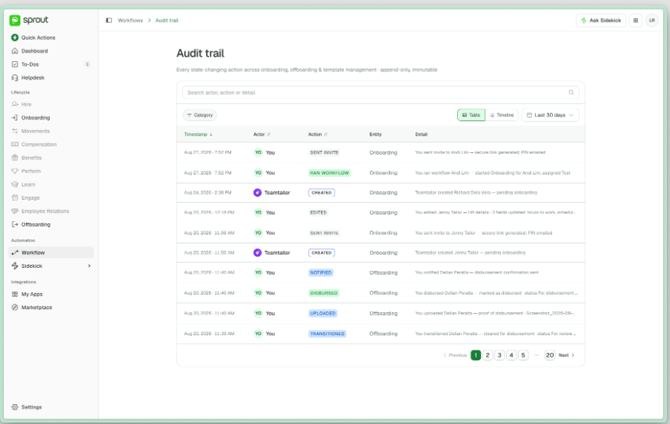
- Adjust the date range — it opens on the last 30 days.
- Switch between a table and a timeline, whichever reads better for what you're checking.
What This Doesn't Do
- It doesn't replace Sprout HR. Employee records, roles, and employment details are maintained there.
- It doesn't cover the lifecycle stages that are greyed out. Only onboarding and offboarding are currently live.
- You can't export the audit trail yourself. Ask Sprout Support and we'll produce it for you.
For anything not answered here, see the FAQ pages for each module.
Getting Help
Questions about your account, setup or what's available to you go to your Customer Success Manager or implementation contact. If something looks wrong, contact Sprout Support — telling us which employee or record it concerns saves a round trip.