
Break Monitoring gives you two flexible ways to track and manage employee break times:
- Attendance logs – automatically capture break activity from your existing records
- HR Web Dashboard Attendance Widget – manually start and end breaks directly from the dashboard
With Break Monitoring, you can generate detailed break reports showing each employee's daily breaks, total break duration, and any overbreak minutes.
Difference between the two methods:
-
Capturing Break Logs from Attendance Logs:
Works with any Sprout HR clock-in/out feature — biometric device, Web Bundy, Mobile Bundy, Geotag, or Geofence. The system automatically detects break sessions from consecutive attendance log pairs within an employee's shift, then computes break duration and overbreak minutes for payroll deduction based on your configured rules. -
Capturing Break Logs from Dashboard Attendance Widget:
Designed for companies that don't use biometric or digital clock-ins/outs for breaks. Employees manually log breaks via the coffee cup icon in the HR Hub Dashboard Attendance Widget by selecting Break Start or Break End.
Note: Automatic computation of break minutes and overbreaks is not yet supported for this method and is planned for a future enhancement.
NOTE: Only 1 Method to Start and End a Break (and related generation of report) can be enabled at a time which applies to all companies using the same Sprout HR URL.
Activation Process:
-
To activate Break Monitoring, submit a Change Request Form indicating your preferred method.
Note: If you choose Capturing Break Logs from Attendance Logs, an additional questionnaire must be completed as a prerequisite before activation.
For any questions or to confirm that your preferred system-configured rules have been correctly applied, reach out to your Customer Success Manager.
Capturing Break Logs from the Attendance Widget:
-
Log in to Sprout HRHub with authorized credentials.
-
Navigate to the Dashboard Attendance widget.
-
Locate the "Clock In/Out" button, which now includes a "Break" icon beside it.
-
Click on the "Break" icon to show a dropdown menu.
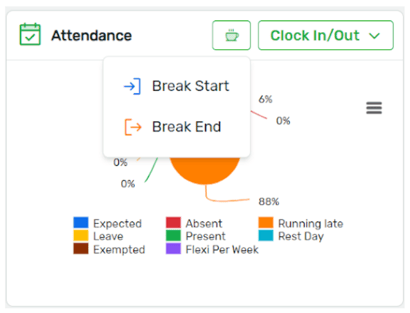
- Upon clicking the "break" icon, select either "Break Start" or "Break End" from the dropdown menu.
Click "Break Start" from the dropdown menu to initiate your break.
Click "Break End" from the dropdown menu when your break time is over.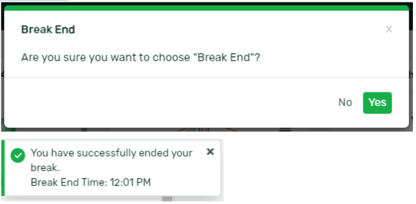
Capturing Break Logs from Attendance Logs:
-
Clock in or clock out using the timekeeping feature your company uses (either biometric device, web bundy, mobile bundy, geotag, or geofence).
Enabling of the Break Monitoring Report:
-
Click on to the Maintenance menu and select Access Levels from the dropdown.
-
Choose the user level for enabling/disabling Break Report Page access.
-
Click on the Navigation Access tab and locate the Break Monitoring Report in the list.
-
Tick the checkbox to enable/disable access to this page.
-
Apply changes using the “Save” button next to the Access Name field.
Generating Reports Based on Break Logs Captured from Attendance Logs
Step 1: The Break Monitoring Report Page
1.1 Navigate to the Administration Tools menu.
1.2 Select the Break Monitoring Report sub-menu and you will be redirected to that page.
Step 2: Generating the Report
2.1 Select the desired date range of your break report
2.2 Select the Company that you want to search for break sessions
2.3 Click the “Export to Excel” button. This will process your report and allow you to download the detailed report file once done.
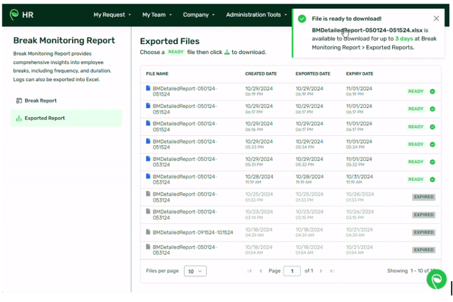
Step 3: Downloading the Detailed Break Report to Your Local Drive
3.1 Click on the Exported Report menu on the left side panel, and the export list page will show.
3.2 Locate the file you wish to save to your computer and click on the download icon located at the rightmost side. Ensure that the status of the file is "Ready".
3.3 A modal will display to confirm your action. Click “Yes, Download File” to proceed.
3.4 You will be notified once the downloaded file is successfully saved on your device.
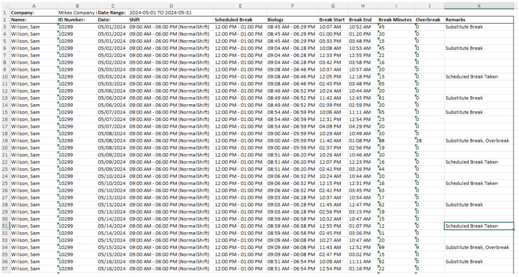
This is how the break report looks like. It shows all relevant information for each detected break session such as:
- Employee Name
- ID Number
- Date (of the breaks taken)
- Shift
- Scheduled Break
- Biologs
- Break Start
- Break End
- Break Minutes
- Overbreak
- Remarks
Generating Reports Based on Break Logs Captured from Dashboard Attendance Widget
Step 1: The Break Monitoring Report Page
1.1 Navigate to the Administration Tools menu.
1.2 Select the Break Monitoring Report sub-menu and you will be redirected to that page.
Step 2: Generating the Report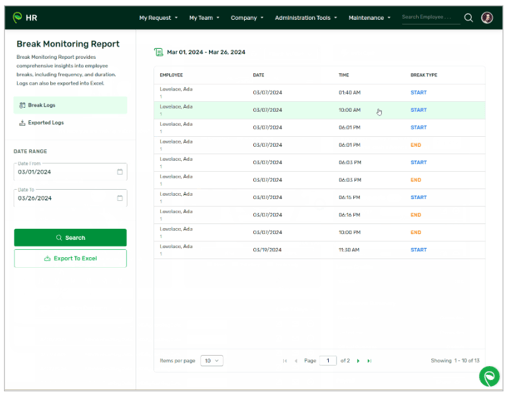
2.1 Select the desired date range and click on the “Search” button to display the break logs of the employees within your company.
2.2 Once you've specified the desired date range and clicked the “Search” button, find the "Export to Excel" button positioned just below the “Search” button.
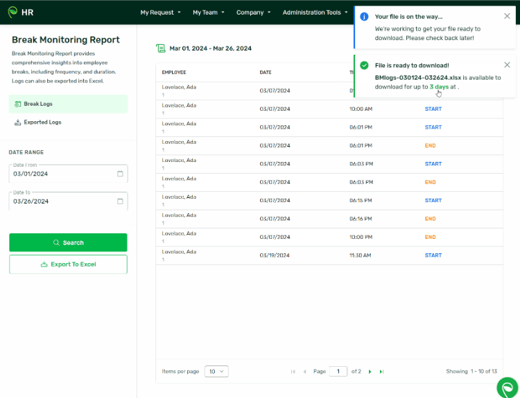
2.3 Click on the "Export to Excel" button. Notifications regarding the download status of the file will be displayed.
2.4 The system will then export the displayed break logs to an Excel file, containing all relevant details, accessible from the Exported Logs page.
Step 3: Downloading Break Log Reports to Your Local Drive
3.1 Click on the Exported Logs menu on the left side panel, and the export list page will show.
3.2 Locate the file you wish to save to your computer and click on the download icon located at the rightmost side. Ensure that the status of the file is "Ready".
3.3 A modal will display to confirm your action. Click “Yes, Download File” to proceed.
3.4 You will be notified once the downloaded file is successfully saved on your device.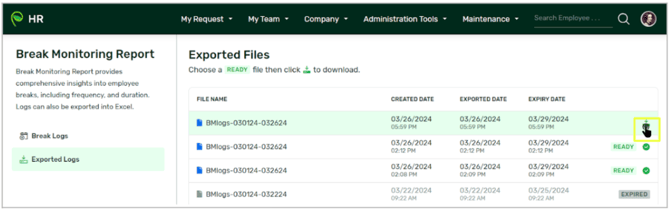
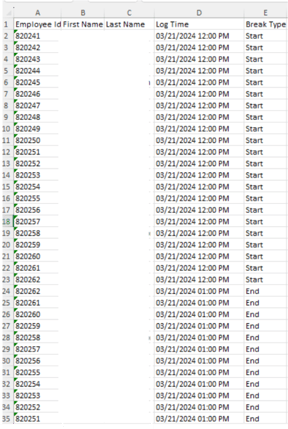
This is what it looks like for larger lists of break logs:
Want real-time responses? Explore Sidekick, your 24/7 guide for product inquiries!