
Getting Started
Where do we go to log in?
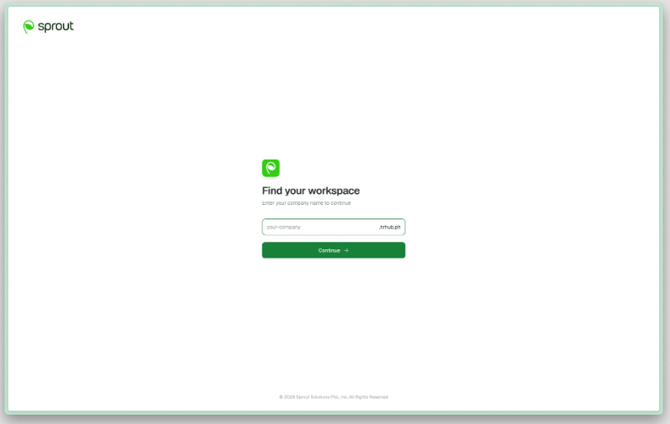
Go to **https://app.sprout.ph/** — worth bookmarking, and worth sending round your team, since it replaces whichever link people have saved today.
You'll be asked for two things.
- Your company name. This is the short name at the start of your Sprout web address — the part before the first dot. If your address begins with acme, type acme. Capitals and spaces don't matter. Choose Continue.
- Your username or email, and your password — the same ones you already use for Sprout. Choose Log in.
Your company name is remembered on that browser, so next time you'll only need the second step. If you log out deliberately, you'll be asked for it again. Forgotten your password? Use Forgot Password? on the second screen.
It says "No workspace found" when we type our company name.
Use the short name from your Sprout address, not your full company name — acme, not "Acme Corporation Inc." If it still won't match, your HR administrator can confirm the exact address.
What is Command Centre?
Command Centre is where you run an employee's whole time with your company — from joining to leaving. Each stage happens in one place instead of across email threads, spreadsheets and separate forms, with a record of who did what and what's still outstanding. Today that means a dashboard showing where things stand, Onboarding and Offboarding, a To-Dos list for anything assigned to you, and a Marketplace for the rest of what Sprout offers.
Do we need Sprout HR to use Command Centre?
Yes. Command Centre works on top of Sprout HR — it draws on your employee information and your people's existing access — so it is available to accounts that have Sprout HR.
How do our people get in? Do we create new accounts?
No. Your people are already in it. Everyone signs in with their Sprout HR details, and what they can do here is what they can do there — your Sprout HR administrators are Command Centre administrators. To add someone or change what they can do, make the change in Sprout HR.
We changed someone's role in Sprout HR. Do we need to change it in Command Centre too?
No. Sprout HR stays your single source of truth for who can get in and at what level, and Command Centre follows it.
Is everything switched on for us from day one?
Command Centre itself, yes. Marketplace apps are separate — you avail of those individually. Build your templates first: onboarding needs a document checklist; offboarding needs a clearance checklist, exit interview form and quitclaim document. They live under Workflows, and each module needs its own before you can start.
Finding Your Way Around
Some items in the menu are greyed out. Is something broken?
No. Command Centre covers an employee's whole time with you, and the menu shows every stage — including the ones still to come.
Available now: Onboarding, for bringing new hires in, and Offboarding, for managing exits.
Coming soon: Hire, Movements, Compensation, Benefits, Perform, Learn, Engage, and Employee Relations.
Why does my colleague see a different menu than I do?
The menu is tailored to your role. A department head who is only in Command Centre to complete clearance tasks sees their To-Dos rather than the full administrator view. This is intentional — it isn't a permissions error.
We have more than one company. How do we switch between them?
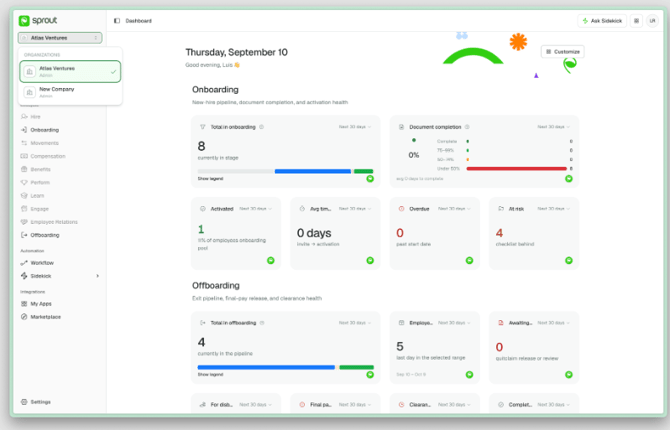
Use the company switcher at the top of the left-hand menu — it shows whichever company you're in, and everything you see (dashboard, lists, counts, To-Dos) follows the company selected. If someone can't find a record they know exists, they're usually looking at the wrong company.
Where do I see what has been assigned to me?
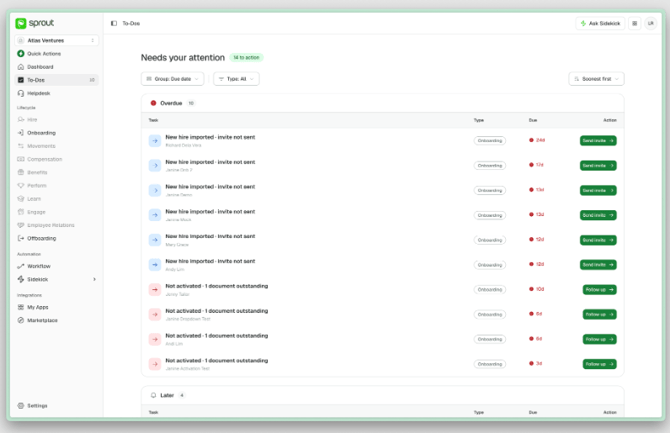
On the To-Dos page, near the top of the menu. Everything waiting on you across onboarding and offboarding gathers there. See the To-Dos FAQ for more.
Your Dashboard
What does the dashboard show?
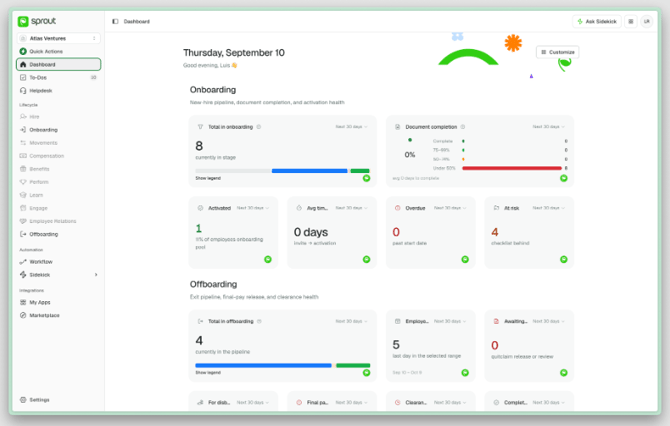
A snapshot of your workforce activity — including what's happening in onboarding and offboarding — so you can see where things stand without opening each module.
Can we change what's on it?
Yes.
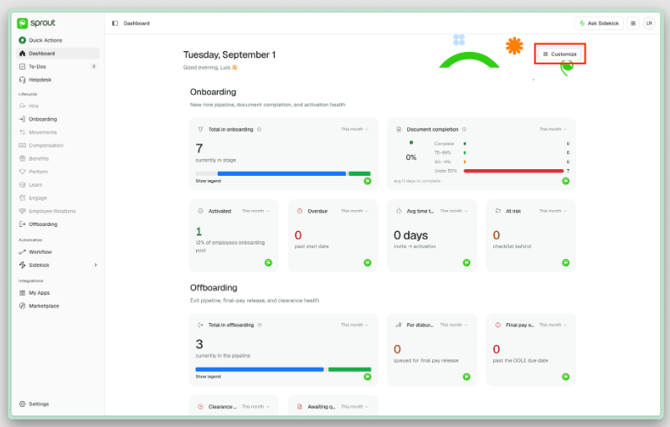
- On the Dashboard, choose Customize.
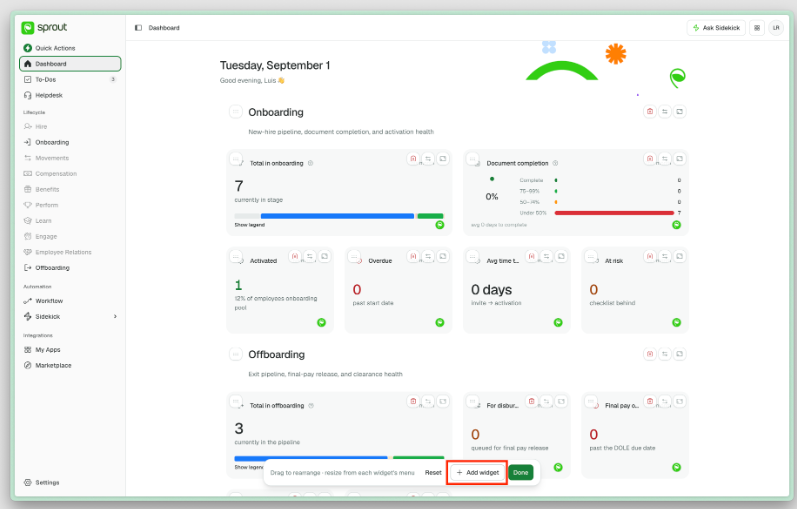
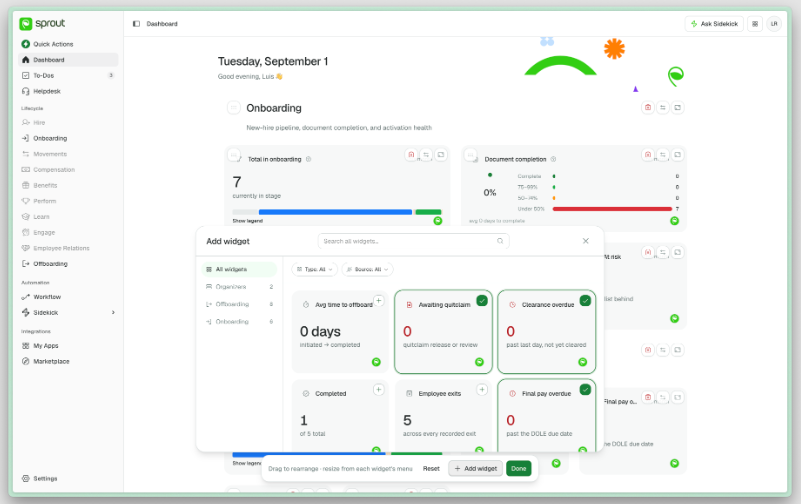
- Choose Add widget to open the widget library, and pick the tiles you want.
- Drag tiles to rearrange them. Add headers and dividers to group them into sections.
- Choose Done to save.
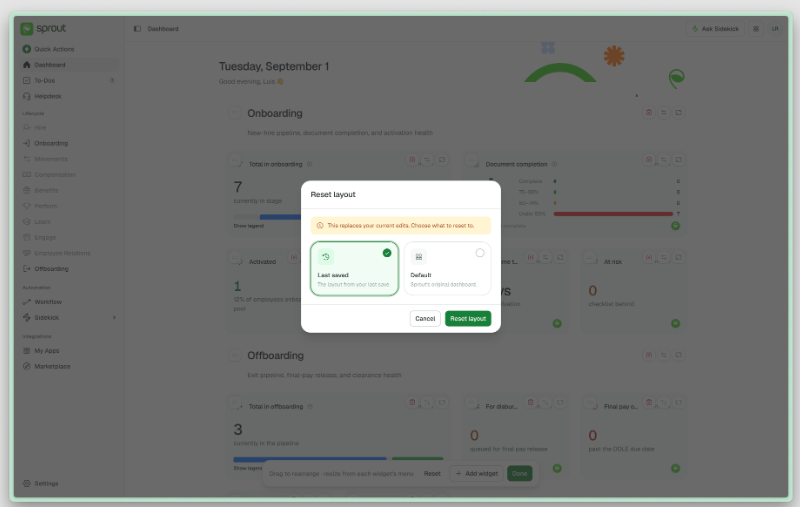
Can we undo a layout we don't like?
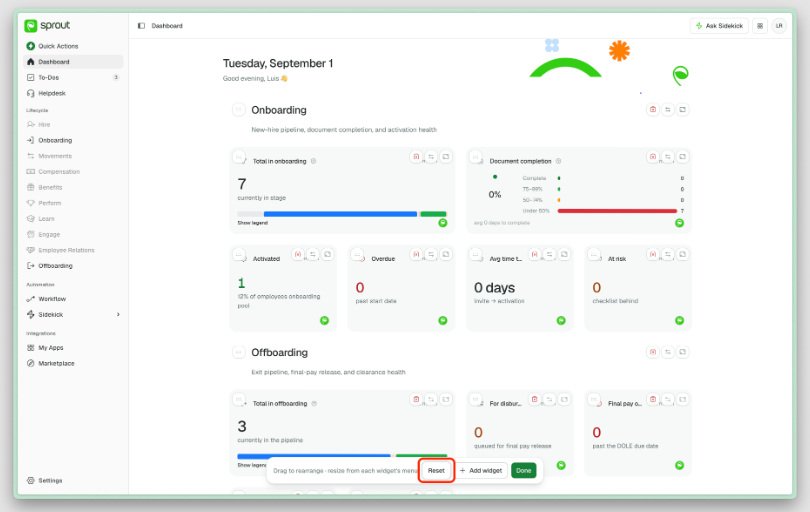
Yes. While customising, Reset offers two choices: go back to your last saved layout, or return to the Sprout default.
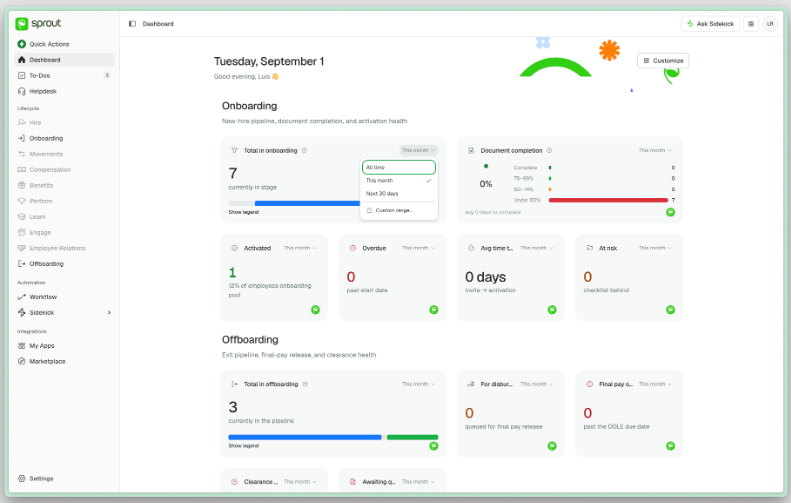
Do metric tiles cover a fixed period?
No — tiles with a date range have their own filter, so you can change the period you're looking at.
Your Profile and Settings
Where do I change my name, email, or mobile number?
In Sprout HR, not here. My Profile shows these details but doesn't let you edit them, because Sprout HR is where they're maintained. Ask your HR administrator if any of them is wrong.
Is there anything I can change on my profile?
Your photo. Click your avatar on My Profile to upload one — it appears across Sprout.
What's on the Settings page?
Roles — the list of people with access to your workspace and the level each one holds. It's there so you can check who has what at a glance. Changes are made in Sprout HR.
Keeping a Record
Is there a record of who did what?
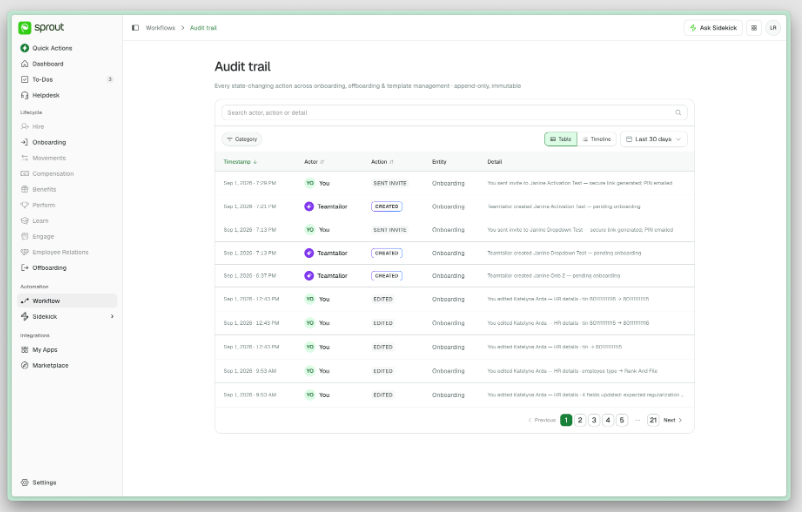
Yes. Under Automation → Workflow there's an Audit trail showing activity across your workflows — who did something, what they did, and when.
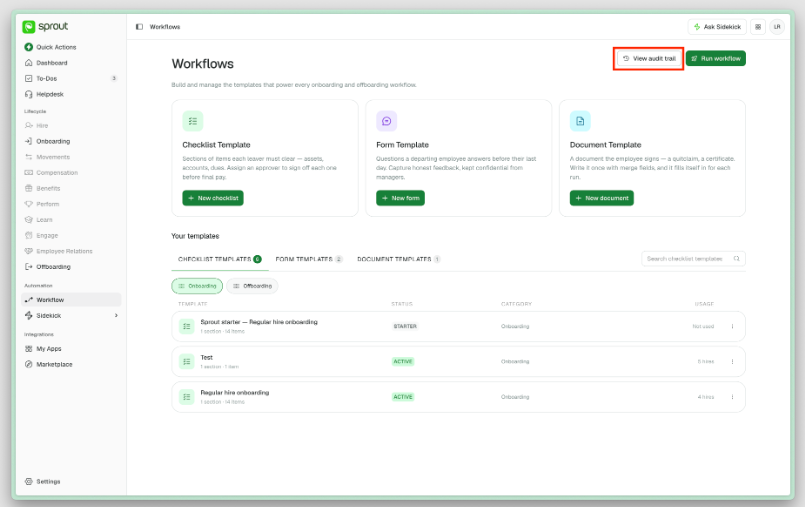
You can search by person, action, or detail, filter by category, change the date range, and view it as a table or as a timeline. Actions taken automatically are marked as such, so you can tell them apart from a person's.
Can we export the audit trail?
No. If you need a formal export — for an investigation or a dispute — contact Sprout Support and we'll produce it for you.
Getting Help
- Questions about your account, setup, or what's available to you — your Customer Success Manager or implementation contact.
- Something looks wrong — Sprout Support. Telling us which employee or record it relates to helps a lot.
- Something you wish it did — tell your Customer Success Manager. Requests from named accounts carry real weight in what we build next.
Want real-time responses? Explore Sidekick, your 24/7 guide for product inquiries!