
You use your normal Sprout HR credentials — there's no separate login for this. Access is scoped to your own section only; every other section on the record is read-only to you.
- Get notified. In parallel mode you receive both a CC To-Do task and an email as soon as the departure record is created with you assigned. In sequential mode — where sections must clear in order — you instead get a section-unlock email once every preceding section (owned by someone else) is fully cleared; there's no CC To-Do until then. If you own two or more sections back-to-back in the sequence, your own sections don't gate on each other — only the nearest preceding section owned by a different assignee has to clear first.
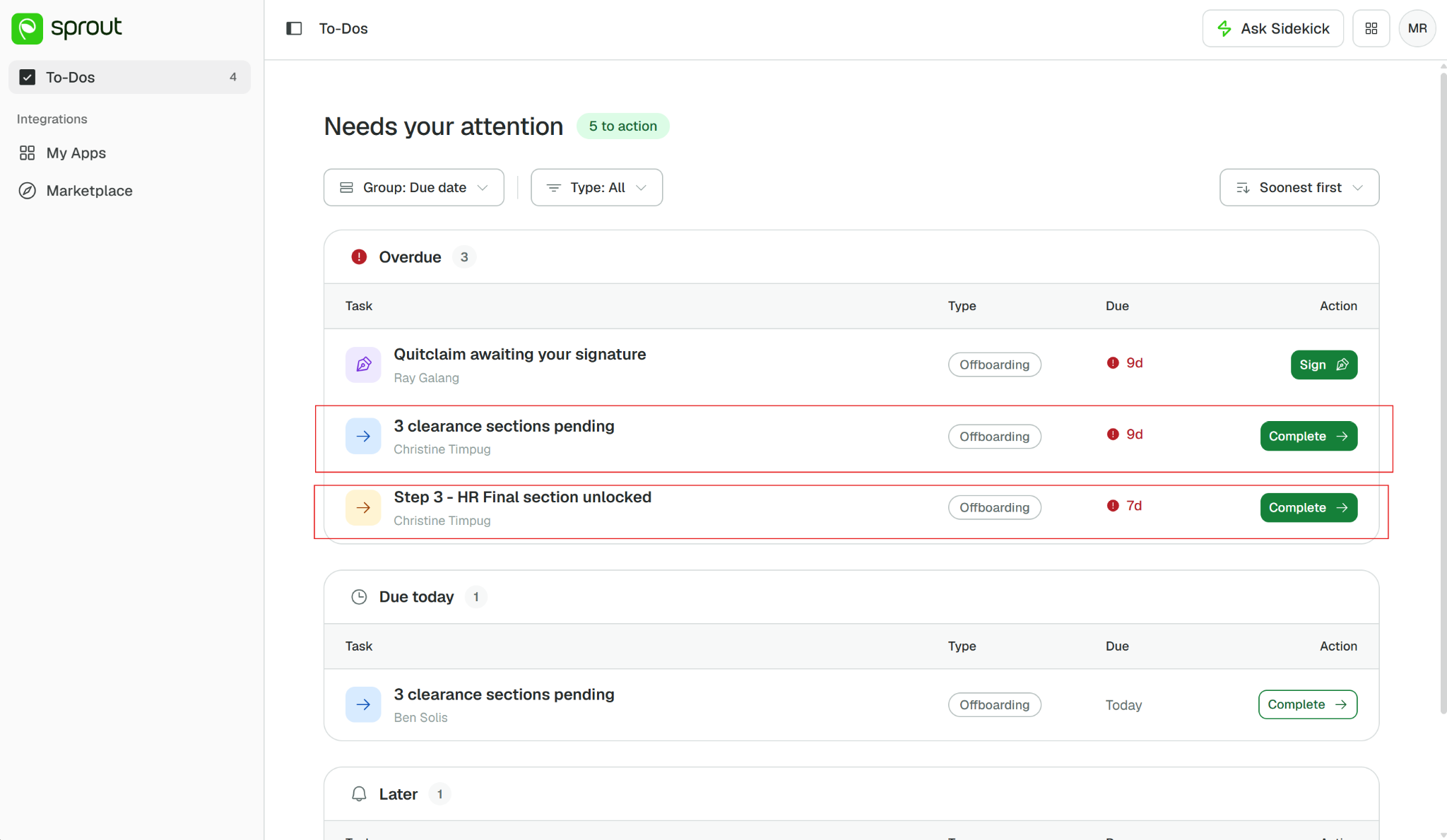
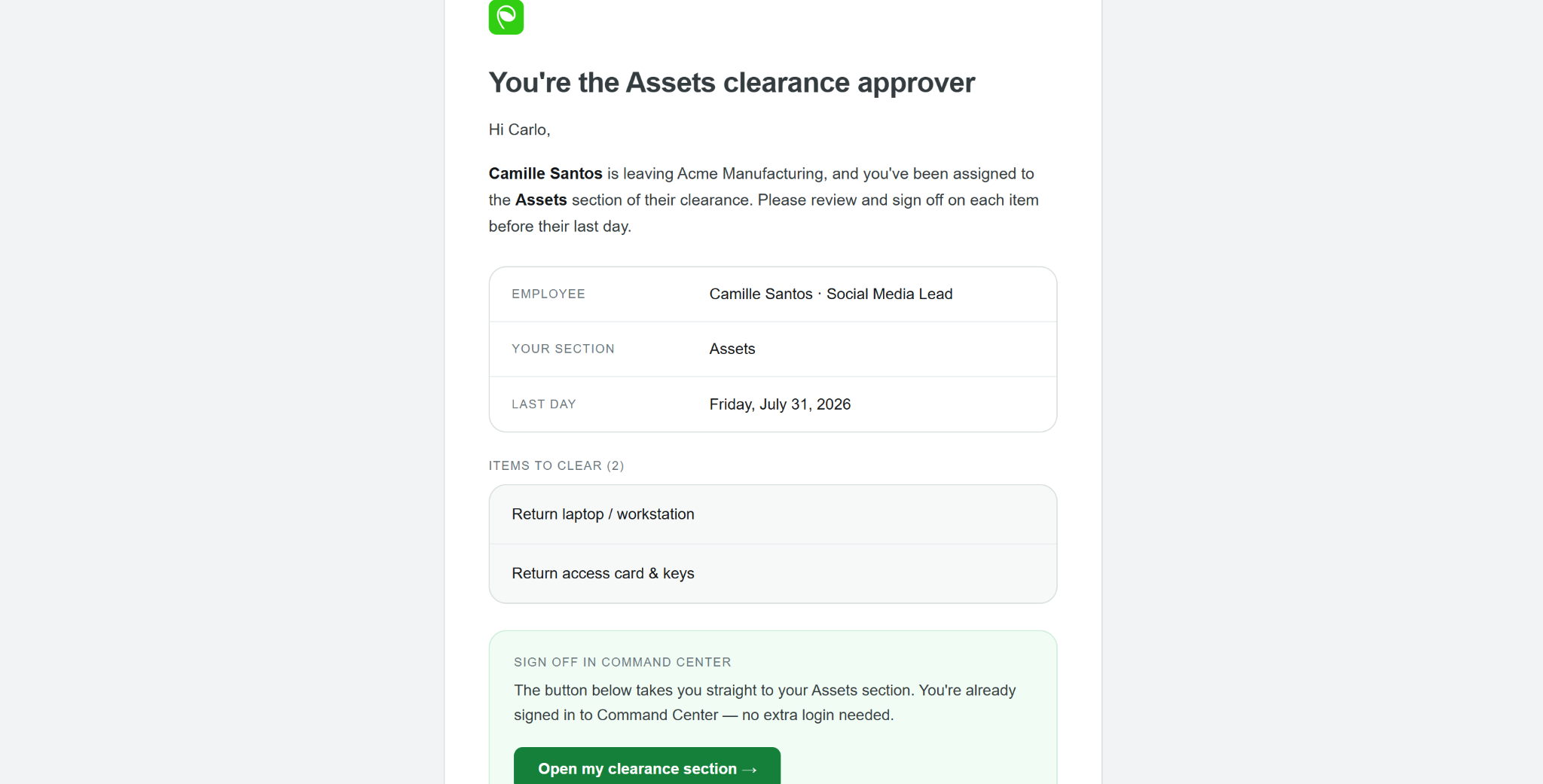
- Open your section. Use the link in the CC To-Do task or the notification email — it takes you directly to your assigned section, authenticated with your Sprout HR login. The page also shows the whole record, not just your part: a Clearance status summary at the top counts how many sections are cleared, and each section below it carries its own state and assignee name — so you can see where the record stands even though you can only act on your own sections. A running counter at the bottom of the page tracks how many items you have checked across your sections, alongside the Mark as cleared action.
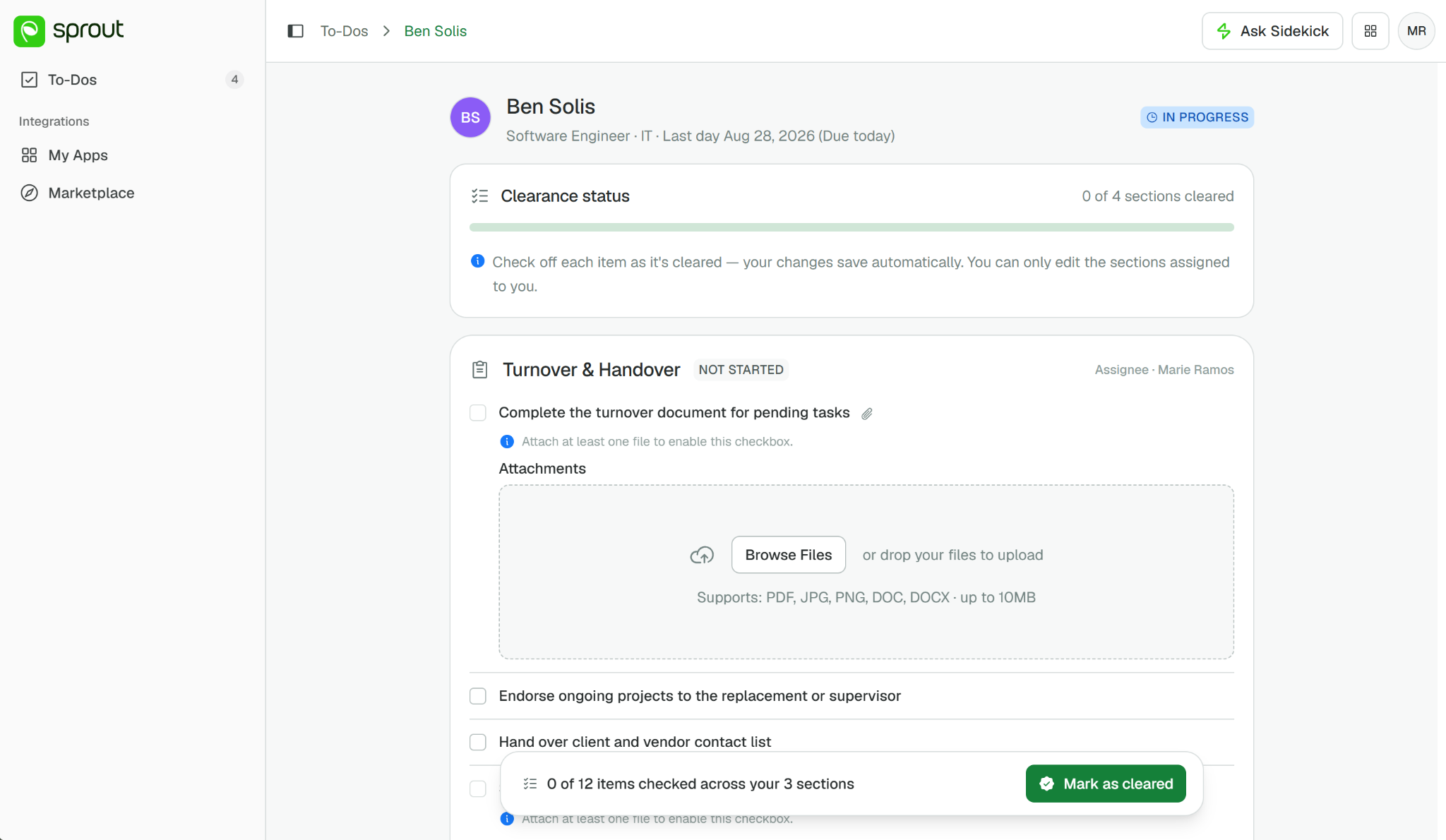
- Complete each item. Check off items as you finish them and upload any required documents — an item requiring an attachment stays unchecked until you upload it. Checking items is a staged change, and there is no Save — Mark as cleared is the only way to commit, and it signs off every section you own that is now fully checked, all at once, after a confirmation listing exactly which sections that covers. A section therefore has to be fully checked before you can clear it.
Your ticks do survive navigating away — switching tabs or moving around the product is safe — but they are lost if your session ends and you are logged out, which does happen. Work through a section in one sitting rather than leaving it part-completed for a long stretch.
- Once a section is signed off, it becomes read-only — even to you. If it turns out something needs to be reopened after the fact, only the HR Admin can do that; there's no self-service undo. Every completed item is stamped "Cleared by [your name] · [timestamp]," visible to you, the HR Admin, and the departing employee.
If something goes wrong:
- You never got notified at all: first confirm with your HR Admin that you're actually configured as the assignee on the record (they can see this inline on the Details tab). If you are, and you're in parallel mode, you should have gotten both a CC To-Do and an email on record creation — check spam for the email. In sequential mode, confirm every section ahead of yours has actually cleared first.
- You were notified but haven't acted yet: there's no follow-up reminder coming — that's expected, not a bug. Rely on your CC To-Do item as the persistent signal.
- You were assigned by mistake, or you've since left the company: there's no self-service way to reassign yourself — tell your HR Admin, who can complete the section for you. No Support ticket needed.
The HR Admin can also see and complete items in your section on your behalf — in that case, the completed item shows their name (not yours) as the actor.
Where to Get Help
- HR Admin: Contact your Customer Success Manager for setup questions, or Sprout Support for anything that looks like a defect rather than expected behavior described above.
- Section Assignee: Contact your company's HR Admin first — they can resend notifications, check your section assignment, or escalate to Sprout Support on your behalf.
- Departing Employee: Contact your former employer's HR Admin — they can resend your portal link/PIN or escalate to Sprout Support. You won't have access to Sprout Support directly.
Got a question or need extra help? Sidekick makes it easy — get answers, raise a ticket, or schedule a call with our experts, all in one place.