
You don't use your Sprout HR login for this — it may already be deactivated by the time you complete these steps. Instead, you access everything through a personal portal link.
- Find your portal access. When your departure record is created, a magic link and a PIN are sent to your personal email — not your work email. You need both: the link takes you to your portal and the PIN is how you sign in. The PIN is not a spare key for a lost link, so keep the whole message. If the link stops working, ask your former employer's HR Admin to resend it — they can do this directly from the record, and a resend replaces the link and the PIN together, so use the newest email.
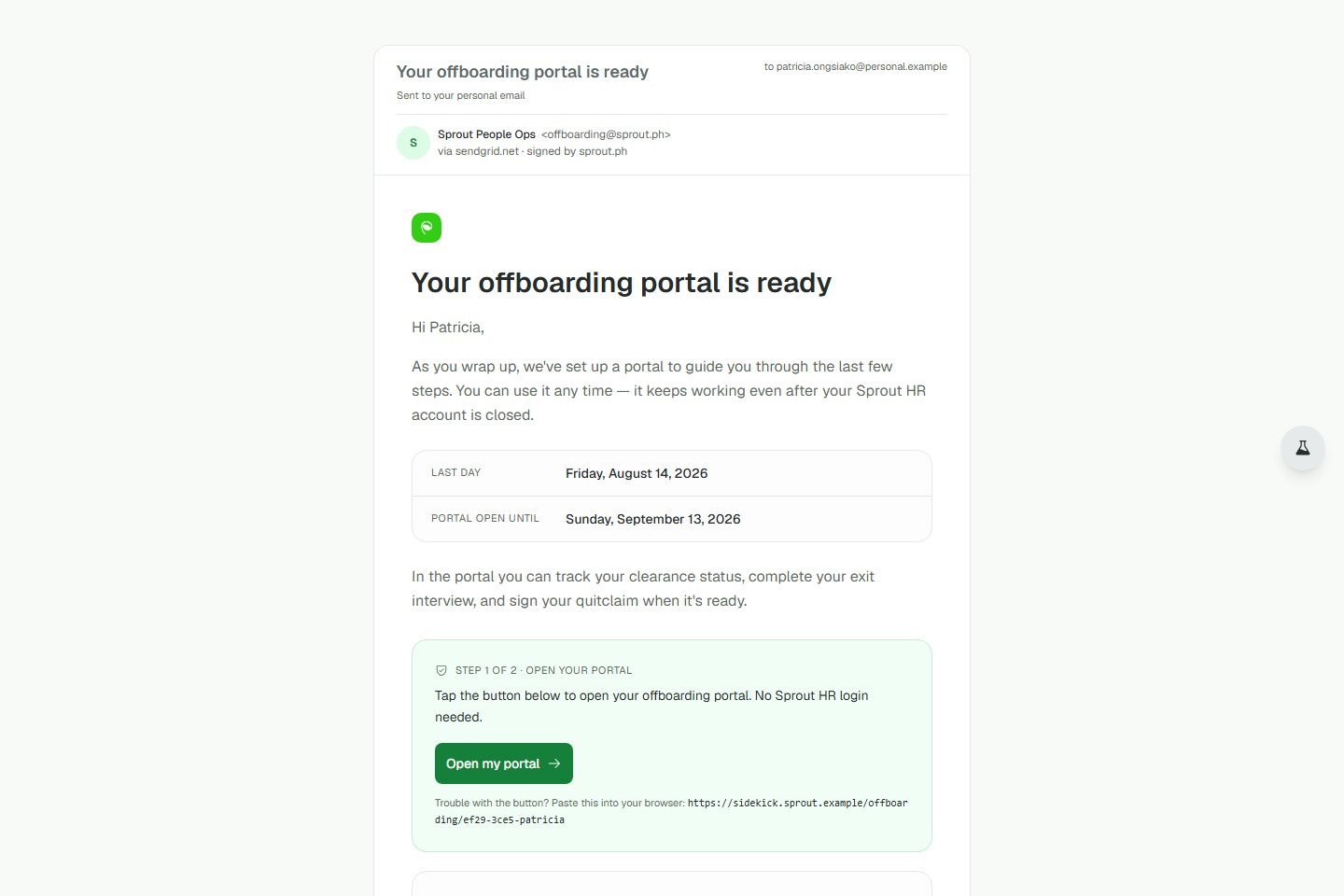
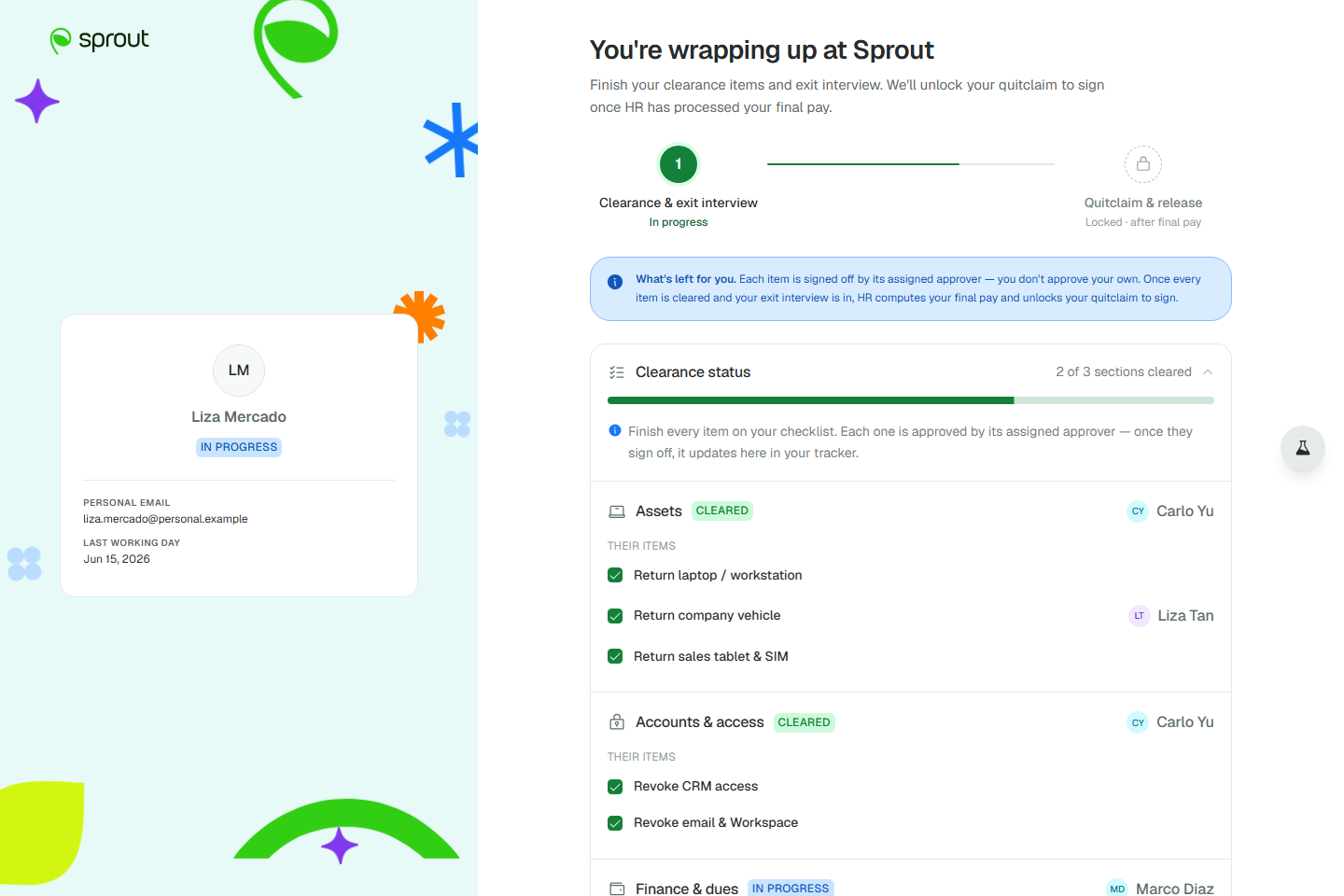
- Track your clearance progress. The portal's first tab shows the status of every clearance section and your quitclaim — you can check this at any time, and it stays accessible even after your Sprout HR account is fully deactivated. It stays open through the whole process, including after you sign: you keep access while HR reviews and confirms your quitclaim, while your final pay is being released, and after your record is marked Completed — completion does not cut off your link. If your link ever does stop working, ask your former HR Admin to resend it. Before your quitclaim is ready, this tab shows a locked preview with a note that no printing or scanning will be needed when the time comes.
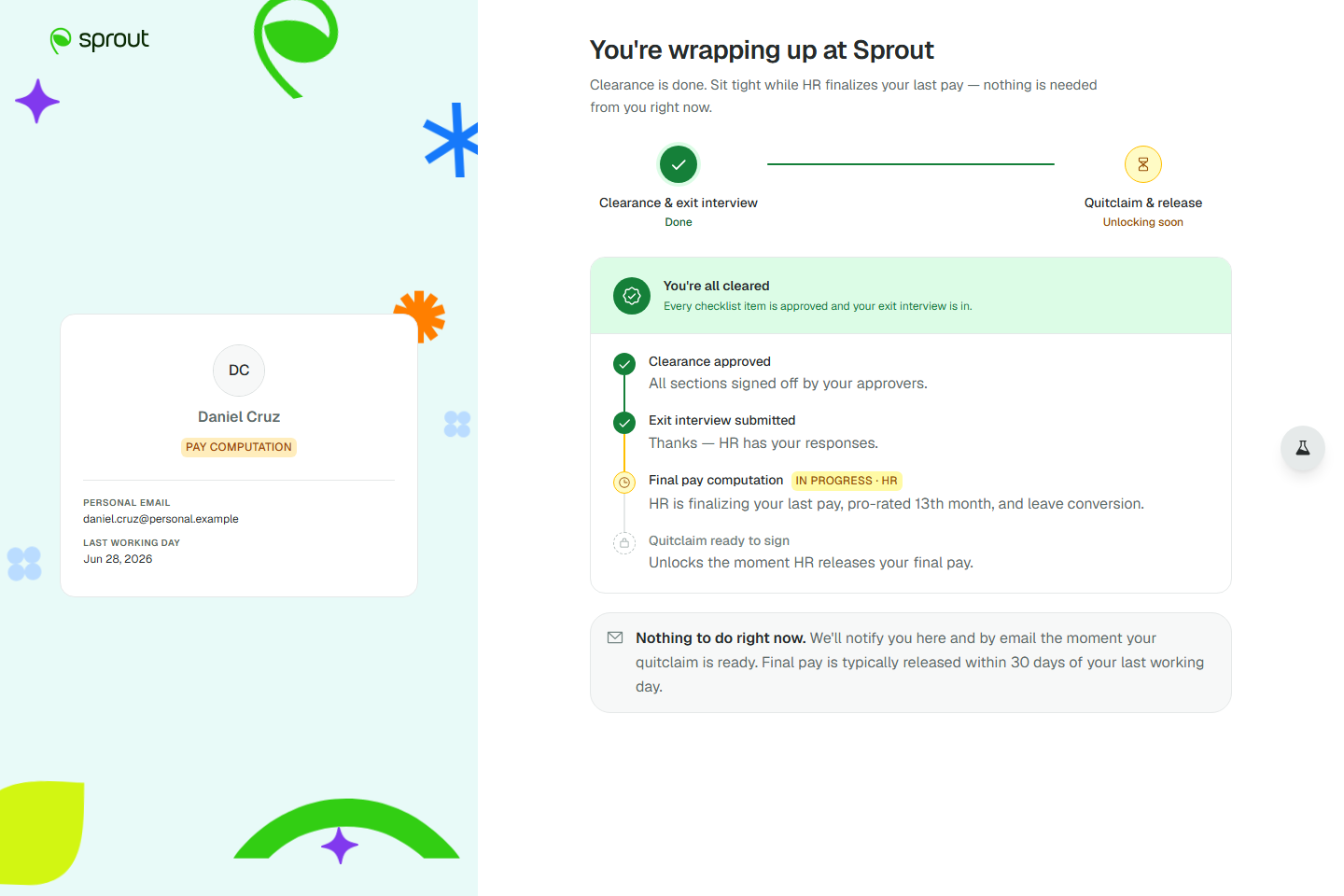
- Watch for the "you're all cleared" stage. Once every section is cleared (and your exit interview is submitted, if one is required), the portal shows a confirmation card and a step tracker while HR finalizes your pay — you'll be notified here and by email the moment your quitclaim document is actually ready to sign. This is a one-time notification tied to your specific record reaching that point, not a recurring reminder.
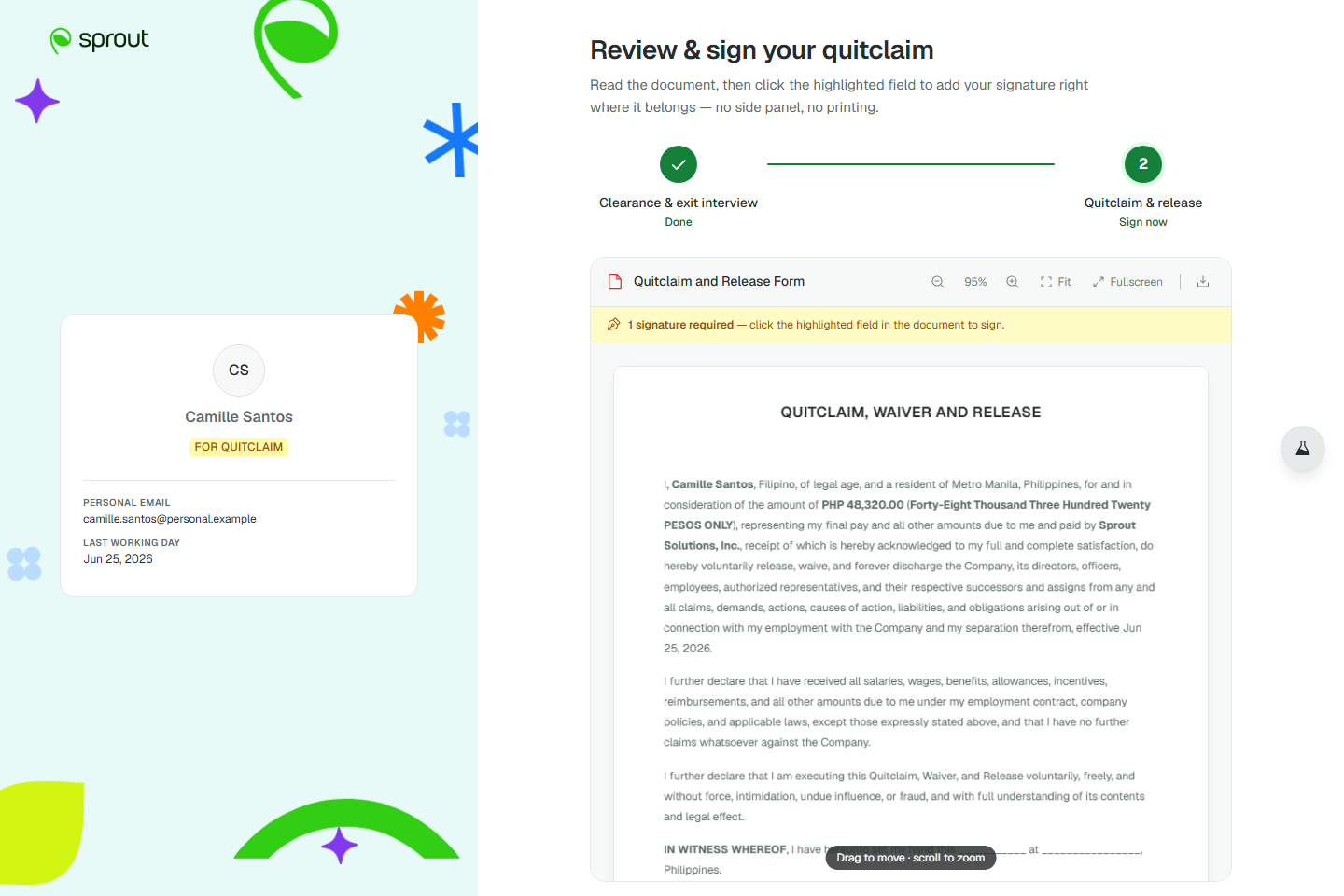
- Sign your quitclaim when it's ready. You'll get a document viewer you can pan and zoom, with your signature field highlighted (a fullscreen mode is available too) and three ways to sign — type it in a script font, draw it freehand, or upload an image of your signature. Review carefully before submitting: once you tap Submit to HR, the signature is final and can't be edited or redone. If a company signatory hasn't signed yet, you'll see their part of the document marked "Awaiting company signatory" rather than blank.
- If asked to re-sign: an HR Admin can request a re-sign for any reason they judge necessary — you'll see a banner with their stated reason, your previous signature is cleared (not kept), and you sign again from scratch through the same portal flow. This isn't an error; it's expected behavior.
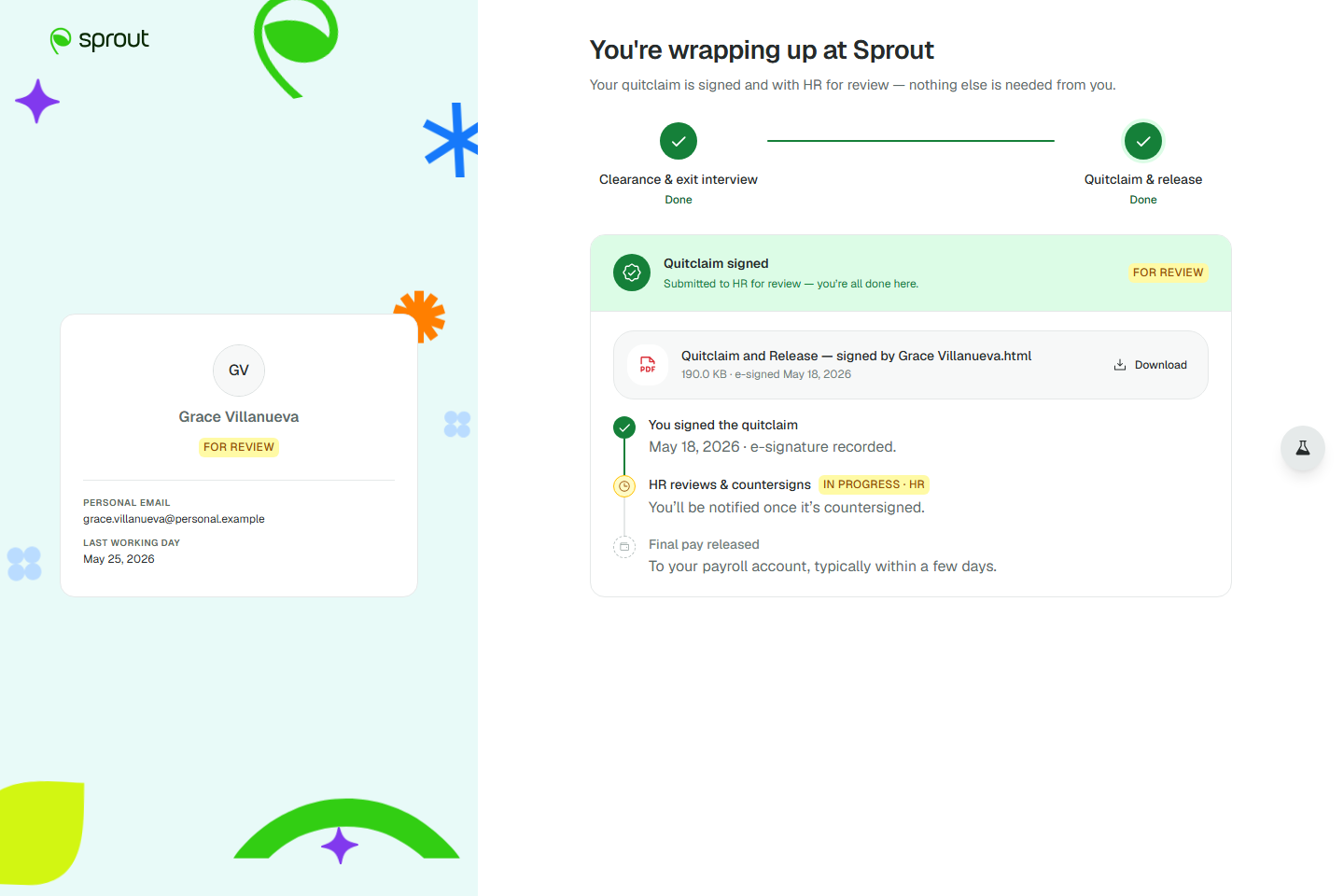
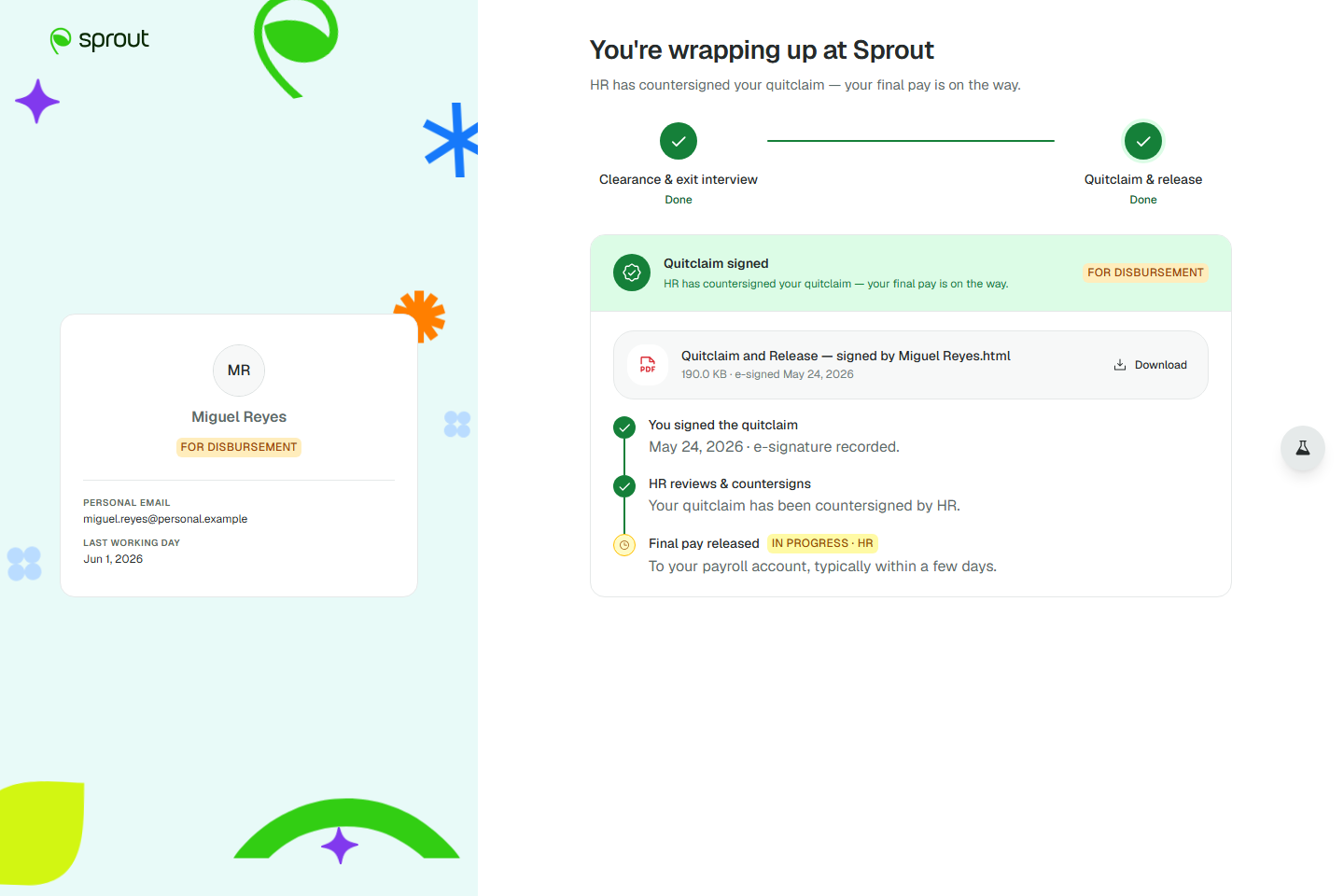
- Download your copy. As soon as your quitclaim is submitted you can download it from the portal. Once the HR Admin has reviewed and confirmed it (your record moves to For Disbursement), a "Download confirmed quitclaim" option appears. It is the same document — what changes is that HR has now verified it — so that is the copy to keep for your records. The quitclaim carries two signatures: the company's (signed by your HR Admin, or by a Company Signatory they delegated it to) and yours; HR confirming it is a review step, not a third signature. Both downloads stay available after your record is marked Completed, so there is no deadline to beat — though it is worth saving your own copy rather than relying on the portal indefinitely.
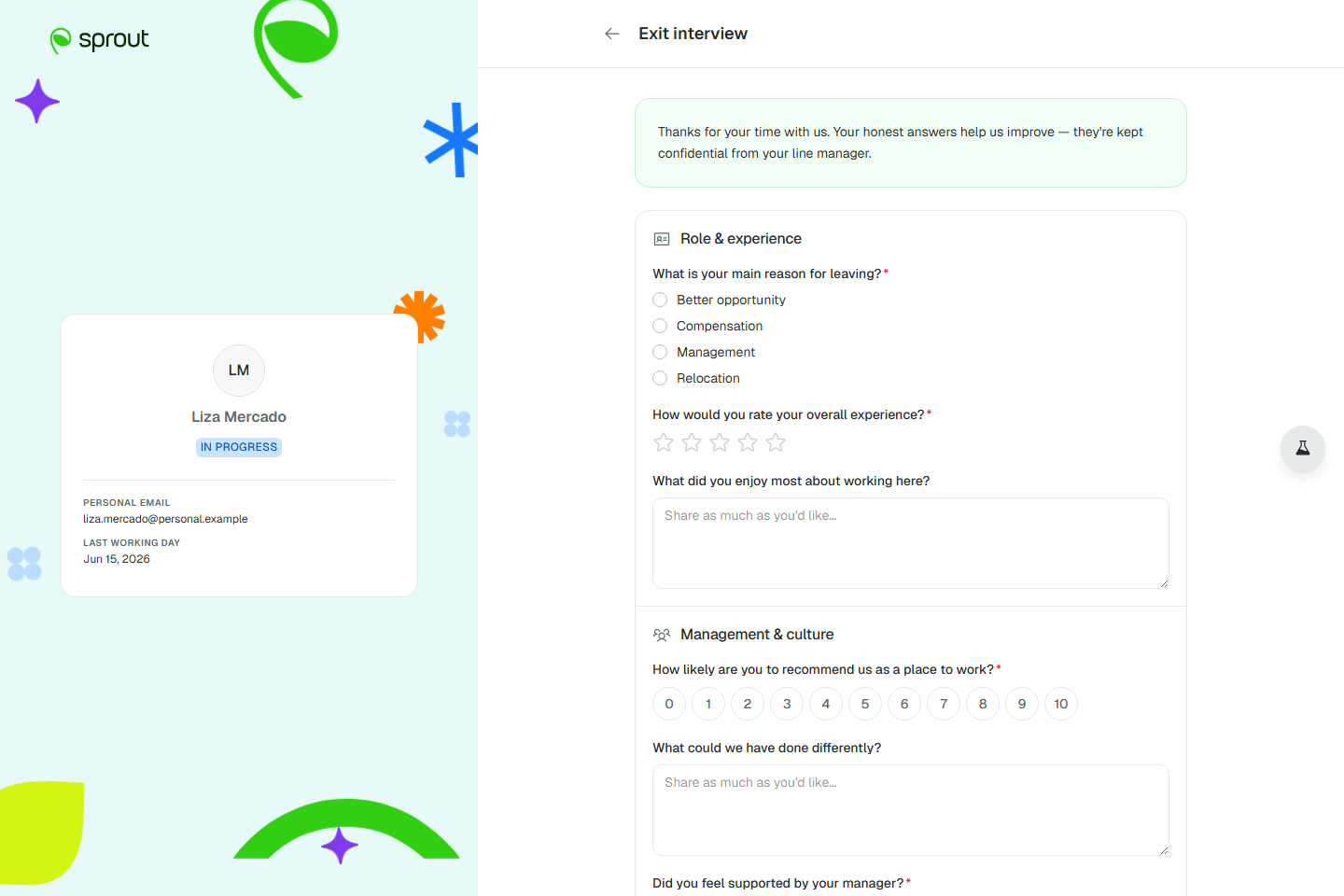
- Complete your exit interview. The exit interview sits in its own section near the bottom of your portal, below your clearance progress. Set aside time to finish it in one sitting — there is no draft and no Save button, so nothing is kept until you submit. Submitting is also final: you'll get a confirmation prompt ("Keep editing" backs out) before your answers lock in, and you cannot reopen them afterwards. Questions appear in a fixed, single sequence — there's no branching or skipping based on earlier answers, so expect to see every question regardless of how you answered previous ones. Required questions you skip are flagged only after you try to submit; optional ones you skip just show as blank in the record.
If something goes wrong:
- You can't log in to check your status: you're not meant to use your Sprout HR login for this at all — use the magic link or PIN from your personal email instead. If your former HR Admin resends it and it still doesn't work, ask them to escalate to Sprout Support with your record ID.
- A quitclaim you already signed shows as rejected: this means the HR Admin asked for a re-sign for a reason of their own judgment, not that something went wrong — see step 5 above.
- You got an email from someone other than your former employer asking you to sign something: if it's about your quitclaim, that's likely the Company Signatory the HR Admin delegated — this is expected, not a phishing attempt, though you can always confirm with your former HR Admin if unsure.
There are no reminder emails for your clearance status or your exit interview (the one-time notification in step 3 is tied to a specific status change, not a recurring reminder) — the portal is your persistent access point, so check back on your own schedule.
Record Status Reference
Every departure record moves through the following statuses, in order (one is conditional and may be skipped):
|
Status |
What moves it here |
What moves it forward |
Who can act while it's here |
|
In Progress |
Record created via Start offboarding |
Every section signed off |
HR Admin (full edit); Section Assignees (own section only); Employee (portal: read-only progress, exit interview if applicable) |
|
Awaiting Exit Interview (conditional — skipped entirely if the record has no exit interview form) |
All clearance sections signed off, but the exit interview hasn't been submitted yet and is required |
Employee submits the exit interview |
Employee (submits exit interview); everyone else: view-only |
|
For Final Pay Computation |
Clearance complete (and exit interview submitted, if required) |
HR Admin opens Move to Quitclaim Release and confirms |
HR Admin only; Employee sees a "you're all cleared" waiting screen |
|
For Quitclaim Release |
HR Admin releases the quitclaim (directly, or after Company Signatory/HR Admin signs, depending on template settings) |
Employee submits their e-signature |
Employee (signs); HR Admin (view/monitor) |
|
For Review |
Employee's signature submitted |
HR Admin confirms (→ For Disbursement) or requests a re-sign (→ back to For Quitclaim Release) |
HR Admin acts; Employee keeps read-only portal access (signed card + two-party download) |
|
For Disbursement |
HR Admin confirms the quitclaim |
HR Admin uploads proof of disbursement ("Mark as Disbursed") |
HR Admin acts; Employee keeps read-only portal access — the portal shows "HR has countersigned your quitclaim — your final pay is on the way" and the Download confirmed quitclaim button |
|
Completed |
Proof of disbursement confirmed |
— (terminal) |
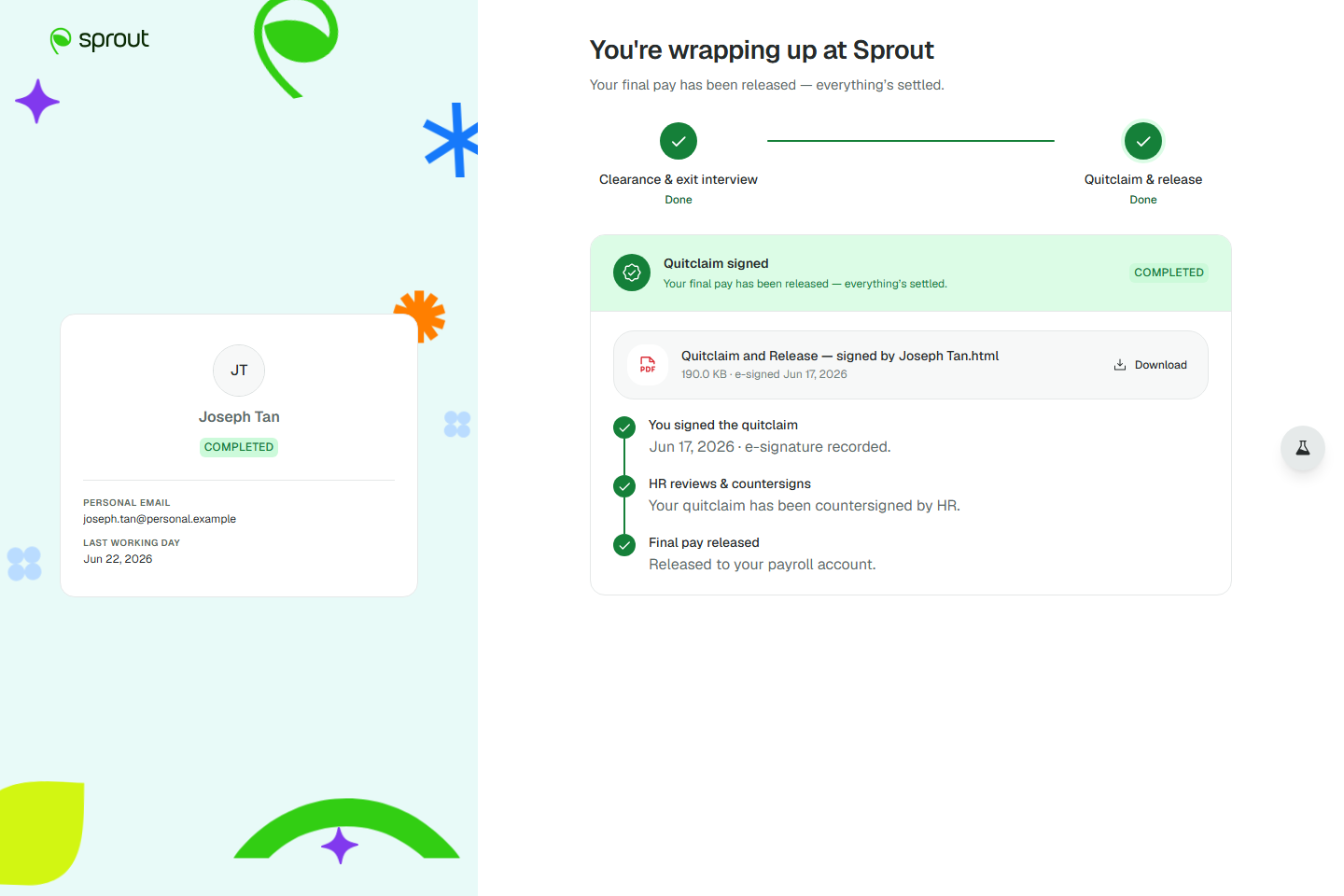
View-only for the HR Admin. The employee keeps read-only portal access — the portal shows the settled state (all three timeline steps done) and the confirmed-quitclaim download stays available; a completion confirmation email goes to the employee with proof of disbursement attached |
Employee portal access window. The departing employee's portal stays open through every status, including after the record is marked Completed — signing the quitclaim does not close it, and neither does the HR Admin recording final-pay disbursement. At Completed the portal shows the settled state (all three timeline steps done) and the confirmed-quitclaim download remains available. Nothing in the process revokes portal access on a status change; a link can still stop working for the ordinary reasons (the HR Admin resends it, which replaces the old link and PIN, or the link reaches its own expiry), in which case the HR Admin can resend.
Key Configuration Options (HR Admin)
|
Option |
What It Controls |
|
Lifecycle category on a template |
Must be set (Hire/Onboarding/Movements/Compensation/Offboarding) before a template can be published |
|
Per-item required/optional toggle |
Controls whether a clearance item blocks progress; template-level only, no record-level override |
|
Inter-section sequential clearance |
When enabled, locks a section for assignees until the preceding section (owned by a different assignee) is fully cleared; you retain full access regardless |
|
Exit interview mode |
Controls whether the record gates on exit-interview submission before advancing to Final Pay Computation |
|
Company Signatory (per quitclaim template) |
Controls whether a delegated signatory signs before the employee, and whether the HR Admin can sign inline ("Sign now") or must assign it out |
Where to Get Help
- HR Admin: Contact your Customer Success Manager for setup questions, or Sprout Support for anything that looks like a defect rather than expected behavior described above.
- Section Assignee: Contact your company's HR Admin first — they can resend notifications, check your section assignment, or escalate to Sprout Support on your behalf.
- Departing Employee: Contact your former employer's HR Admin — they can resend your portal link/PIN or escalate to Sprout Support. You won't have access to Sprout Support directly.
Got a question or need extra help? Sidekick makes it easy — get answers, raise a ticket, or schedule a call with our experts, all in one place.