
What has to be in place before we can activate someone?
Three things:
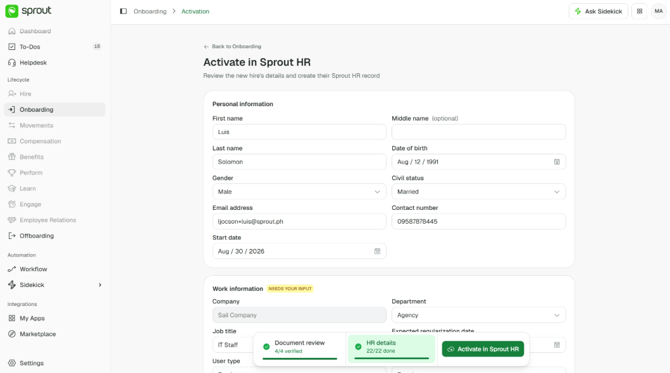
- The new hire's accepted data privacy notice — so they need to have opened their link at least once
- Your HR details for them
- Every required document either verified or waived
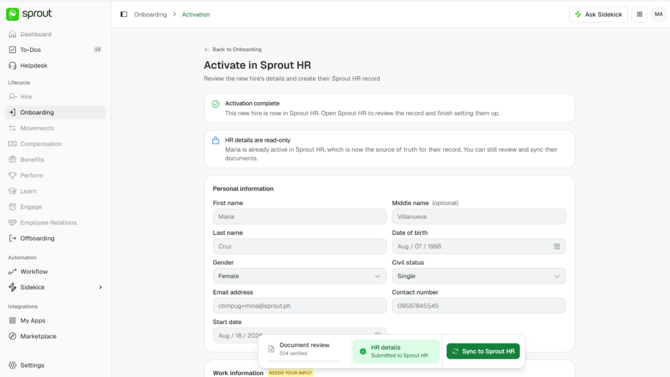
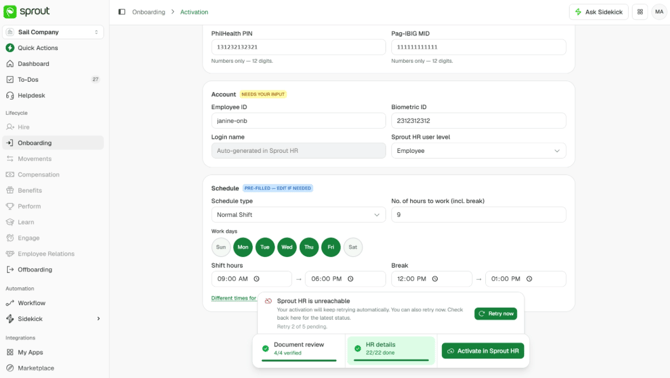
The activation screen gathers the HR details in groups — work information (job title, department, employment status, employee type, tax status, immediate supervisor, work location, expected regularisation date), account (employee ID, biometric ID, Sprout HR user level), and their schedule. Where your Sprout HR and Sprout Payroll are connected there's a Payroll setup group as well, and those fields count towards your HR details like any other.
You can fill these in at any point, alongside reviewing documents, rather than waiting until the end. Some arrive already set: the department you chose when inviting them, a standard Normal Shift schedule you can adjust, and the login name, which Sprout HR generates itself.
Do all the documents have to be verified before we activate?
Every required document needs a decision — but that decision can be Waive. So for someone starting before their papers are all in, waive what hasn't arrived and you can activate; you don't have to wait for the documents themselves.
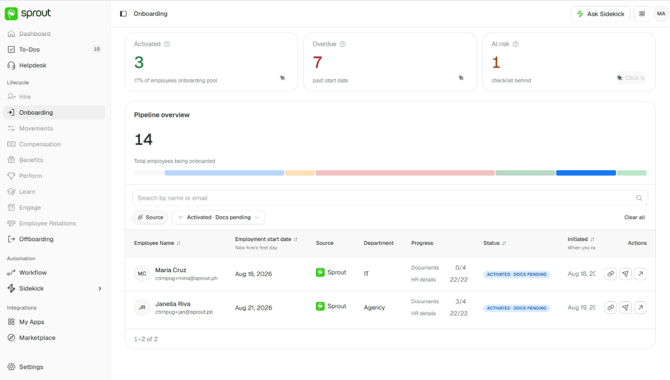
Anyone you activate with a document waived sits as Activated · Docs pending, which you can filter for on the onboarding list. The row clears to plain Activated once that last document arrives, is verified, and is synced.
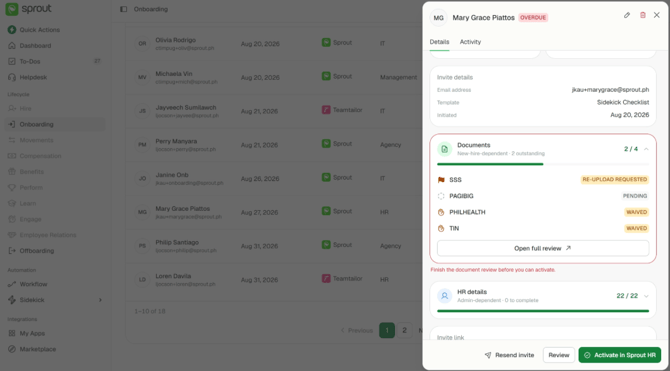
What you can't do is leave a document sitting at Pending or Re-upload requested and activate anyway — you'll see "Finish the document review before you can activate." Waiving is the way through; waiting isn't.
When is the Sprout HR employee record created?
When someone on your HR team activates the new hire — a deliberate click, not an automatic step. If a record hasn't appeared after activation, contact Sprout Support — it may be that the details match an existing employee, which we flag rather than creating a duplicate.
What happens to documents that arrive after activation?
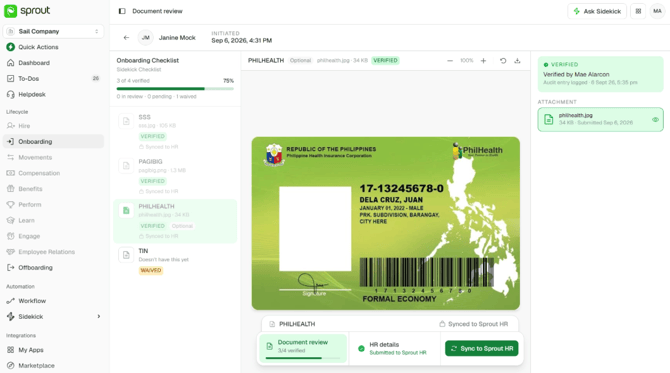
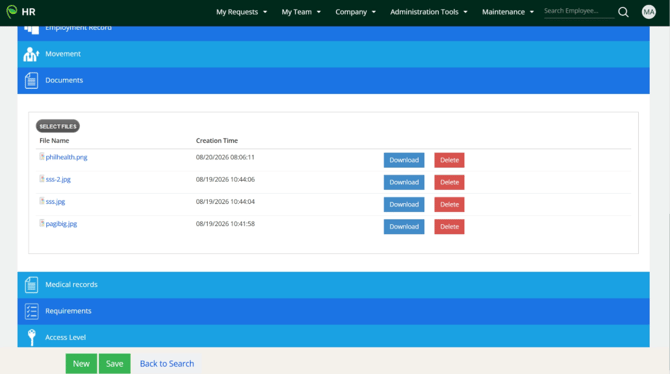
They reach you the same two ways as before: the new hire uploads through their link, which stays open until everything is settled, or you file it yourself with Upload for hire. Verify what the new hire sent — your own uploads verify automatically — then press Sync to Sprout HR — they're pushed to the employee's existing record, into its Documents section. No re-activation, no second record. You can do this as often as you need — each sync sends whatever has been verified since the last one, so late documents can arrive in rounds. Before activation there's no Sync button at all — verified documents carry across on their own when you activate. Afterwards it's the button that moves them.
Once a document is synced it locks — it shows as Synced to Sprout HR, and any correction after that is made in Sprout HR. Worth a last look before you sync: a replacement pushed later only overwrites the original when the file name and type match exactly, so SSS.pdf sent over SSS.jpg leaves two files on the employee's record, and only Sprout HR can remove one.
What if the new hire's details match someone already in Sprout HR?
We check before writing anything — on employee ID, biometric ID, TIN and email. If something matches, activation pauses and shows you the existing record so you can decide: give the new hire a different employee ID and try again, or stop. Bringing back someone who worked for you before isn't linked automatically — handle re-hires in Sprout HR directly.
What if Sprout HR isn't reachable when we activate?
The activation is held and retried rather than lost, and you can retry it yourself. Nobody ends up verified with no record — that's the one outcome the design rules out.
Can we change a record after activating?
Not in Command Centre — those fields become read-only and Sprout HR takes over as the source of truth. The same goes for undoing an activation: once the record exists, remove it in Sprout HR.
Does activation set up payroll?
If your Sprout HR and Sprout Payroll are connected, yes. A Payroll setup section appears on the activation screen, where you complete payroll run type, work days per year, basic salary, de minimis, the OT computation table, and whether the new hire is a minimum wage earner. Capturing them here means your payroll team has nothing to re-key afterwards.
If they aren't connected, the section doesn't appear at all and payroll is completed in Sprout Payroll exactly as before.
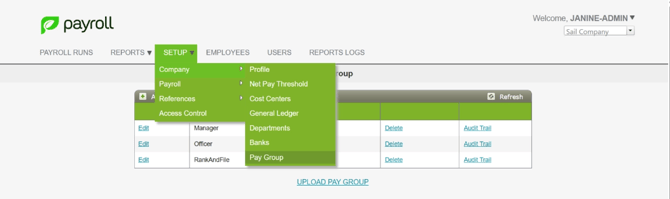
Connected to Sprout Payroll? Check your Pay Group list once, before your first activation.
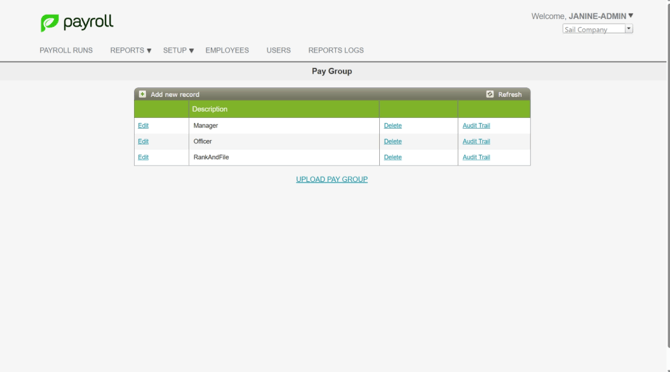
Creating the employee record sends their employee type, and Sprout Payroll only accepts a type that already exists as a pay group. All three values have to be there, spelled exactly: Manager, Officer, RankAndFile. Command Centre shows the employee type as Rank and File, but the pay group has to be RankAndFile — one word, no spaces and no ampersand.
They're there by default, but the list is yours to edit and some companies replace it with their own pay groups. If one is missing, activation fails for every new hire with that employee type. The list is in Sprout Payroll under Setup → Company → Pay Group.
Can we activate several new hires at once?
No — one at a time in this release.
Getting Help
Questions about your setup go to your Customer Success Manager. If something looks wrong in the product, contact Sprout Support and tell us which new hire it relates to.
Got a question or need extra help? Sidekick makes it easy — get answers, raise a ticket, or schedule a call with our experts, all in one place.