
Overview
By default, SSS, PhilHealth, and HDMF (Pag-IBIG) contributions are automatically calculated by the system based on your payroll configuration and the employee’s salary details.
If needed, you can configure a fixed Government Contribution for a specific employee. This fixed amount will override the system-calculated contribution for that employee only.
Important: The fixed contribution will apply to all succeeding payroll runs until it is updated or removed. Other employees will continue to use the system’s automatic contribution calculation.
When entering a fixed contribution, use the employee share amount for the applicable Government Contribution.
This article will guide you through the process of configuring fixed Government Contributions for an employee.
For Payroll-Only Accounts
Follow these steps to set fixed government contribution amounts:
- Log in to Sprout Payroll.
- Navigate to Employees Module
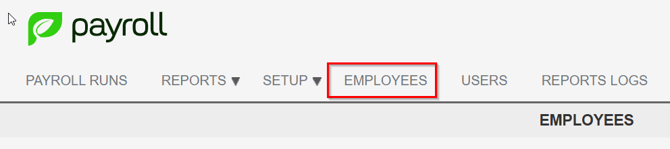
- Locate the employee and click Edit beside the Employee ID.

- Under Salary Details, locate the following fields:
- SSS Contribution
- PhilHealth Contribution
- HDMF (Pag-IBIG) Contribution
- Enter the desired fixed contribution amount for the applicable government agency.
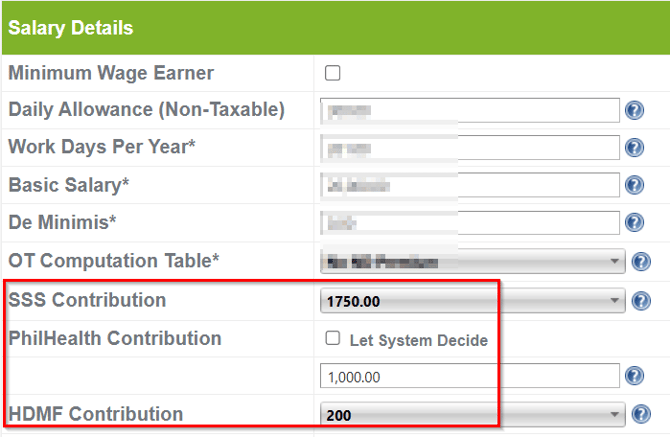
- Click Save to apply the changes.
For Sync Accounts (Sprout HR + Sprout Payroll)
For accounts integrated with Sprout HR, Government Contribution details should be updated in Sprout HR.
- Log in to Sprout HR.
- Navigate to Employee Profile.
- Open Current Payroll Information.

- Scroll to the Government Contributions section.
- Enter the desired fixed amount for:
- SSS Contribution
- PhilHealth Contribution
- HDMF (Pag-IBIG) Contribution
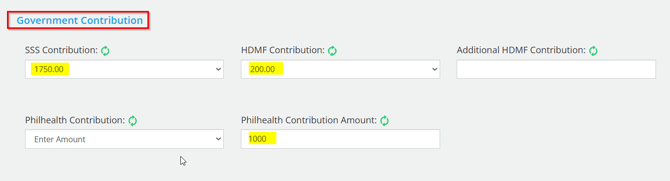
- Click Save.
The updated values will sync to Sprout Payroll.
Important Notes
- Fixed contribution amounts override the system-calculated values for the employee and will continue to be used in succeeding payrolls until the amount is updated or removed.
- Verify that the fixed contribution amount complies with the latest contribution tables and your company's payroll policy before saving the changes.
- For synchronized (Sprout HR + Payroll) accounts, always make changes in Sprout HR to ensure proper synchronization with Sprout Payroll.
•Changes only affect unprocessed payrolls. If payroll has already been processed, unpost and refresh the payroll for the updated contribution amounts to take effect. Otherwise, the changes will be reflected in the succeeding payroll run.
Reference: Sprout Payroll: The Refresh Button.
Need more help?
Sidekick makes it easy — get answers, raise a ticket, or schedule a call with our experts, all in one place.