
If a new holiday date was recently announced by the Government, this should be added manually by the Users/Admins as it was not pre-added in the system during the initial holidays setup for the present year.
This can be done by navigating to Maintenance > Company > Holidays on Sprout HR.
Method 1: Adding as a Custom Holiday
This is the recommended method for adding newly announced, non-standard holidays.
- Go to the Holiday Plan page and click a Holiday plan.
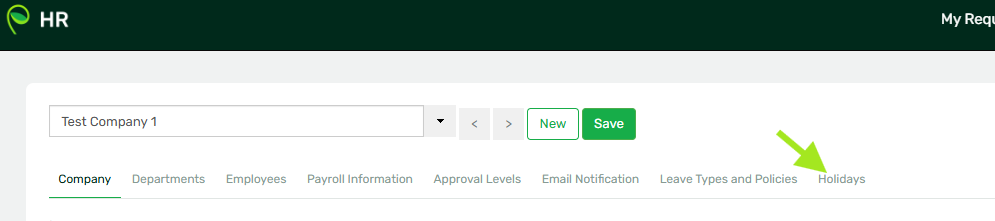
- Scroll down to the Custom Holidays section and click the + icon to add a new holiday.

- Input the details of the holiday (Name, Date, etc.) and click Save.
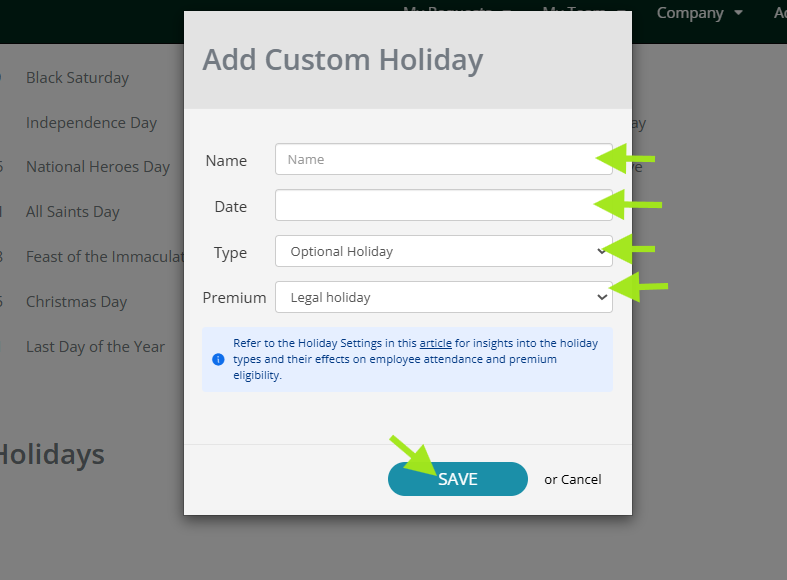
- Once added, the holiday will be reflected in the Custom Holiday section. Simply tick the checkbox next to it to enable the said holiday.
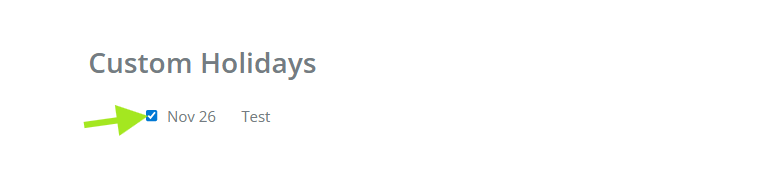
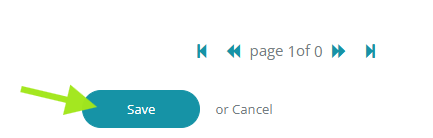
- Once ticked, scroll down to the bottom of the page and click Save to keep the changes made.
Method 2: Adding as a Standard Holiday (Alternative)
Alternatively, the holiday can be added to the list of Standard Holidays.
- Go to the main Holidays page in Sprout HR (Maintenance > Company > Holidays).

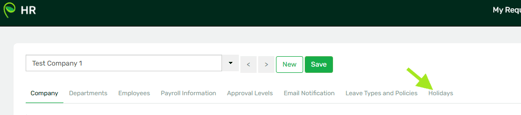
- Click on Settings (usually located in the top-right corner of the page).

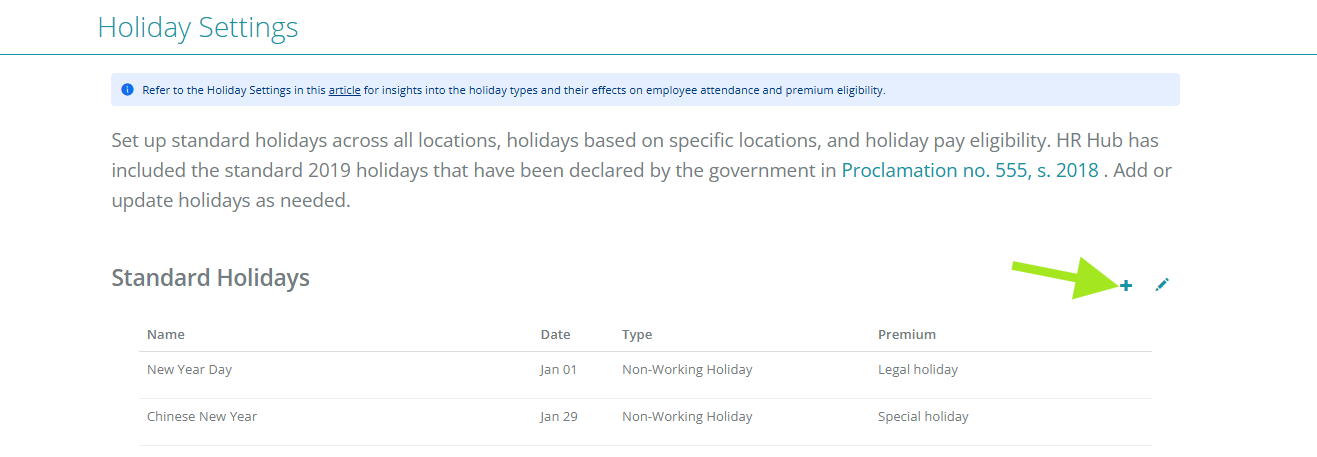
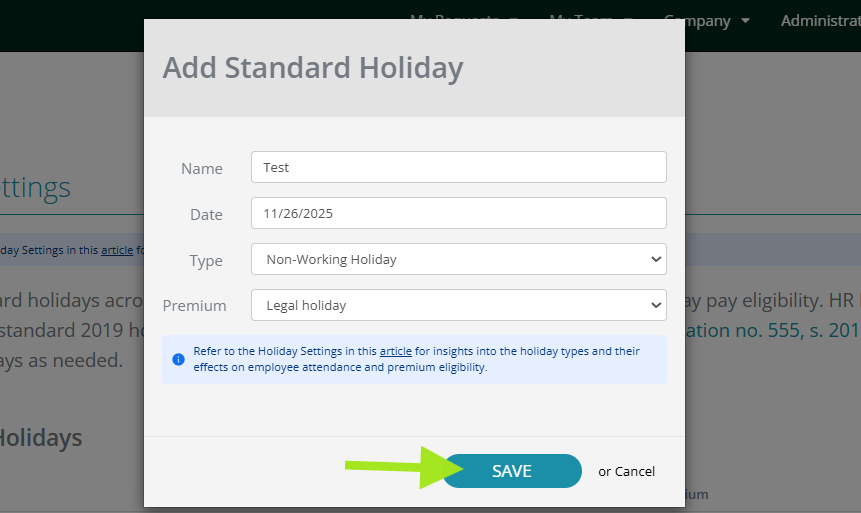
- Add the new holiday to the Standard Holidays list and Save your changes in the Settings window.
Please note:
Once the holiday is added (either as Custom or Standard), you still need to:
- Go to the Holiday Plan page.
- Tick the checkbox next to the newly added holiday to enable/activate it for that plan.
- Scroll down and click on Save to keep the changes.
Want real-time responses? Explore Sprout Info, your 24/7 guide for product inquiries!