
Email Recipients
The recipient list controls who receives ticket notification emails when employees file tickets through Sidekick Helpdesk. Only Helpdesk admins nominated on the list are emailed, keeping ticket traffic scoped to admins tasked with handling employee concerns.
Note: Only admins with access to salary or current payroll information can manage the recipient list or be nominated as recipients.
- In Helpdesk, click the Settings tab.
- Under Email recipients, search for the name of the admin you want to add.
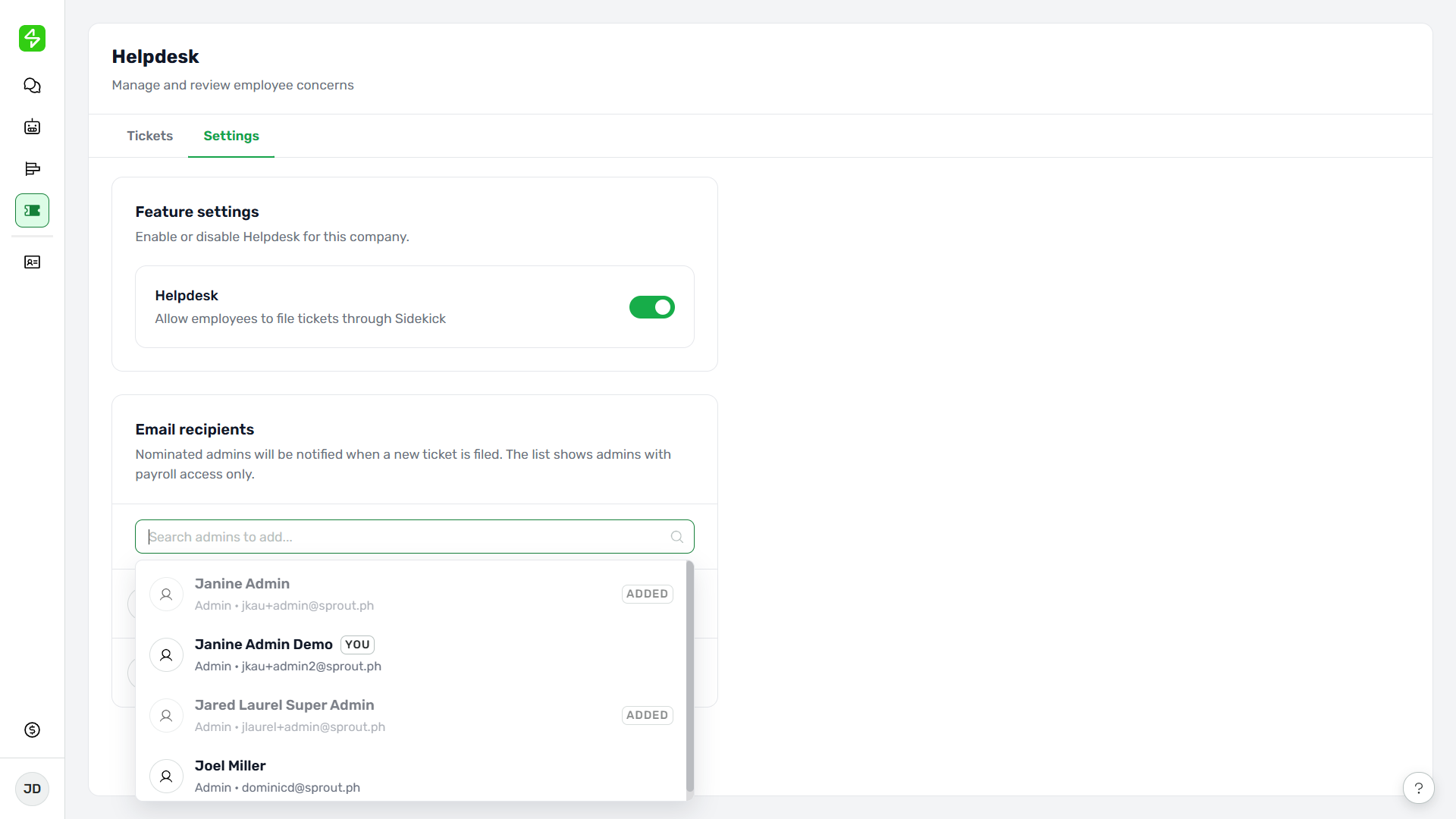
- Select the admin to be added. The recipient will be added to the list, and will receive the email alerts from Sidekick.
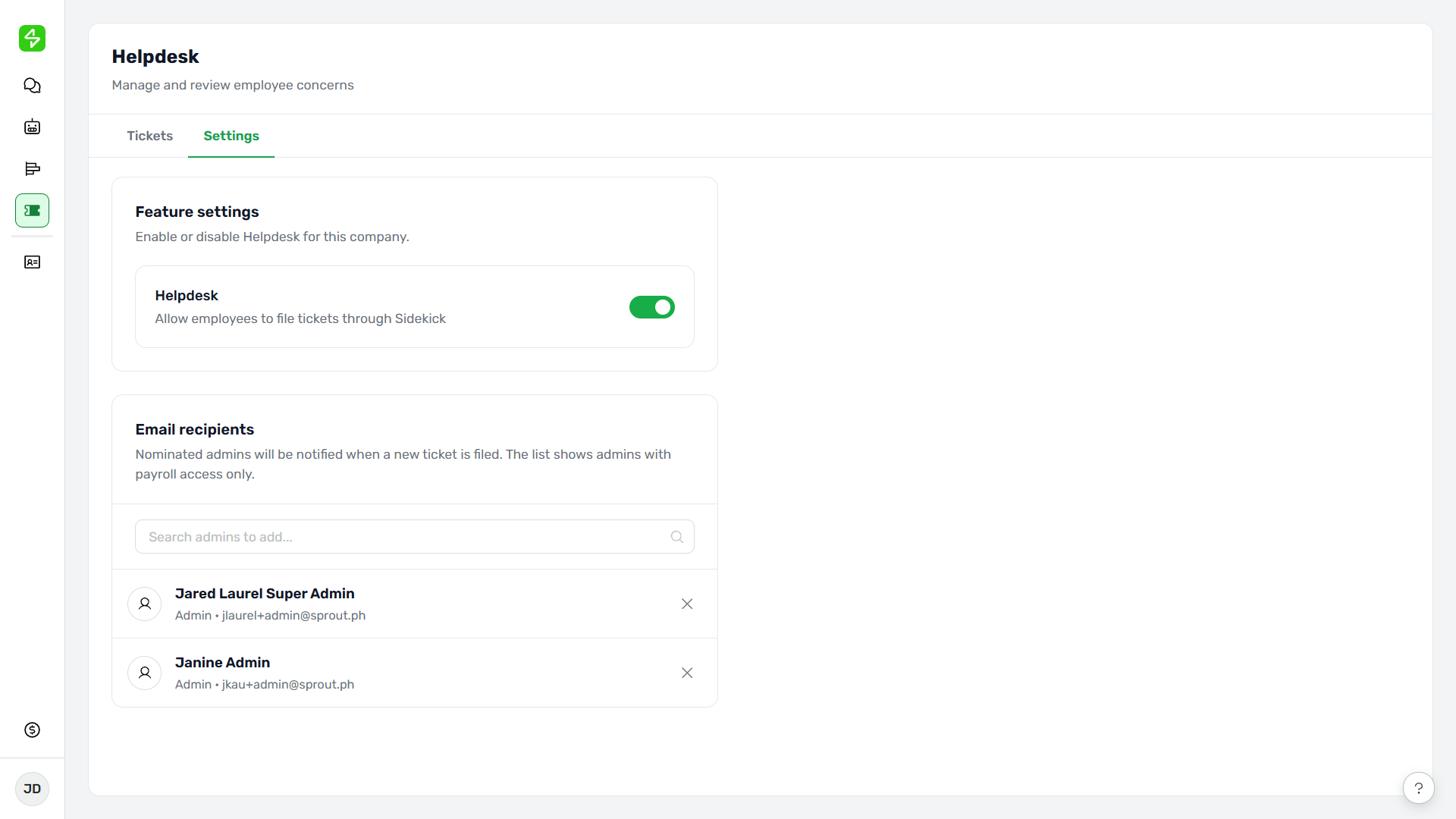
- To remove a recipient, click the remove icon ( X ). The recipient will be removed from the list and won’t receive the email alerts from Sidekick.
Note: The remove icon is disabled when only one recipient remains. Helpdesk admins can also remove themselves as long as at least one other recipient stays on the list.
Want real-time responses? Explore Sidekick, your 24/7 guide for product inquiries!