
Overview
Publishing a job should be an easy and seamless experience. This article walks through each stage of job creation in Teamtailor: Job posting, Application, Candidate interaction, Stages, Evaluation, Hiring team, Additional options, and Publishing.
Teamtailor How To: Create a Job
1. Job posting
The first step of publishing a new job is to create your ad in your Teamtailor account. Go to the Jobs tab and click the pink + button.
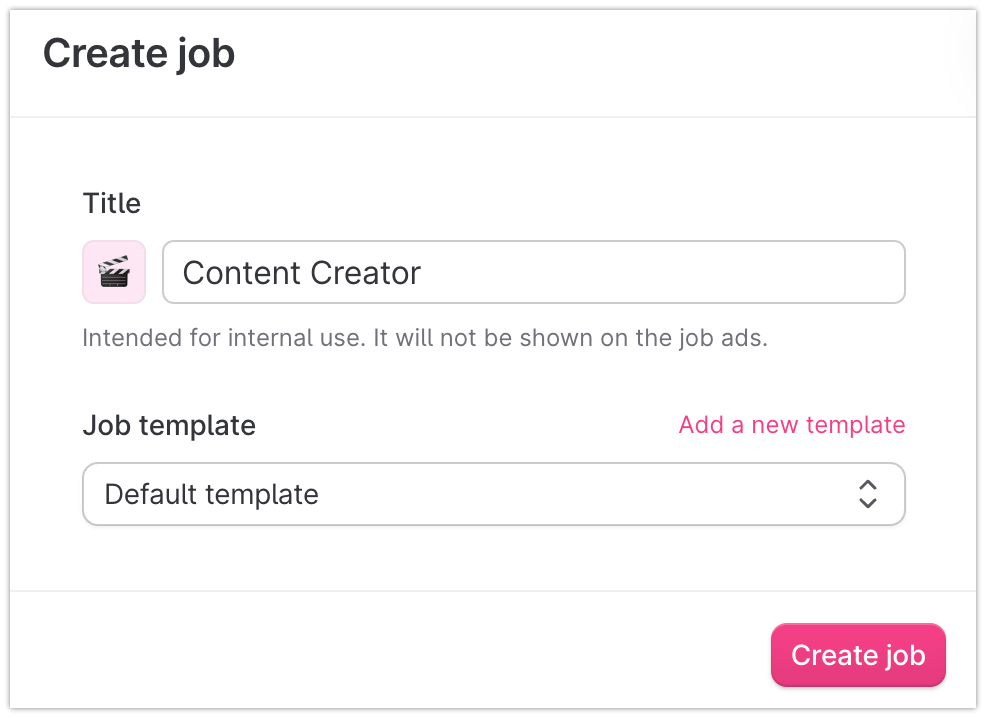
When creating your new job posting, you are presented with two sections:
- Title: Add an internal name for the job posting. If left blank, the external job ad title from the upcoming Job posting step will be used. Next to the title, you can also add a job icon for further internal customization.
- Job template: Select a job template as the base for your posting. Learn more about job templates here.
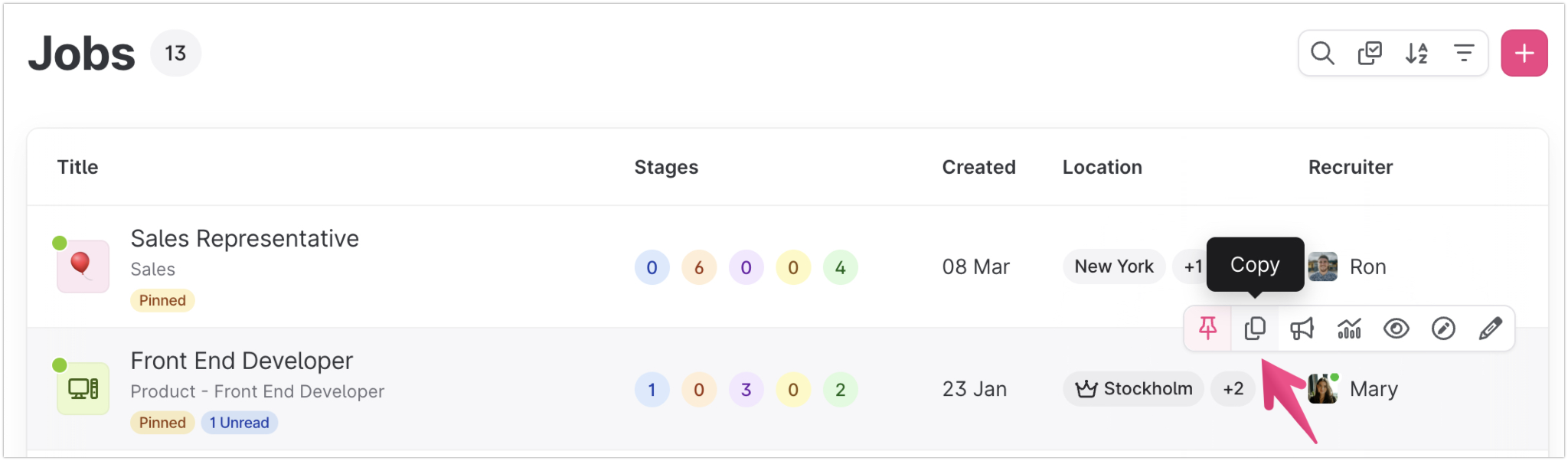
Tip: To reuse the process and content of an existing job, hover over the job you want to copy in the Jobs list and click the Copy icon. Your new job will be pre-filled with the information from the original, ready for you to edit.
Job ad title & Job description
Start by adding the position's Job ad title and Job description. Use headers, and add lists, gifs, videos, and images to your liking.
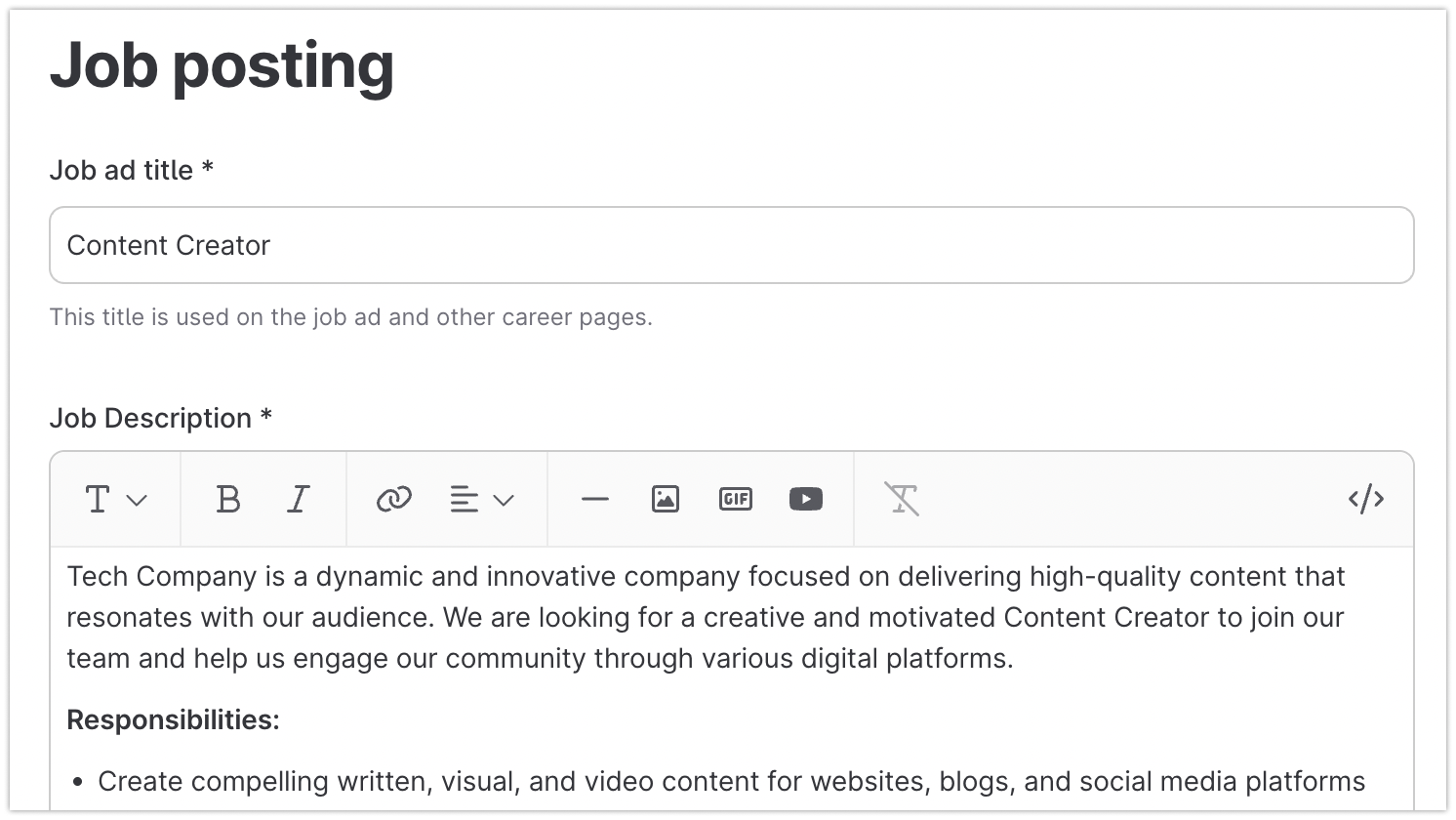
Note: The Job ad title and Job description fields are required to be able to save the job
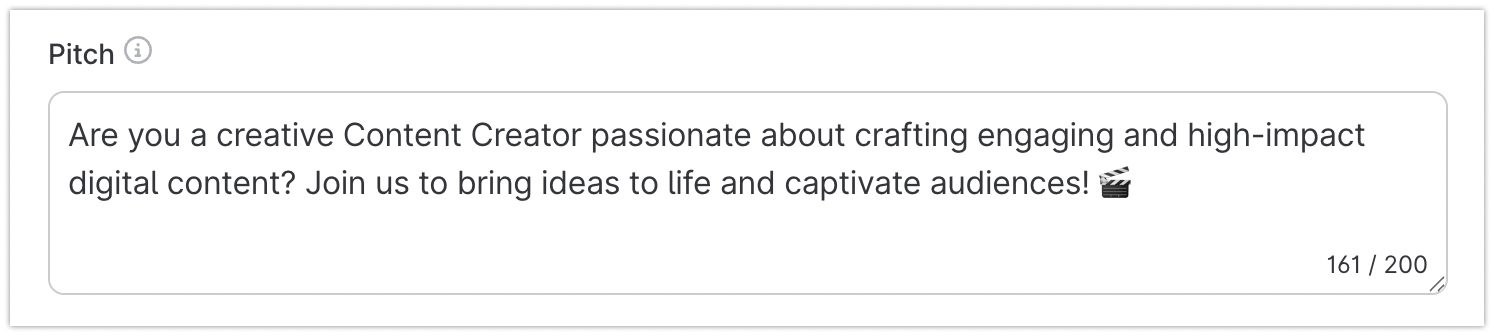
Pitch
The pitch text is displayed at the very top of your ad to engage candidates to read your job ad. Use it to tell candidates why they should apply for your job over your competitors.
Department, Role, and Location/s
Assign the position to the related Department and Role to make it easier for candidates to find and identify with the position. Then add the Location/s of the job.
These settings help your Connected candidates create more specific profiles, ensuring the quality of your candidate bank.
Custom fields
You can add any custom fields you want to your job posting and choose whether they are displayed in-tool only or also on the public posting (e.g., Compensation and Remote status).
Response time
Response time tells candidates how long they can expect to wait before hearing back from you. Select a time ranging from 2 hours to a month. This does not affect the recruiting process; it is purely for the candidate's experience when applying.
Recruiter & Colleagues
Show applicants their potential future colleagues by adding Colleagues from the drop-down box. These people are presented at the end of the job posting.
If you have admin access, you can also select a different recruiter for the role in the Recruiter section. In the job ad, the Recruiter is shown as the Contact, and colleagues appear under the title Colleagues.
Appearance
Every job has its own Cover area, which includes a picture, title, pitch, apply button, and response time. Appearance options:
- Job ad template: The layout style of the job depends on which Job ad template is used.
- Background image: Upload the job cover image. Use an image that gives candidates insight into the job and company, in the highest resolution possible. Supported formats include .jpg, .tif, .gif, and .png.
- Overlay color: Adjust the overlay color applied to the background image.
- Overlay opacity: Change the opacity level of the overlay color.
- Video background: Upload a video to use as the job's cover background for the desktop version of your career site.
- Mobile video (Optional): Upload a video optimized for the mobile version of your career site.
- Button text: Set what the application button says. If empty, the default text (in English: Apply for this job) is used. Examples: Apply in just 30 seconds or Apply without resume.
- Text color: Choose the cover image text color to suit your brand.
2. Application
Next, build the application form to make sure you get the necessary information from your candidates.
Personal info
Decide which personal info candidates must provide by setting each field to Off, Optional, or Mandatory:
- Name: Enable separate fields for first name and last name.
- Email: Always required, to ensure communication regarding the application can be maintained.
- Phone: Allow candidates to add their phone number.
- Address: Allow candidates to search for and add their address.
- Resume: Allow candidates to upload their resume.
- Additional files: Allow candidates to upload supporting documents.
- Cover letter: Allow candidates to include a cover letter.
Questions
Decide which Questions to add to the application form and whether they are optional or mandatory. Choose from existing questions or create new ones for this specific ad.
Responses
Set the response messages sent to candidates. Use the preset message templates, or customize them for this ad by clicking Custom reply/reject message. There are two types:
- Auto reply message: Automatically sent to the candidate when they apply for the job.
- Reject message: Sent to the candidate when they are deemed not fit for the position.
Advanced settings
- URL to application form: To redirect applications to an external applicant tracking system, enter the URL here.
- Mailbox: Automatically delivers email applications to Teamtailor.
3. Candidate interaction
To talk directly with candidates so you don't lose them between the job ad and their application, activate the Candidate interaction feature in the Add-on feature center. The candidate chat is easy to set up, and you can choose how active you want to be.
4. Stages
Create the right recruitment flow by adding and editing the Stages for candidates. A preset process is provided, which you can customize to fit your needs (including stage actions).
5. Evaluation
Set up a Job scorecard by adding the skills and traits relevant to the role. Assign weights to each to help the hiring team decide what to prioritize.
If you use the Interview kits feature, select which kits to use during the hiring process. If your company has attached specific skills and traits to the selected role, they are automatically added to this section.
6. Hiring team
Build the team responsible for managing the recruitment process. Hiring team members get a shared view of the process and applications. Any user added to a job's hiring team gains access to:
- The job process under the Jobs tab. Note: Default Users do not have editing rights for the job.
- All candidates who applied to the job, including job-specific data related to this process.
Hiring team settings:
- Group: Add a specific Group to grant all its members access to the job process.
- Recruiter: Listed as the contact person for the job. By default, this is the user who created the job posting. When a Group is added, the Group manager is suggested as the Recruiter.
- Additional users: Add any other users who should have access to the job process.
If you can't find a user in the drop-down list, it may be because:
- The user hasn't been invited to your Teamtailor account yet.
- The user hasn't accepted a pending invitation.
Company Admins can check the user's status in the Employees tab.
7. Additional options
At the bottom of the job creation page is a menu with additional options:
|
Action |
Description |
|
Add tags |
Makes it easier to filter your job list and lets you group similar jobs together. |
|
Set publishing dates |
Schedule the job's publishing date. A job is automatically published on the start date (at 00.00) and expires on the end date (at 24.00). |
|
Pin job to top |
Adds the job to the top of your career site. |
|
Enable/disable transparent recruitment* |
Turns transparent recruitment on or off for the job. |
|
Make job internal* |
Makes the job an internal job. |
|
Preview job |
After saving the job as a draft, preview it before publishing. |
*These features must be activated in the Add-on feature center.
Save as draft
If you're not done with the ad, click Save draft and come back to it later.
8. PublishingWhen you're satisfied with the job posting, publish it from the lower menu on the right. Once published:
- The job is published on your career site.
- The job is automatically posted on the free integrated channels you have enabled (see Marketplace).
- An email about the job is sent to candidates connected with the job's Department, Role, and Location.
- An email about the job is sent to all employees with this notification setting enabled.
Ready to publish
Some user roles can't publish jobs and will see a Ready to publish button instead. Clicking it notifies users who have publishing access.
Publish unlisted
Makes the job live without publishing it on your career site. No email notifications are sent to employees or connected candidates. You can also use this to remove a previously published ad while continuing the recruiting process.
Delete job
To delete a job, click Delete. This action cannot be undone. This option is only available for jobs with the status Draft or Archived.
Got a question or need extra help? Sidekick makes it easy — get answers, raise a ticket, or schedule a call with our experts, all in one place.