
1. Accessing the Review Cycle
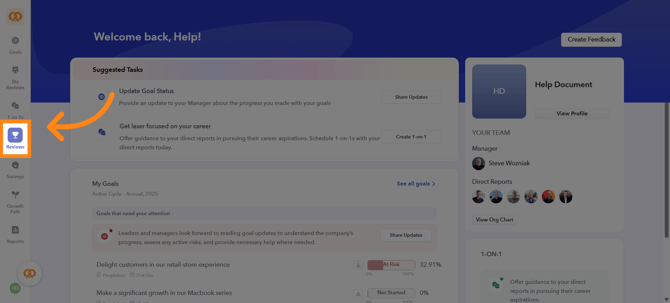
On the left sidebar of your dashboard, click the Reviews icon to open the review cycle
2. Selecting the Review Cycle
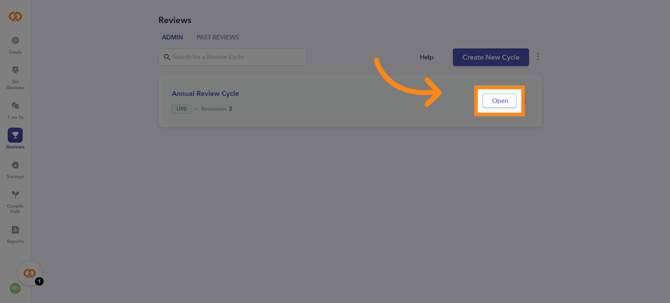
Open the review cycle in which you want to launch the Release Reviews phase and later end the cycle
3. Launching the Release Review Phase
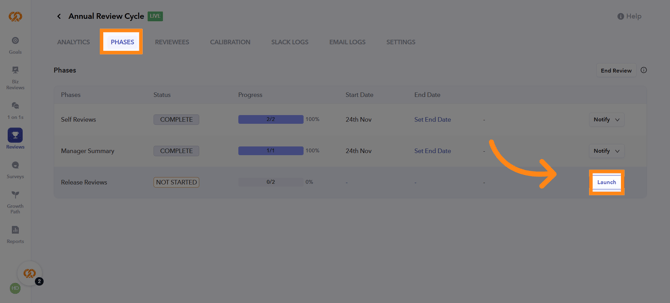
Under the Phases tab, once all phases in the review cycle are completed, click Launch to release the Release Review phase
4. Select Channel
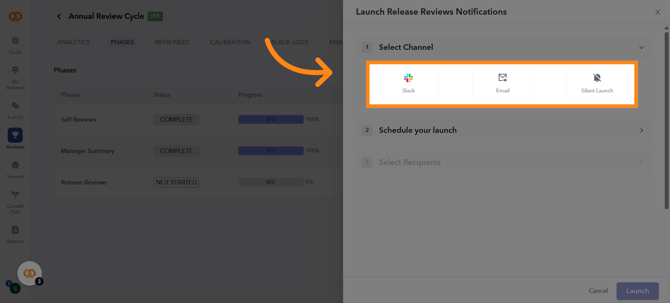
You can launch the phase through Slack, Email, or by using the Silent Launch option. In Silent Launch, no notifications are sent. Instead, a homepage action is created for the reviewee, where they can download their results
5. Schedule your launch
You can choose to launch the phase immediately or schedule it to be released at a later time
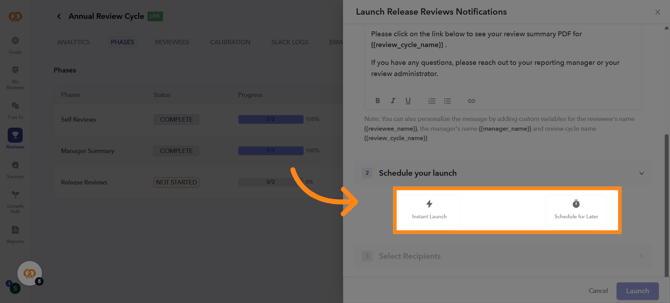
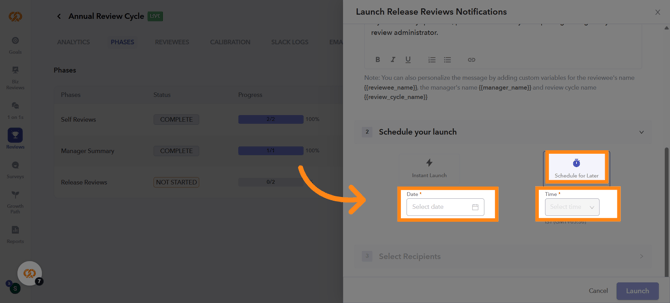
6. Scheduling the Release Review Launch
If you choose the Schedule for Later option, you must select the date and time for the launch. The Release Review phase will automatically be released to the reviewees on the scheduled date
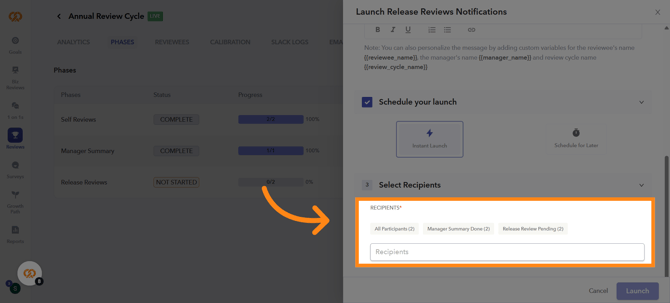
7. Select Recipients
Select the recipients for whom you want to launch the Release Review phase
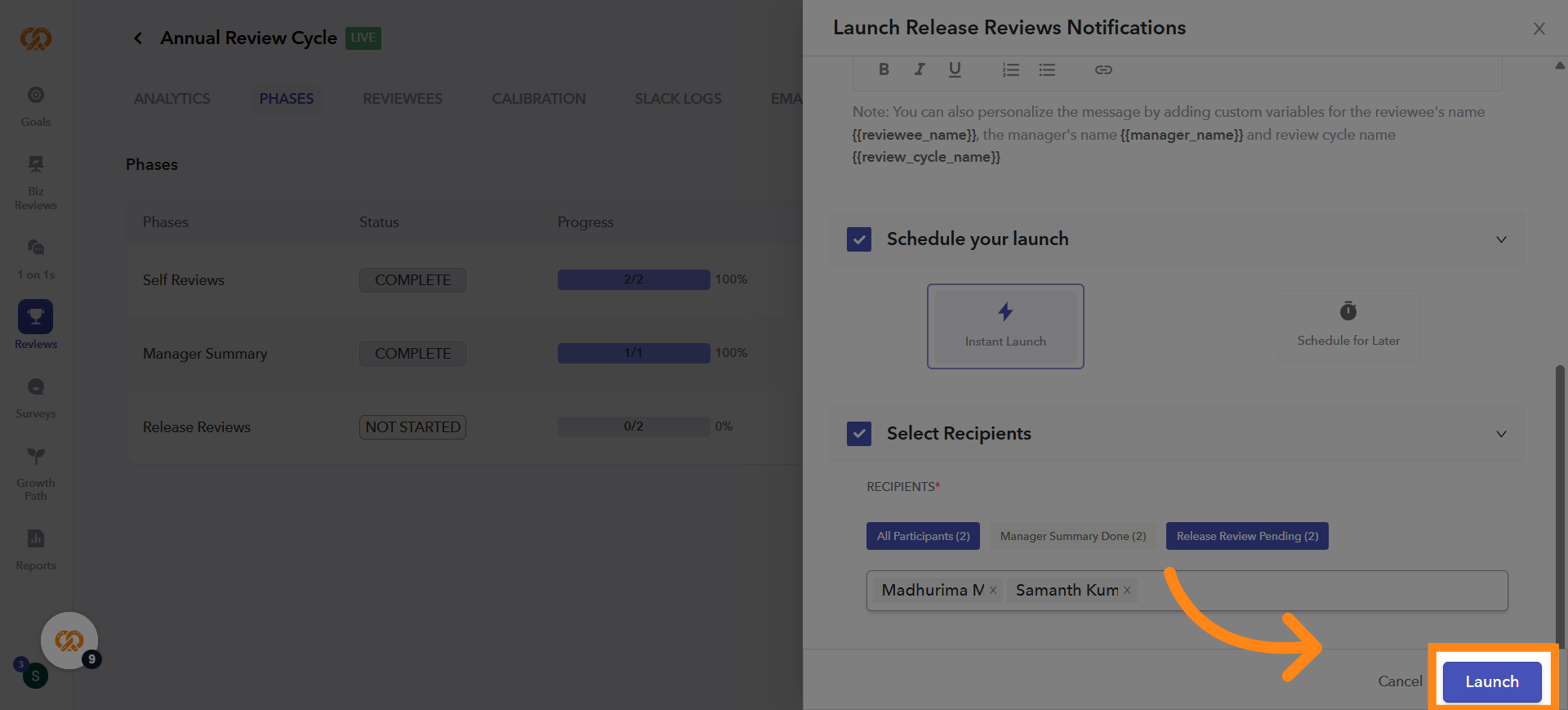
8. Click Launch Button
Click "Launch" to proceed with the review release
9. Confirming and Launching the Release Review
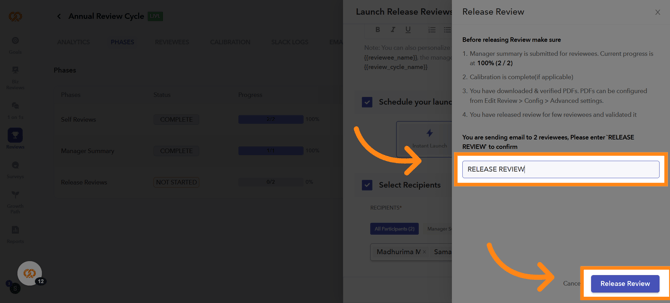
To launch the phase, enter RELEASE REVIEW in the confirmation field and then click Release Review to launch the phase
10. Release Review Launch Confirmation
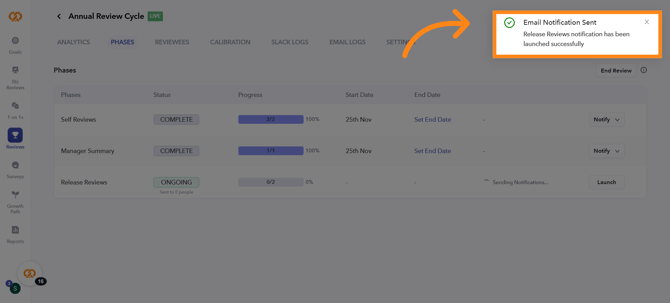
Once the Release Review phase is launched, a success message will appear confirming that the release review has been launched successfully
11. Viewing Results After Release
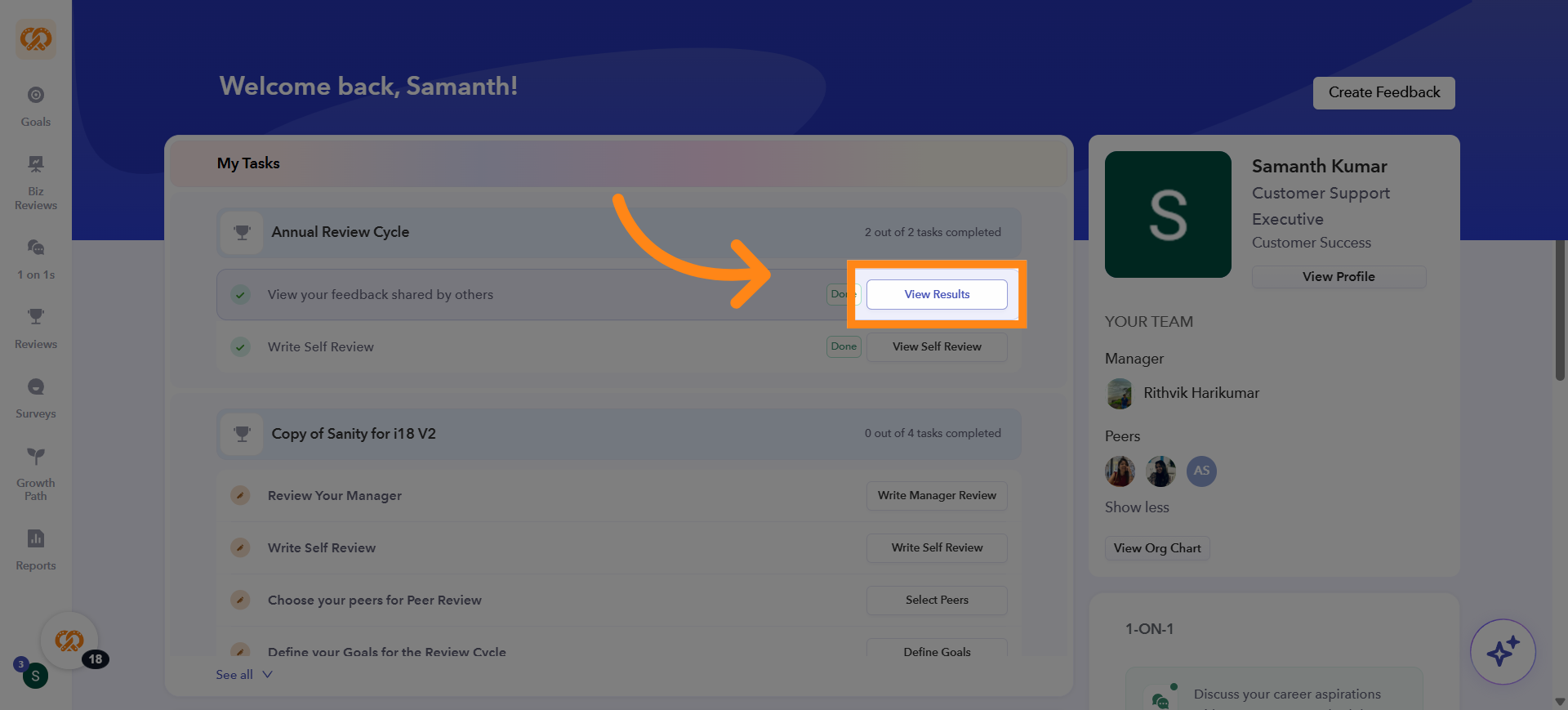
Once the phase is released, recipients will see a View Results option on their homepage under My Tasks
12. Accessing the Released Results
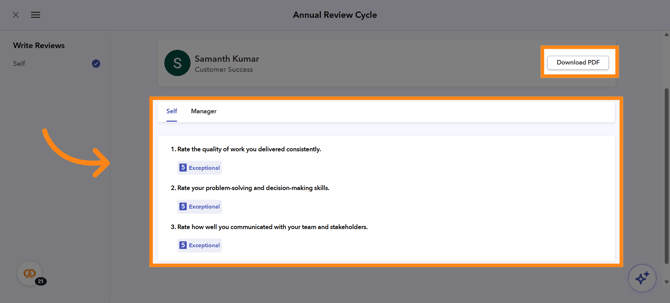
Recipients can view the reviews shared with them directly on the platform, or they can download all their review results in PDF format by clicking the Download PDF option
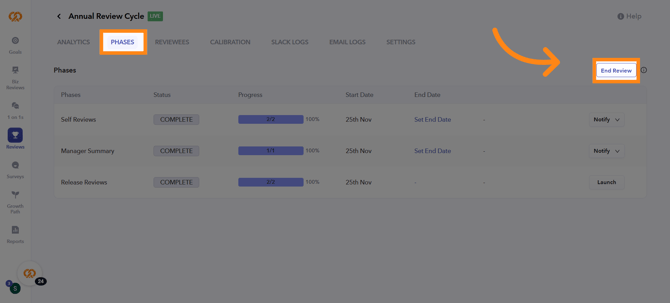
13. Ending the Review Cycle
If you want to end the review cycle, click the End Review option available at the top-right corner under the Phases tab
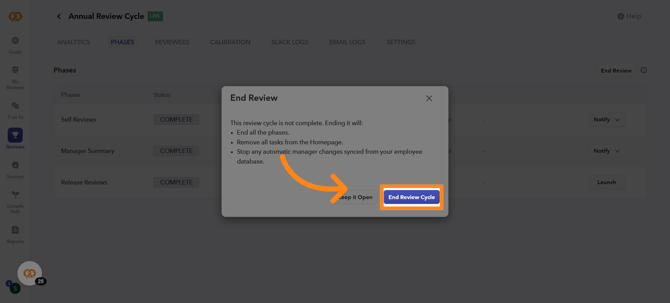
14. Confirming and Ending the Review Cycle
You will receive a confirmation prompt. Click End Review Cycle again to confirm and close the review cycle
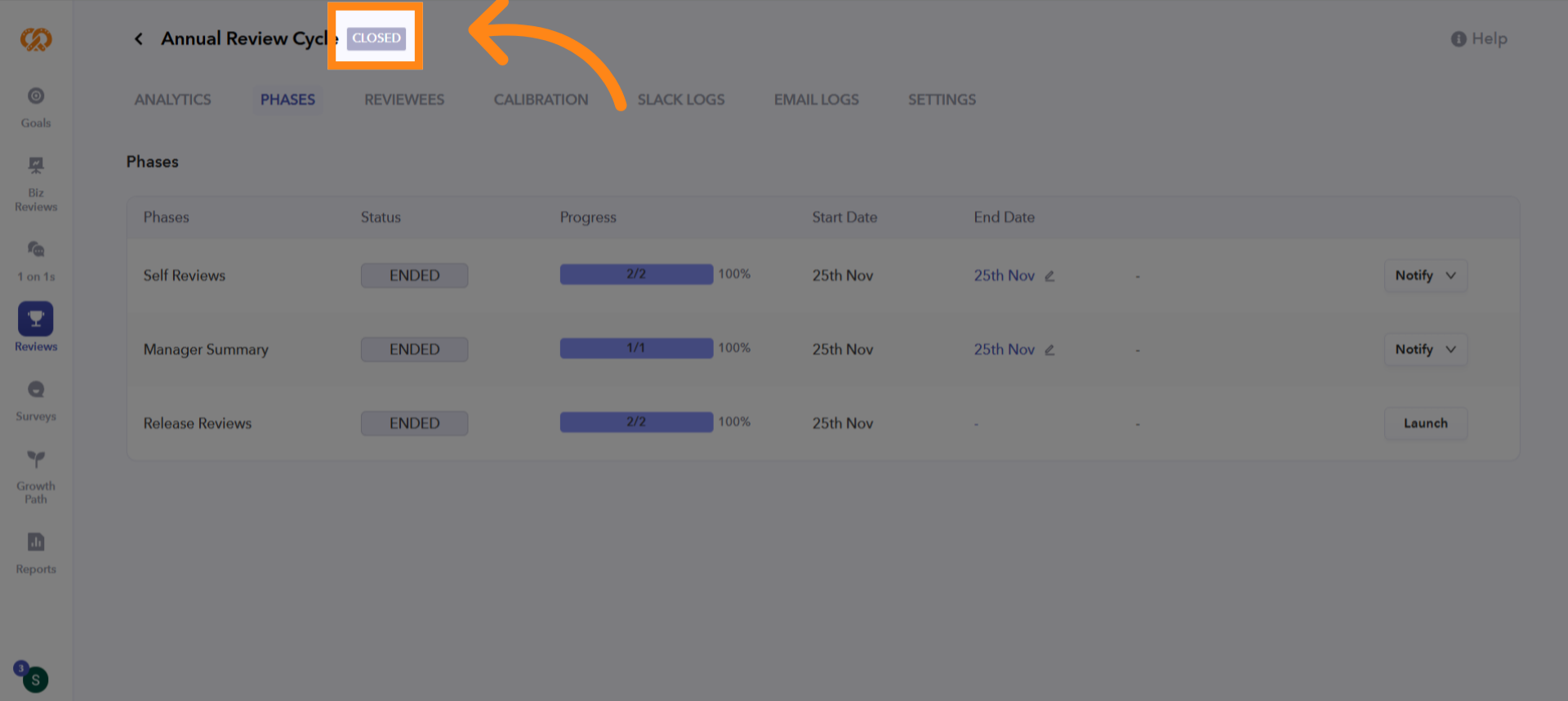
15. Review Cycle Status Update
After ending the review cycle, the status of the review cycle will change from Live to Closed. Please note that participants will no longer be able to participate, and all homepage notifications related to the review cycle will disappear from their My Tasks section
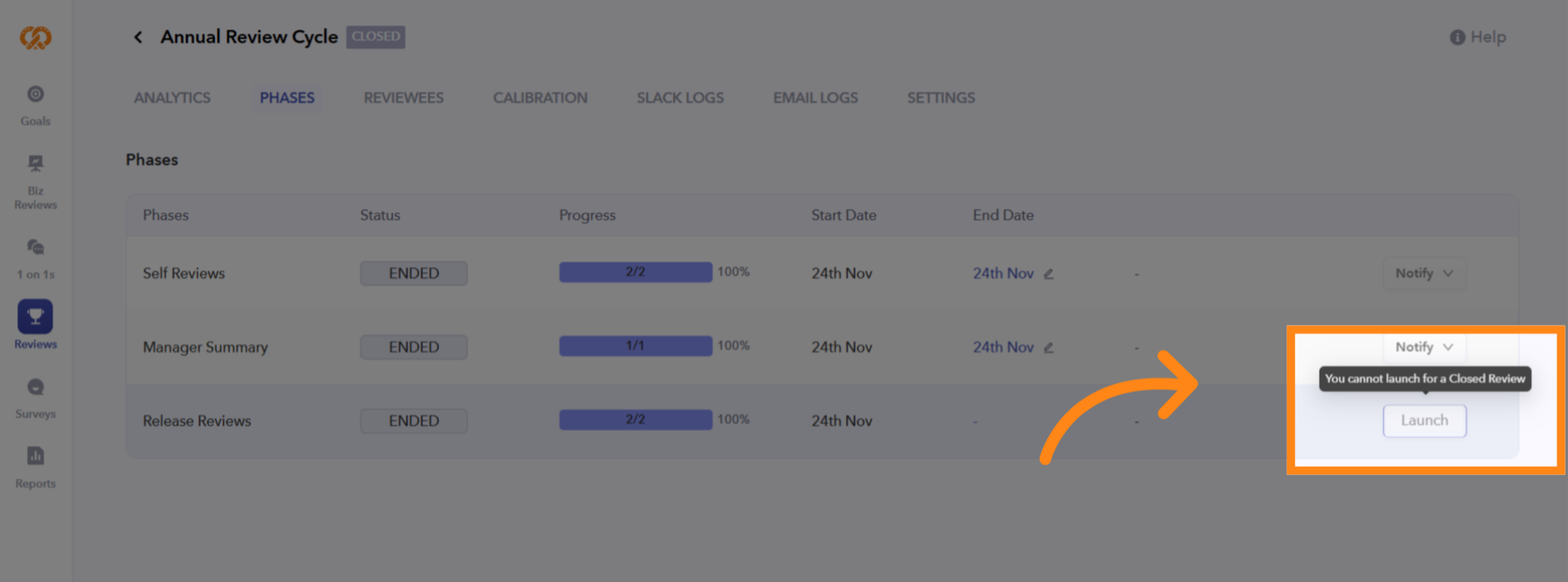
16. Launching Phases After Ending a Review Cycle (Feature-Flag Based)
Ideally, once a review cycle is closed, admins cannot launch any phases or send reminders. If an admin needs to extend deadlines or launch a phase for specific participants after the cycle has ended, this is only possible if the phase-participant extension feature is enabled. Currently, this feature is not enabled by default for all accounts. If you require this functionality, please reach out to our support team to get it enabled
Want real-time responses? Explore Sidekick, your 24/7 guide for product inquiries!