
Overview
This article explains why "N/A" (Not Applicable) appears in the Overtime Table in Sprout Payroll. "N/A" indicates that no overtime rate has been configured for the specific overtime scenario. It also provides the steps to configure the appropriate overtime computation settings to ensure overtime rates are applied correctly.
Issue
The "N/A" value is displayed in the Overtime Table instead of an overtime rate.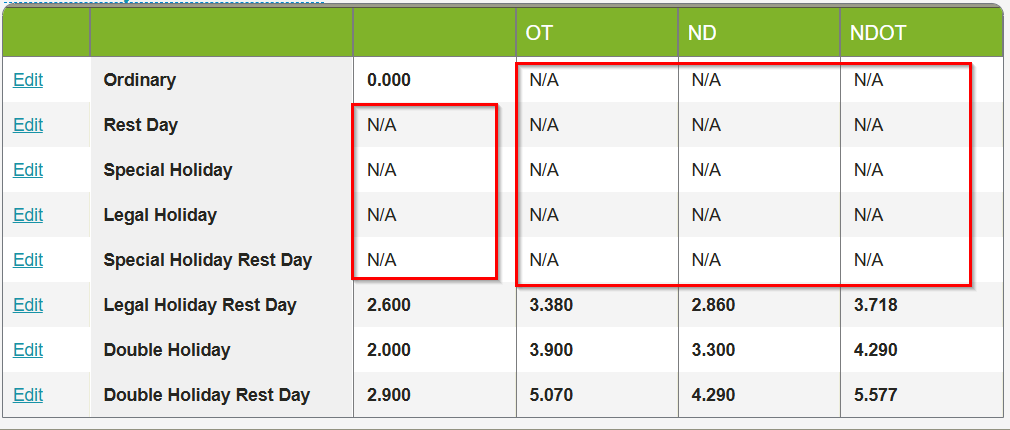
Cause
The "N/A" value indicates that the applicable overtime rates have not been enabled in the company's Overtime Computation settings. As a result, the system is unable to identify which overtime rates should be applied during attendance and payroll computation.
Resolution
To enable the applicable overtime rates:
- Log in to Sprout Payroll.
- Navigate to Company.
- Go to Setup.
- Select Profile.
- Check the Overtime Computation section.
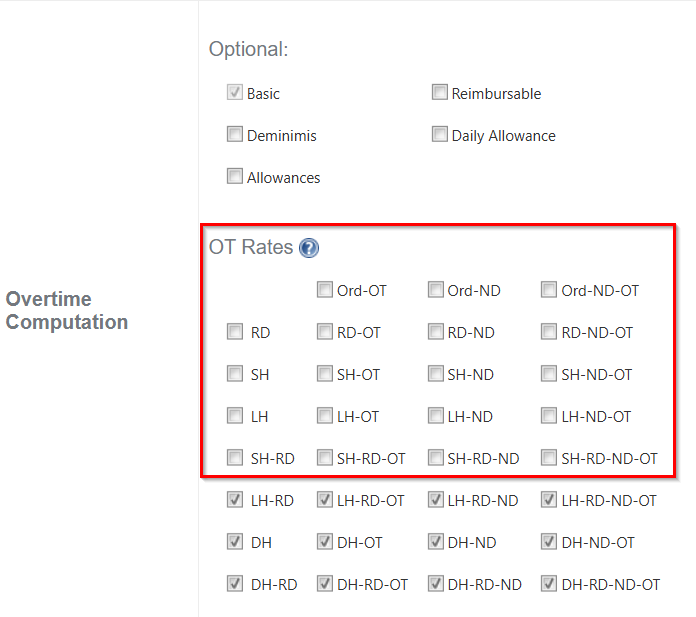
- Review the available overtime rate options.
- Ensure that all applicable overtime rate checkboxes are selected based on your company's overtime policy.
- Click Save Changes.
Expected Result
Once the applicable overtime rates have been enabled:
- The "N/A" value will no longer appear in the Overtime Table.
- The correct overtime rates will be available for attendance and payroll computation.
- Overtime pay will be calculated based on the configured overtime settings.
Additional Notes
- Ensure that only the overtime rate options applicable to your company's policies are enabled.
- If the issue persists after updating the settings, verify that the employee's attendance and overtime records are valid and that the company setup has been saved successfully.
Want real-time responses? Explore Sidekick, your 24/7 guide for product inquiries!