How to retry integration sync manually
Retrying an integration’s sync manually might become necessary in rare scenarios when the automated sync hasn’t completed within the expected time-frame. In such cases, to prevent any delays, which may affect ongoing operations, an option to retry integration sync manually is available. A manual integration sync acts as a fallback option to ensure projects and tasks are synced immediately without waiting for the next automated attempt. It allows teams to intervene promptly, reducing downtime and allowing the team to start working right away.
When you manually retry an integration sync, Hubstaff will retrieve any newly created tasks and/or projects associated with your integration.
To do this, navigate to any of the three areas of the Hubstaff dashboard:
Retry sync via the Integrations page
To sync new projects in the integration, follow this guide:
Step 1
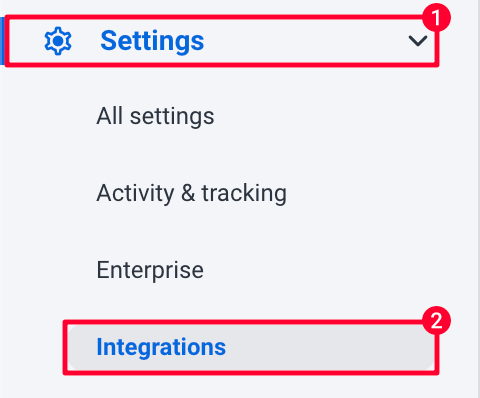
Navigate to Settings > Integrations.
Step 2
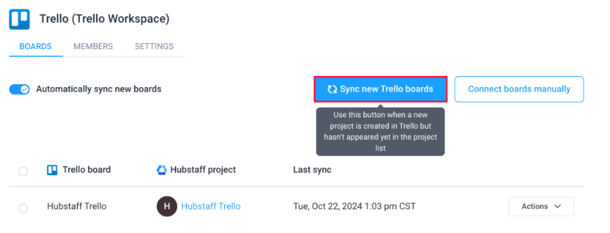
Click on the integration name.

Step 3
Click on the Sync button to fetch new projects.
Retry sync via the Projects page
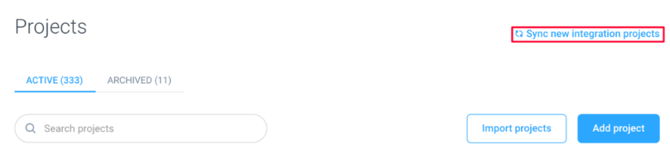
You can retry synchronization to see new projects in an integration from the Projects page. To do this, follow this guide:
Step 1
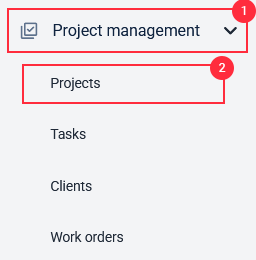
Navigate to the Project Management > Projects section on the sidebar.
Step 2
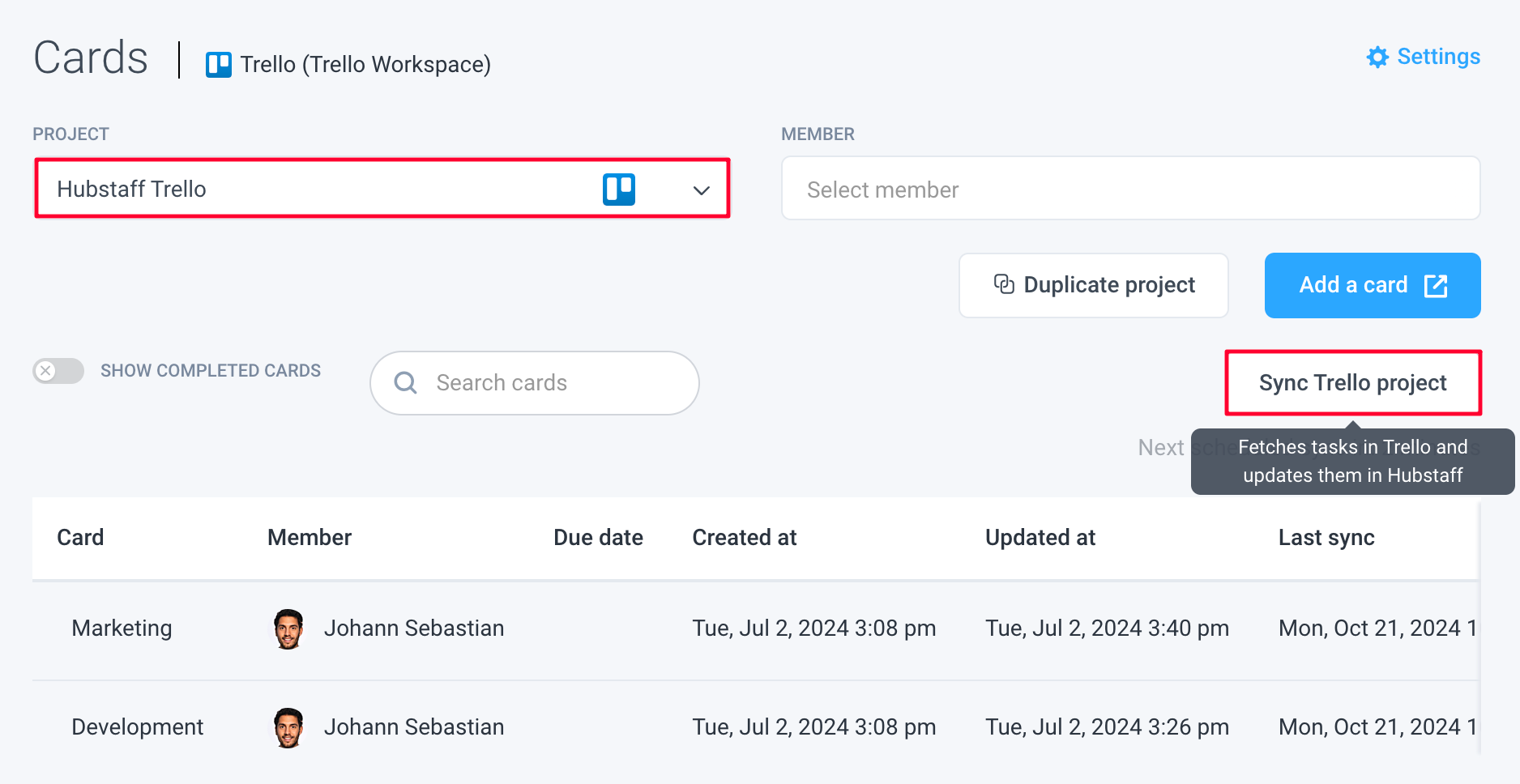
Choose the project with the linked integration (the integration’s icon will appear next to the project name), then click the Sync [integration name] project button.
Retry sync via the Tasks page
To retry sync via the Tasks page, follow this guide:
Step 1
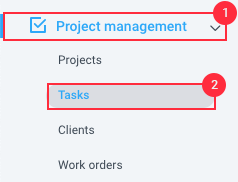
Navigate to the Project Management > Tasks section on the sidebar.
Step 2
Choose the project with the linked integration (the integration’s icon will appear next to the project name), then click the Sync [integration name] project button.