
Issue Overview
Sprout Payroll currently assigns NCR as the standard region for generated BIR Alphalists—this guide will show you how to update the region since no other options exist in the system.
How to Edit the Region in the BIR DAT File
Follow these steps to update the region using the official BIR Data Entry tool:
- Download the BIR Data Entry Tool
- Download Aphalist version 7.4. How to Download Alphalist Data Entry and Validation Module (Version 7.4)
- Open BIR Data Entry Tool
- Launch the BIR Data Entry application on your computer.
- Generate the Dat file and Upload the Dat file in Data Entry
- Generate the Dat file in Sprout Payroll under Reports > BIR > Alphalist Generate Dat file
- Select form 1604C (or the relevant schedule, such as Schedule 1 or 2).
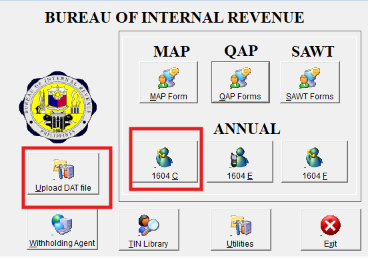
- Update the Region Details
- Click Edit, select the correct Region from the dropdown menu according to your records, and click Save.
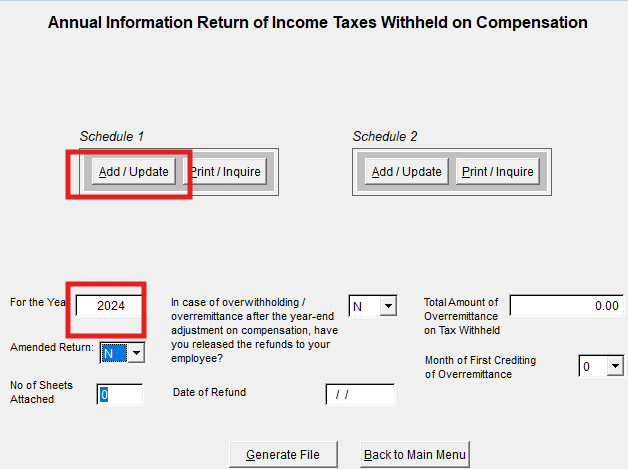
- Click Edit, select the correct Region from the dropdown menu according to your records, and click Save.
Got a question or need extra help? Sidekick makes it easy — get answers, raise a ticket, or schedule a call with our experts, all in one place.