
Verifying the Import Retro Adjustment is crucial to ensure that the adjustments made to payroll are correct and reflect intended changes, preventing errors in employee compensation.
The system has specific validation criteria to prevent incorrect data from being imported, which helps maintain the integrity of payroll information.
And here are the two methods to verify the import retro adjustment.
1. Via Adjustment Remarks:
AutoAdj:5800:5799:DaysAbsent:12.00 - The first set of numbers in the highlighted item is the payroll ID of your current payroll run (5800), while the second set of numbers is the payroll ID from which the adjustment originates (5799).

The payroll ID can be found in the address bar. In the example above, the payroll ID is 5800. To easily check the payroll run for the second payroll ID, you can view any payroll run and replace the payroll ID with the one you are looking for. For example, in the screenshot above, you can replace the number 5800 with 5799 if you are looking for the payroll run with payroll ID 5799. The payroll run should appear if it has not been deleted.

2. Via Retro Sheet in Payroll Register:
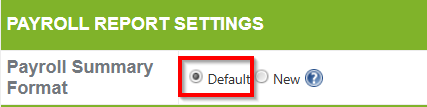
This is available when your payroll summary format is set to "Default". You may check your Payroll Summary Format in Setup>Company>Profile>Payroll Report Settings
As you can notice, when you generate the Payroll Summary, the retro adjustment sheet will show attendance. This shows the latest attendance from HR at the time of retro. 
Correct Attendance will reflect in Retro Adjs Sheet.

Want real-time responses? Explore Sprout Info, your 24/7 guide for product inquiries!