
When generating payroll, employees may appear in the Incomplete Attendance Report, accompanied by a yellow banner notification. This typically indicates inconsistencies between Payroll and HRIS data or changes made during payroll processing.
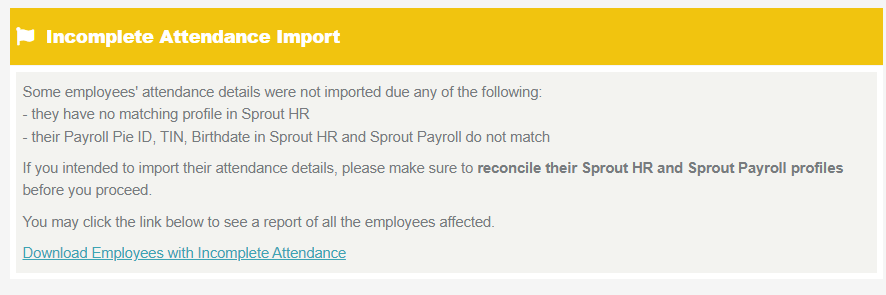
Why does the yellow banner appear?
Here are the most common reasons:
1. Employee exists in Payroll but not in HR
This can happen if an employee was added directly in Payroll but is not yet created in HR (often due to partial or “half” syncing).
2. Employee details don’t match
The system checks key information, and if any of these don’t match, it will trigger the banner:
- TIN
- Birthday
- Payroll Pie ID
3. Changes were made after attendance was imported (most common)
This is the usual scenario:
- Attendance was already successfully imported, then:
- Some employees were removed, or
- The payroll was left in pending status, then reopened and edited
Note: Even if there are no issues with employee details, the system will still flag this. Because the attendance was already pulled in earlier, and any changes afterward create a mismatch.
The Excel file will list employees who are excluded from processing, even if their data is correct.
Once attendance has already been imported, even small changes to the employee list can cause the yellow banner to appear.
If you run into this issue often, recreating the payroll run can help reset everything and avoid inconsistencies.
Want real-time responses? Explore Sprout Info, your 24/7 guide for product inquiries!