
In Sprout HR, when editing or modifying your current Timesheet Lock, please note that any updates will only take effect in the next payroll period or cutoff.
If you need to immediately restrict employees from filing applications within the current period, you may use the Manual Timesheet Lock option instead.
To guide you through this process, please refer to the steps outlined below:
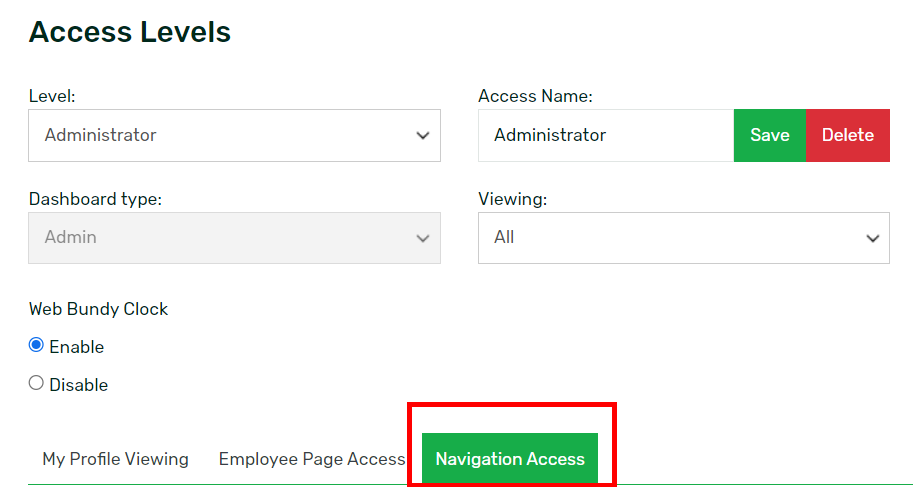
Go to the Access Levels page under the Maintenance Tab in your Sprout HR and select the Access Level you wish to edit from the Level dropdown list before clicking the Navigation Access tab:
Untick the attendance applications:
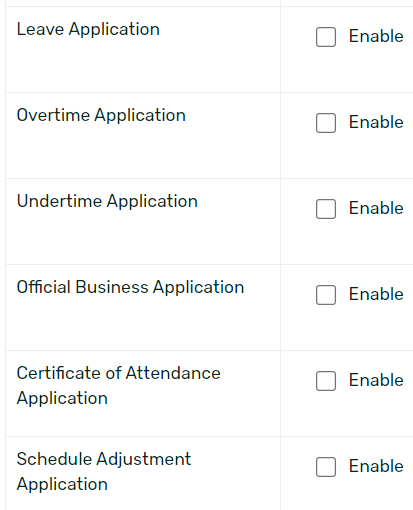
This is done so that users with this Access Level won't be able to view or make these attendance applications. By this, these applications will not appear in the My Requests tab and My Stuff Panel.
Please see the sample screenshot below illustrating what happens when all attendance applications are disabled. As shown, the user will no longer have access to the My Requests tab or the Apply button in Sprout HR.

Other attendance-related features, such as overtime uploads, Overtime Reports, and biologs uploads, can be restricted as well. This is so that managers and admin users would not have access to these features during the "manual timesheet lock".


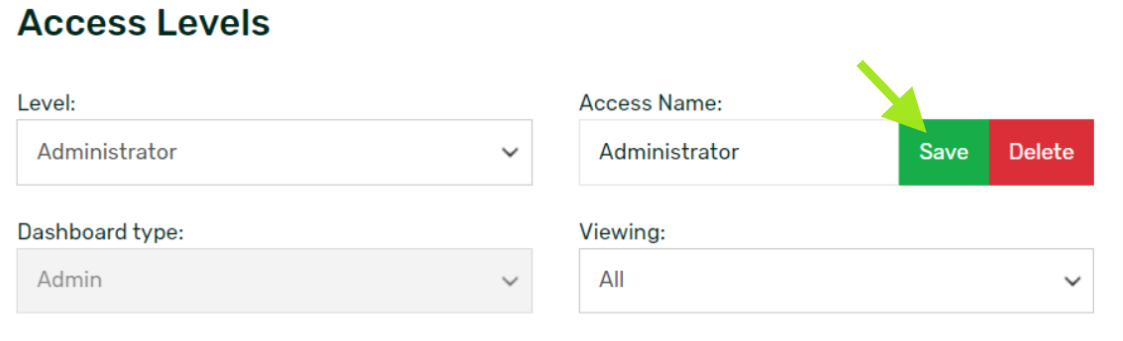
Once done, don't forget to click the Save button to keep the changes made.
A few notes to keep in mind:
- The Approval Center remains available for managers and admins. Approvers can still approve, reject, and edit applications here.
- The Resolution Center is also available, but if the user doesn’t have access to attendance applications, they cannot resolve attendance discrepancies.
- Once you restrict the filing of applications, this restriction will also apply to future-dated applications.
Want real-time responses? Explore Sprout Info, your 24/7 guide for product inquiries!