
With the Sprout Mobile App, you can easily file Overtime (OT) requests whenever you render extra hours beyond your shift. Whether you’re staying late to finish a task, supporting an urgent deliverable, or covering extended operations, you can file your OT in just a few taps — right from your phone.
Filing an Overtime Request
You’ll first need to select a request type to begin. In this case, choose Overtime — and you’ll be taken to its Request History page.
Tap the Apply (+) Button at the Lower Right Corner
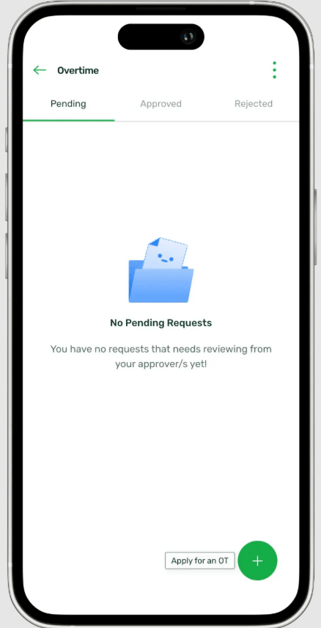
Afterward, You’ll be Taken to the Date Breakdown
A calendar will appear where you can select the date or date range you want to file an Overtime (OT) request for.
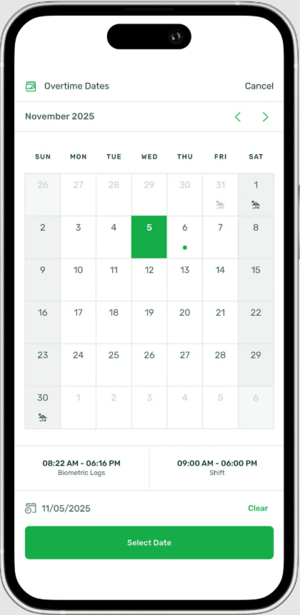
- Your Biometric Logs for the selected day/s will be displayed alongside your assigned shift.
- At this stage, the app already performs validations to ensure your shift and logs are eligible for overtime.
- If they are not eligible, the Select Date button will be disabled, and you won’t be able to proceed to the next steps.
Once Date/s Have Been Selected, Choose the OT Type
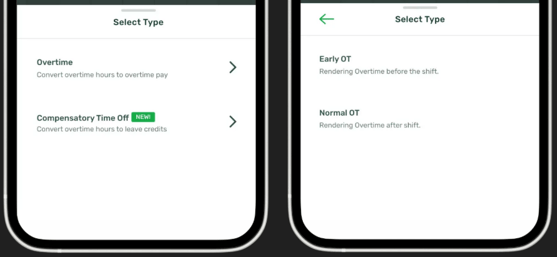
- In the Overtime Type selection, choose whether the OT you’re filing is for Regular Overtime or Compensatory Time Off (CTO) — which converts your overtime hours into leave credits. Note that CTO is not enabled by default and depends on your company’s policy. If this option isn’t available, please reach out to your HR Admin for assistance.
- After selecting an OT Type, you’ll need to specify whether it’s for Early OT (before your shift starts) or Normal OT (after your shift ends). The availability of these options will depend on your biometric logs and assigned shift.
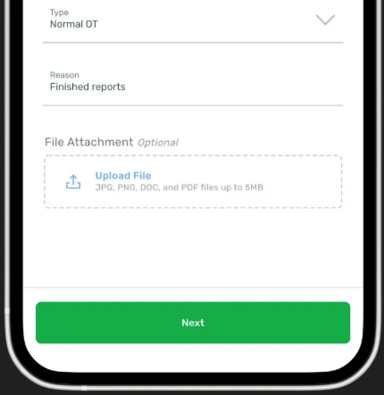
Provide a Reason for Your Overtime
Apart from the reason, you’ll also have the option to attach supporting files.
Note that Attachments are optional by default, but may be required depending on your company’s policy. You can take a photo or upload a file in any of the following formats: JPG, JPEG, PNG, DOC, DOCX, or PDF — with a maximum file size of 5MB.
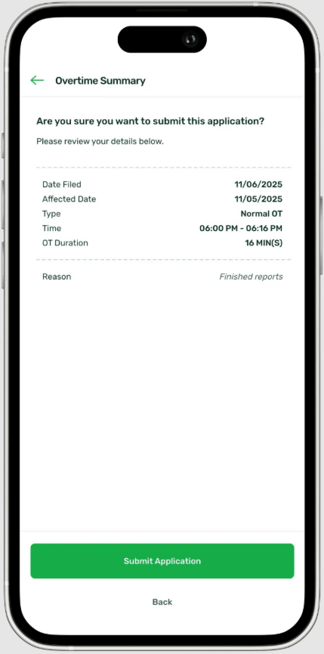
Next, You’ll Be Brought to the Overtime Summary
After providing a reason, you’ll see an overview of your Overtime Application. Review the details carefully, and if everything looks correct, tap Submit Application to proceed.
You’ll be able to review the following details:
- Date/s of your Overtime
- Time From/To
- Overtime Type
- Reason for filing
- Attachment, if applicable
Afterward, you’ll be brought to the OT Request Summary Page, where you’ll see an overview of your application similar to the one below:
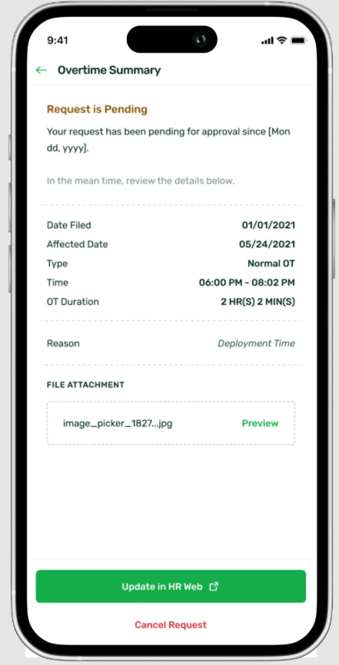
When successfully filed, you’ll receive a confirmation message and your request will move to the Pending tab in your Request History, awaiting action from your Immediate Supervisor.
Canceling an Overtime Request
You can only cancel Overtime requests that are in Pending or Resubmitted for Editing status.
- If your request has already been Rejected or Cancelled, it is no longer eligible for cancellation.
- If your request has been Approved but the date is upcoming, you can still cancel it. However, once the date is current or has already passed, it will no longer be eligible for cancellation.
Open the OT Application in the Request History
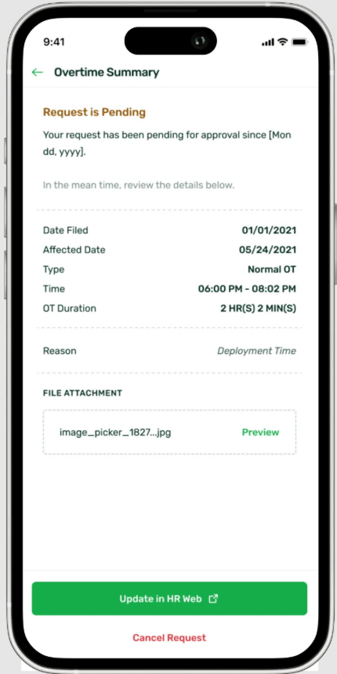
Tap the Cancel Request Button and Enter Your Cancellation Reason in the Prompt
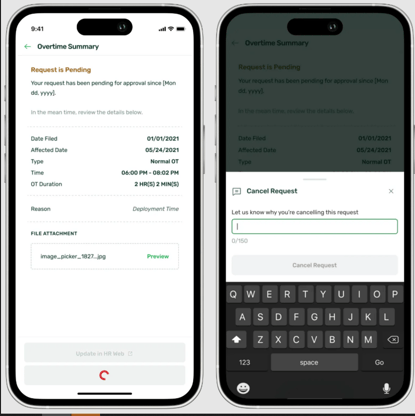
This reason helps your approver understand why the request was canceled. Once filled out, tap Cancel Request again to confirm.
Confirmation
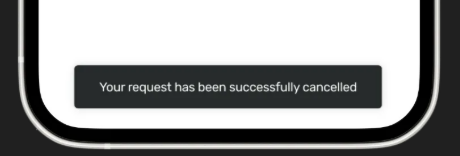
The page will reload and display the Overtime Summary Page with the updated status: Cancelled.
Editing or Updating an Overtime Request
The Edit/Update functionality for Overtime (OT) requests is not available (yet!) in the Sprout Mobile App. For now, please open your OT request in Sprout HR via your web browser to make any changes or updates.
Want real-time responses? Explore Sprout Info, your 24/7 guide for product inquiries!