
Tag employees as Solo Parent or Person with Disability (PWD), keep their ID details current, and generate PhilHealth’s Annex A employer certifications from one page in HR Hub.
Overview
Special Classification Management keeps every Solo Parent and PWD employee’s ID on record, so PhilHealth applies the right coverage and premium treatment.
- Solo Parent needs Solo Parent ID Card (SPIC) details: number, issuance and expiry dates.
- Person with Disability (PWD) needs PWD ID details: number, issuance and expiry dates.
- An employee can be tagged as both. Each classification is saved and removed on its own.
Before you start: prework outside HR Hub
These steps happen with PhilHealth and your employees, outside the system. Recording the results in HR Hub is the last step.
What your team can do now
-
Identify eligible employees
Find employees who hold a valid SPIC or PWD ID.
- Collect Documents
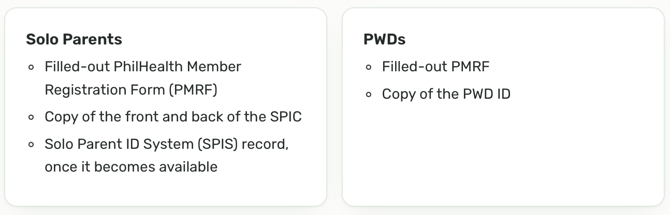
-
Certify
Fill out the Employer Certification in Annex A of each circular. Each circular has its own form. - Submit
Submit the documents through your company’s PhilHealth Employers’ Engagement Representative (PEER), in coordination with your PhilHealth Accounts Information Management Specialist (PAIMS).
- Employees may also submit on their own at the nearest PhilHealth office or through the Member Portal.
- For PWDs, employer help is voluntary.
-
Wait for PhilHealth’s confirmation
For PWDs, PhilHealth will send a Verification Report (Annex B) listing which employees were confirmed in the PWD Registry. -
Record in HR Hub
Record each employee’s status, ID number and ID expiry date using Bulk edit.
What you should keep in mind
- The employer share stays at 50% and should still be paid and remitted.
- Solo Parents: once PhilHealth updates the employee’s record, their status shows automatically in the Statement of Premium Account (SPA). Check your SPA to confirm.
- PWDs not yet in the PWD Registry are tagged “For Verification” and continue paying the usual premium until they are confirmed.
- PhilHealth reviews Solo Parent lists at least every second quarter and may send you an advisory listing employees who were verified or unverified.

Page layout at a glance
-
Three notices sit at the top, with three working cards below. The company chosen in Bulk edit step 1 scopes everything on the page.
-
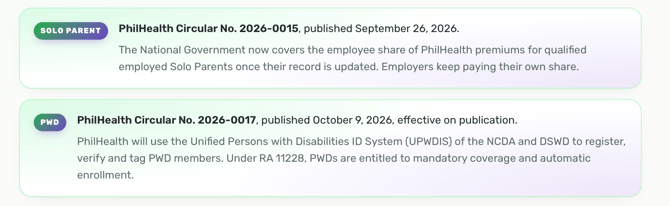
Solo Parent circular notice - Summary of Circular No. 2026-0015, with a link to the official PDF
-
PWD circular notice - Summary of Circular No. 2026-0017, with a link to the official PDF
-
SPIC renewal warning - Reminder to update Solo Parent IDs before they expire
-
Bulk edit — Special classification - Tag, update or remove Solo Parent and PWD classifications for one or many employees, in five steps
-
Reports - Generate Annex A for Solo Parent employees and Annex A for PWD employees
-
Special Classification Registry - Every classification tagged in the company, with ID details, verification and status; export to CSV
-
Each notice can be collapsed with Hide details.
Tag or update Solo Parent and PWD employees
Use Bulk edit to add new classifications or renew ID details for existing ones. The same five steps work for one employee or many.
-
Select company
Pick the company from the Company name dropdown. This re-scopes the employee list, reports and registry. -
Select employees
- Search by employee name or ID.
- Use the Show filter: All employees, Solo Parent, PWD, Both Solo Parent and PWD, Not tagged, or Needs attention.
- Click anywhere on a row, or its checkbox, to select it. The list shows each employee’s current Solo Parent and PWD status.
- The header checkbox selects the current page only. To select everyone matching your search and filter, use the Select menu.
- Use the pager to move between pages and set 10, 20, 30 or 50 items per page.
-
Choose classification
Tick Solo Parent, Person with Disability (PWD), or both. -
Choose an action
Leave Tag or update selected. It tags the chosen classification(s), or renews the ID details and verification of ones already tagged. -
Set ID details
A table appears for each chosen classification — Solo Parent (SPIC) and PWD (PWD ID) — with a row per selected employee. Employees already tagged come in with their saved details, so you only change what’s new.- SPIC number / PWD ID number is unique to each card, so enter it per employee.
- Issuance and Expiry use mm/dd/yyyy.
- Issuing office / LGU is optional.
- Verified: tick it once you’ve confirmed the card against the issuing office’s records.
- Exclude leaves one employee out of that section’s save. Their saved details stay as they are, and you can restore them below the table.

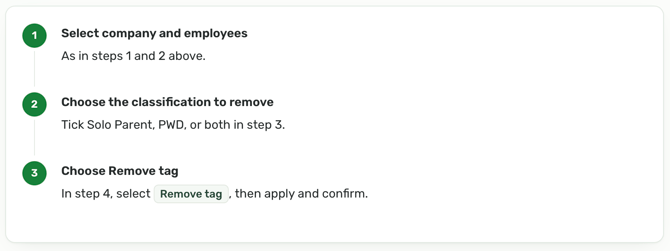
Remove a classification
Removing a tag clears that classification’s ID details. The employee’s other classification stays. It can’t be undone from the page; you’d need to re-enter the details to tag them again.
Special Classification Registry
The registry lists every tagged employee of the selected company: Employee ID, PhilHealth No., Classification, and for each of Solo Parent and PWD the ID number, issuance, expiry, issuing office / LGU, verification and status.
Five tabs filter the list, each with a count:
- All: every tagged employee.
- Solo Parent, PWD, Both: by classification.
- Needs attention: an ID that is expired, expiring within 60 days, or not yet verified.
Export
Click Export to download the current view as a CSV that opens in Excel, for example special_classification_registry_saga-innovations_2026-11-19.csv. The file has one row per employee and 20 columns, for the current company.
Status and verification badges
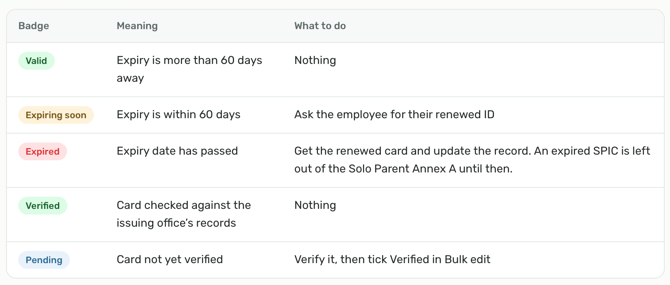
To fix a record, select the employee in Bulk edit (the Needs attention filter finds them quickly), update their details, and apply.
Generate Annex A
The Reports card builds PhilHealth’s Annex A forms, filled in from the selected company’s registry.
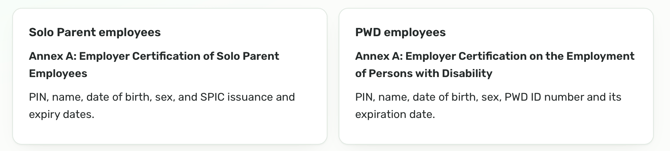
-
Check the company
Make sure the right company is selected in Bulk edit step 1. -
Generate
Click Generate on the report you need. -
Review, sign and submit
Sign the form (employer or authorized representative), attach each employee’s ID and verification proof, and submit to PhilHealth.

Notes
- An employee can be both. Solo Parent and PWD are tagged independently; removing one leaves the other untouched.
- Needs attention means expired, expiring within 60 days, or not yet verified — in both the Bulk edit filter and the registry tab.
- ID numbers are unique per card. The same SPIC or PWD ID number belongs to one employee only.
- Verified should be ticked only after checking the card against the issuing office’s records (City/Municipal Social Welfare and Development Office for SPIC; UPWDIS for PWD IDs).
- Company scope. Everything on the page reflects the company in step 1. If an employee or record seems missing, check the company first.
- Registry export reflects the current tab and company only.
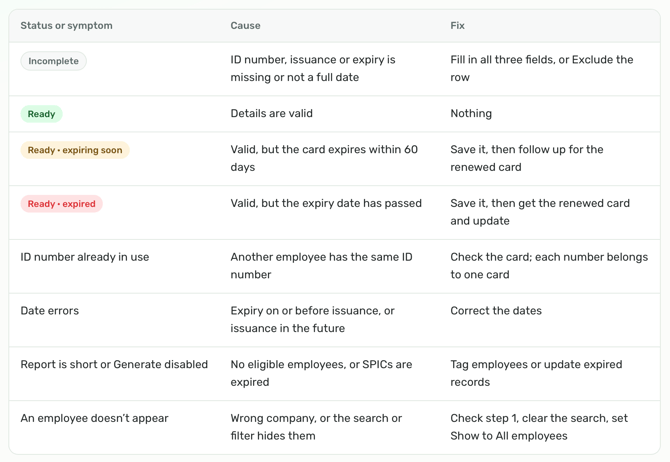
Row status and troubleshooting
Each row in step 5 shows a status. Fields with a problem are outlined in red.
Recommended monthly routine
A short check each month keeps records current and avoids lapses that could cost employees their coverage benefits.
- Open the Registry’s Needs attention tab for each company.
- Ask employees with Expiring soon IDs for their renewed card before the 60 days run out.
- Verify Pending cards against the issuing office’s records and tick Verified.
- Tag any new Solo Parent or PWD employees with Bulk edit.
- Generate fresh Annex A forms after changes, sign them, and submit with the supporting IDs.
Got a question or need extra help? Sidekick makes it easy — get answers, raise a ticket, or schedule a call with our experts, all in one place.