
Overview
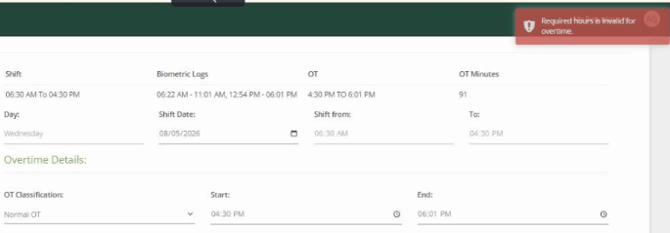
Employees assigned to a shift-based schedule in Sprout HR may occasionally encounter errors when attempting to file an Overtime (OT) application. This article explains the primary requirement for shift-based overtime eligibility and how to verify if an employee meets the criteria.
Cause
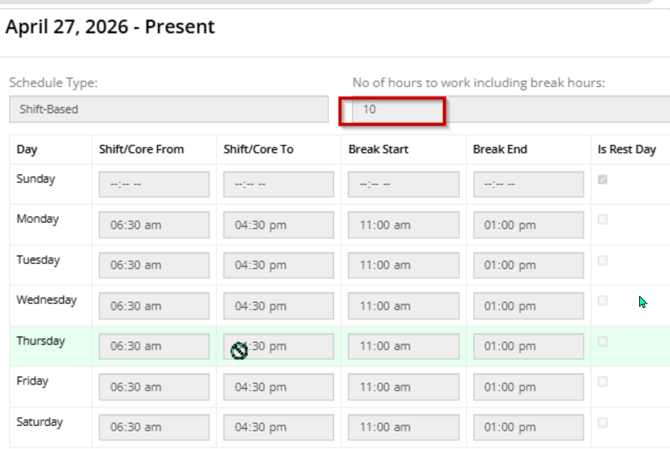
For employees under a shift-based schedule, the system enforces a strict required-work-hours threshold before allowing overtime filing.
For shift-based setups, the required number of working hours configured in the employee’s profile must exclude break time. The system should calculate the required hours based on the employee’s time logs (e.g., Time In, Break Out, Break In, and Time Out). For example, if the required working hours are 10 hours and the logs are 8:00 AM Time In, 12:00 PM Break Out, 1:00 PM Break In, and 7:00 PM Time Out, the employee has completed 10 actual working hours. Overtime filing can then be allowed. If the actual working hours are less than 10 hours, the system should prevent the overtime submission and return an error. Schedule Date-Tagging: How to Add A New Default Schedule
For shift-based setups, the required number of working hours configured in the employee’s profile must exclude break time. The system should calculate the required hours based on the employee’s time logs.
How to Verify Worked Hours
- Check the Logged Time Entries: Review the employee's exact clock-in and clock-out timestamps for the shift in question.
Example Calculation: - Morning logs: 06:22 AM – 11:01 AM = 4 hours 39 minutes
- Afternoon logs: 12:54 PM – 06:01 PM = 5 hours 07 minutes
- Total Worked Time: 9 hours 46 minutes
- Compare Against Required Hours: Compare the total worked time with the employee's required shift duration. In the example above, if the shift requires 10 full hours of work, completing only 9 hours and 46 minutes means the prerequisite has not been satisfied.
- Resolution:
- If attendance logs are missing or inaccurate (e.g., forgotten clock-in/out or unfiled Certificate of Attendance), have the employee file the appropriate attendance adjustment first.
- If attendance logs are accurate but the employee has not yet completed the required working hours, the overtime request should be rejected/blocked because the employee has not met the required hours. No attendance adjustment is needed in this case.
- Once the total required hours are rendered and reflected in the system, the employee will be able to submit the overtime application successfully.
Want real-time responses? Explore Sidekick, your 24/7 guide for product inquiries!