
Overview
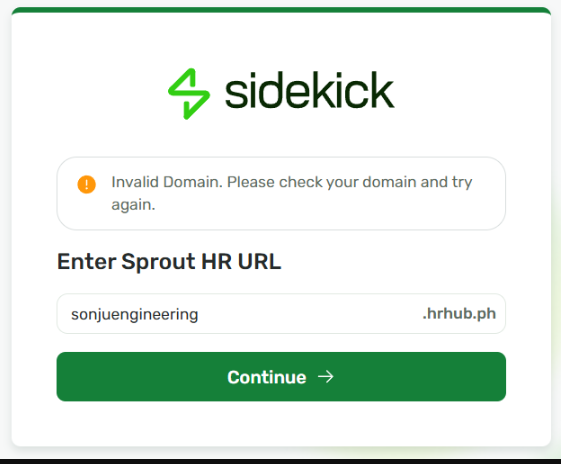
When attempting to onboard a domain for Sidekick, users may encounter an "Invalid Domain" error during the validation process.
Cause
This error occurs when the associated Sprout HR instance is not configured with Single Sign-On (SSO).
Sidekick domain onboarding requires SSO to be enabled on the corresponding Sprout HR account. If SSO is not configured, the system cannot validate the domain and will return an "Invalid Domain" message.
Resolution
To use Sidekick and successfully onboard a domain:
- Ensure that Single Sign-On (SSO) is enabled for your Sprout HR instance.
- Submit a Change Request Form to request SSO configuration.
- Once the request is submitted, a ticket will be created and endorsed to the appropriate team for processing.
- After SSO has been successfully configured, proceed with the Sidekick domain onboarding process again.
- Sidekick is currently not supported for non-SSO configurations.
- The "Invalid Domain" error in this scenario is expected behavior and is not a product defect.
- Domain onboarding can only be completed after SSO has been enabled for the Sprout HR instance.
Frequently Asked Question
Q: Can I use Sidekick without SSO?
A: No. Sidekick requires Single Sign-On (SSO) to be enabled. Non-SSO configurations are not currently supported.
Q: How do I request SSO setup?
A: Submit a Change Request Form (CRF). The request will be routed to the appropriate team for evaluation and implementation. Please reach out to your CSM for further assistance.
Want real-time responses? Explore Sidekick, your 24/7 guide for product inquiries!