
The Basics
What is the To-Dos page?
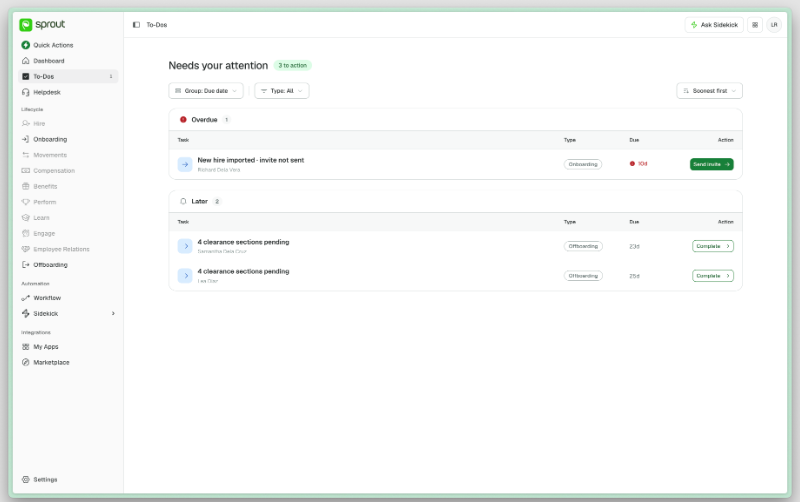
One list of everything waiting on you across employee onboarding and offboarding. Rather than opening each one in turn to check whether anything needs your attention, To-Dos gathers it in a single place. You'll find it near the top of the menu, under Dashboard.
Who gets To-Dos?
Anyone with something to act on. If you're an HR administrator, your list covers everything waiting on you across onboarding and offboarding. If you're a department head or manager, you'll see only the sections assigned to you — and this is usually the only page you need. Seeing fewer items than a colleague is normal — the list is built around you. A few items aren't assigned to anyone in particular, though: an invite that hasn't been sent yet sits on a shared list every HR administrator sees, so you and a colleague may both be looking at the same one.
Should I just rely on my email?
No — your inbox won't show you everything. A few things do email you as well: a new hire arriving from your recruitment system, a clearance section becoming yours, a section unlocking for you, and a quitclaim waiting for your signature. Everything else appears here and nowhere else, so checking this page is what covers you. If your company completes exit clearance in sequence rather than all at once, your item appears when your turn comes round.
What Appears Here
What kinds of things show up?
The parts in bold italics — a count, a document name, a section name — change to match your own records.
From onboarding
| What you'll see | Clears when you… |
|---|---|
| New hire imported · invite not sent | Send a new hire their invite |
| 3 documents awaiting review | Verify uploaded documents |
| TIN ID missing · waiver undecided | Decide on a waiver |
| Documents cleared · HR details incomplete | Complete HR details |
| All requirements complete · not activated | Activate a new hire |
| Activated · 2 documents outstanding | Collect outstanding documents |
| 5 of 12 documents outstanding | Follow up with them |
| Not activated · 4 documents outstanding | Follow up with them |
| 2 documents awaiting re-upload | Follow up with them |
From offboarding
| What you'll see | Clears when you… |
|---|---|
| Finance section pending | Complete a clearance section |
| Finance section unlocked | Complete a section that has just unlocked |
| Clearance complete · ready for quitclaim | Move a record to the quitclaim stage |
| Quitclaim awaiting your signature | Sign a quitclaim |
| Quitclaim signed · awaiting review | Review a signed quitclaim |
| Disbursement expected · proof not uploaded | Mark final pay as disbursed |
Working Your List
How do I know what's urgent?
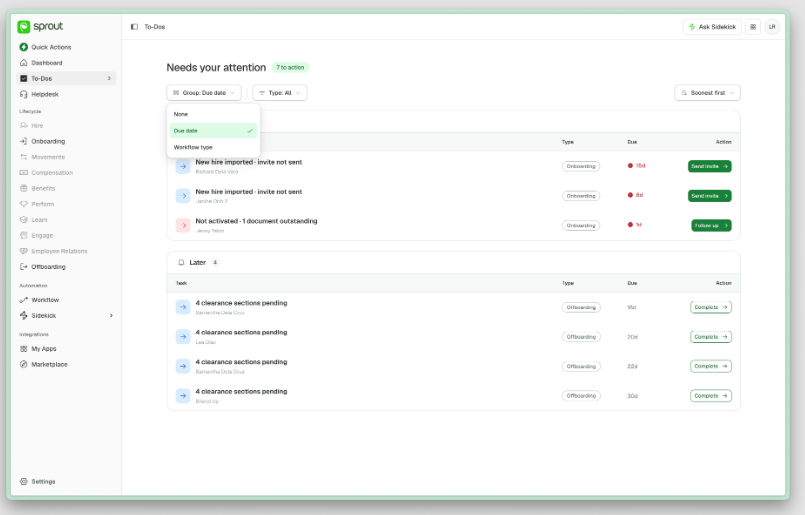
Items are grouped by when they're due — overdue, due today, this week, and later — with overdue clearly marked. You can also sort soonest or latest first, group by due date or by workflow type, and filter to one type at a time.
What happens when I act on one?
Each item takes you straight to the right place to deal with it — the record, the clearance section, the document to verify — so you don't have to go looking. Once it's done, it comes off your list.
My list is empty. Is it working?
Yes — an empty list means nothing is waiting on you. You'll see "You're all caught up." A different message — "No matching to-dos" — means a filter is hiding things, so clear the filter to see your full list.
Getting Help
If something you've already finished is still on your list, reload the page first. If it stays — or something appears that you don't think belongs to you, or something you expected isn't there — contact Sprout Support and tell us which employee or record it concerns.
For more on where these items come from, see Employee Onboarding — FAQs and Employee Offboarding — FAQs.
Want real-time responses? Explore Sidekick, your 24/7 guide for product inquiries!