
Making documents available to employees and/or managers on their Home Screen is accomplished by first, uploading the documents to the Storage area, and then selecting the appropriate widget for inclusion on the Home screen.
Uploading Files
- Click Administration.
- Click Storage.
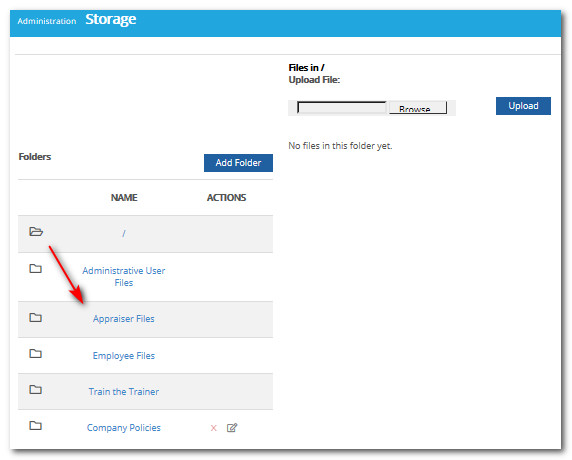
Select the folder where you would like the file to be stored. To share files with your appraisers, they must be placed in the system folder named Appraiser Files. For employees, they must be placed in the system folder named Employee Files. Files placed in other folders will only be accessible to those with Administrative User rights.
Note: Users in the Appraiser role will be able to see documents placed in the Appraiser Files and Employee Files folders. Users in the Employee role will only be able to see documents in the Employee Files folder.
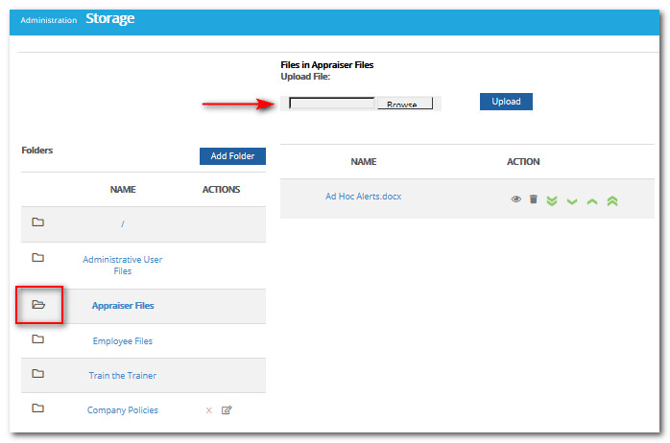
- Click Browse.
- Select the file you wish to upload.
- Click Upload.
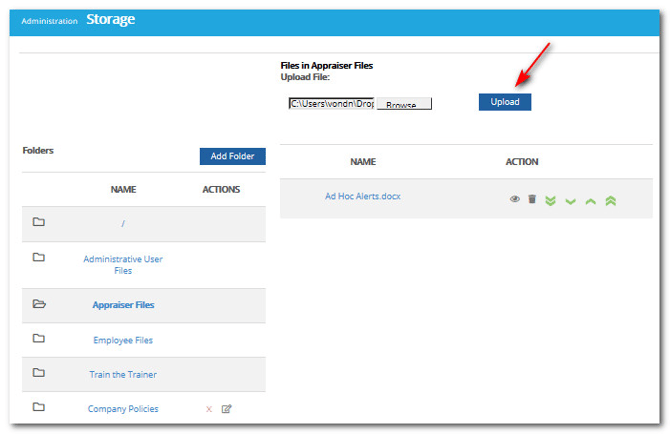
- The file is now stored in the selected folder.
To Add, Rename, or Delete a Folder in Storage
- Click Administration.
- Click Storage.
- Click Add Folder.
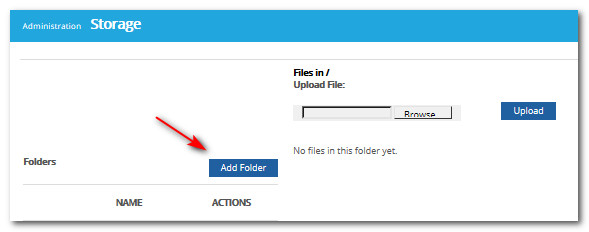
- Enter the name of the new folder.
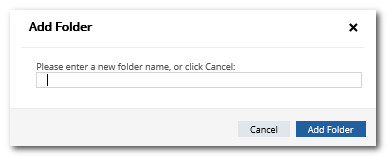
- Click Add Folder.
Use the Rename or Delete icons beside the folder names to rename and delete folders. To Re-order files, click the appropriate order arrow next to the file name.
See the articles below for instructions on enabling widgets and assigning them so these documents are visible on the Home Screens of your users.
- Making Widgets Available for Assignment on Home Screens
- Adding and Removing Widgets to and from Home Screens
Want real-time responses? Explore Sidekick, your 24/7 guide for product inquiries!