
Summary
Managers approving half-day leave requests may not immediately see whether the leave covers the first or second half of the employee's shift. A workaround exists to view this detail.
Scenario
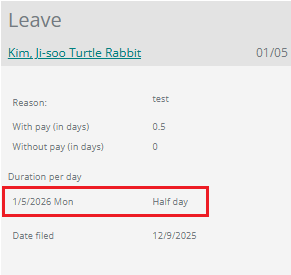
When managers attempt to approve a half-day leave request through the Approval Center, the approval view does not clearly display whether the leave was filed for the first half or the second half of the shift. This means managers may unknowingly approve an incorrectly filed leave request.
Resolution / Workaround
Managers or Admins can view the half-day breakdown by;
1. Navigating to the Approval Center Page via the My Team dropdown.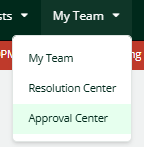
2. From there, search for the leave application and go to the Processed Tab.
3. Click the application and select the Pencil (Edit) icon.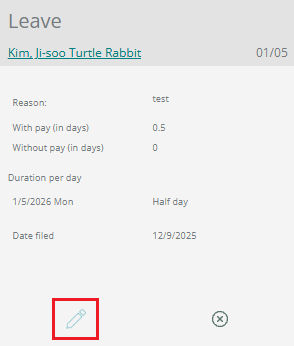
4. This will route to the Leave Application page, where the Date Breakdown section at the bottom of the page shows whether the leave is for the first or second half of the day.
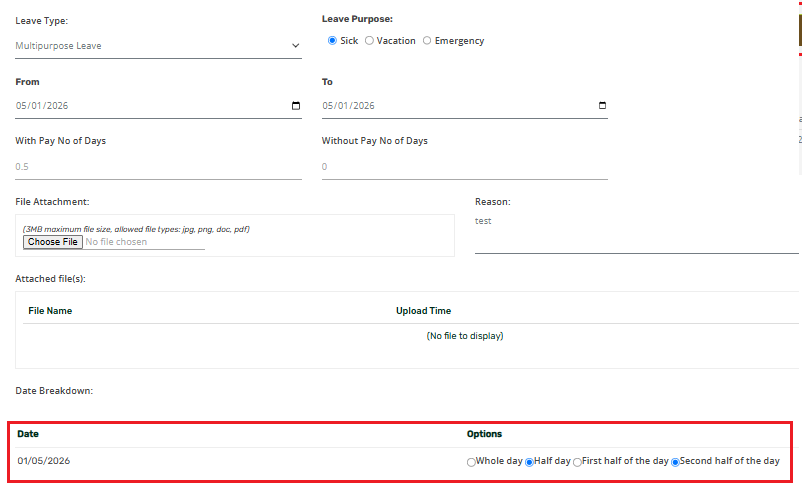
After confirming the details are correct, the manager can return to the Approval Center Page under the Pending Tab to approve the request, or approve it via the Approval Center Widget/ Page.
If the leave details are incorrect, the employee can be advised to edit the request themselves. Here’s How to Update the Details of a Filed Leave. Or the Manager/Admin may edit it on their behalf, which is similar to what we did in Steps 1 to 4. Just don’t forget to click on ‘Apply’:
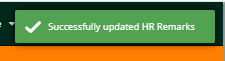
You’ll then receive this prompt to confirm that the edit you’ve made was saved:
Want real-time responses? Explore Sidekick, your 24/7 guide for product inquiries!