
Everything you need, right on your home screen. The Sprout Mobile App Dashboard is the first thing you see after logging in. It gives you quick access to essential HR features through easy-to-use widgets
Navigating the Sprout Mobile App Dashboard
The Sprout Mobile App Dashboard is your landing page after login. It gives you quick access to key HR features through a set of interactive widgets — plus optional add-ons like Mobile Bundy and Fintech services.
Let’s walk through what you’ll see on your home screen, depending on your Dashboard Type.
Default Widgets for Users
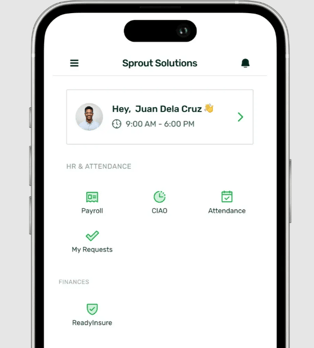
All employees using the Sprout Mobile App will see the following widgets:
| Widget | Description |
|---|---|
| Payroll | View your latest payslip, browse payslip history, and download your most recent BIR Form 2316. |
| CIAO (Clock In and Out) | Receive smart notifications when it’s time to clock in or out. Tap the notification to open the Clock In/Out page. |
| Attendance | See your clock in/out logs, similar to the My Biologs section on Sprout HR. |
| My Requests | Submit and manage attendance-related requests, including Leave, Certificate of Attendance, Schedule Adjustment, Official Business, Overtime, and Undertime. |
| Sidekick Central | Sidekick Central is an AI-powered assistant that centralizes HR, payroll, and workplace support to automate tasks and simplify daily work. |
| ReadyInsure | Access insurance product offers and packages available for employees. |
Additional Widgets for Managers and Admins
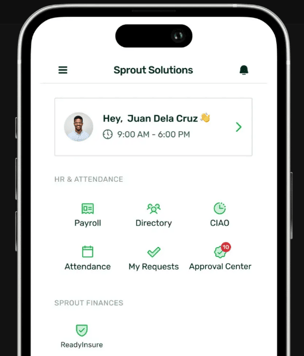
If you are a Manager or Admin and have the appropriate Dashboard Type, additional widgets will appear on your dashboard:
| Widget | Description |
|---|---|
| Directory | Browse your company’s employee directory, including phone number, email, department, and company info. |
| Approval Center | As an approver, you’ll receive a notification when there’s a pending request. Tap the notification to go directly to the Approval Center, where you can approve, reject, or resend requests. |
Add-On Widgets (Based on Company Setup)
Depending on your company’s enabled features, you may see these add-on widgets:
| Widget | Description |
|---|---|
| Mobile Bundy | Clock In/Out directly via your mobile device—with or without GeoConfiguration (Geotagging/Geofencing), depending on your company policy. |
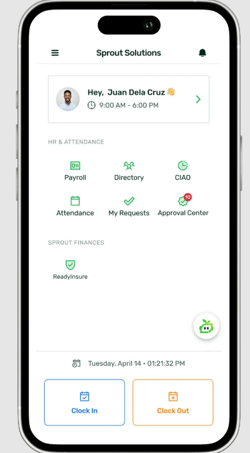
This feature must be enabled by your company. Contact your HR Admin to inquire.
Finances
The Finances section is a premium add-on that gives employees access to fintech products if enabled by the employer.
| Widget | Description |
|---|---|
| ReadyCash | A salary advance feature that allows employees to borrow money with flexible repayment terms, directly deducted from payroll. |
| ReadyWage | An earned wage access (EWA) feature that lets employees withdraw a portion of their already-earned salary before payday. |
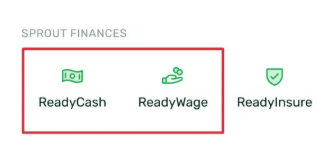
These features are optional and must be enabled by your company. Activation is subject to evaluation. If you’re interested in using these services, please contact your HR Admin.
Other Widgets on the Dashboard
- Notification Icon (top right): Tap to view the Notification Center, where system alerts and reminders are listed.
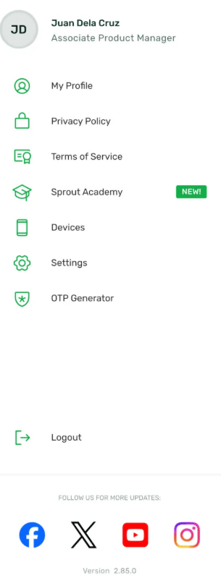
- ☰ Menu Icon (top left): Opens the side menu with options to access:
- My Profile
- Privacy Policy
- Terms of Service
- Sprout Academy
- Devices
- Settings
- OTP Generator (this feature must be enabled by your company. Contact your HR Admin to inquire.)
- Logout
This feature must be enabled by your company. Contact your HR Admin to inquire.
Want real-time responses? Explore Sprout Info, your 24/7 guide for product inquiries!