
Overview
The Attendance Management module allows users to view and manage employee biometric logs, including adding, editing, deleting, and uploading attendance records.
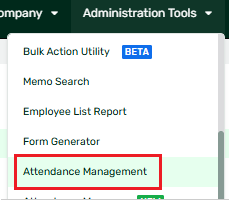
If you cannot find the Attendance Management module in your Administration Tools, it may be because your account lacks the necessary permissions.
How to Enable Attendance Management
Only an Admin who has access to ‘Access Levels’ under the Maintenance Tab can grant access to the Attendance Management module.
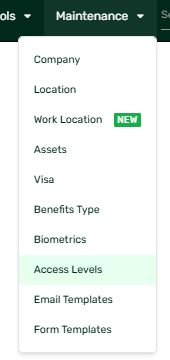
- Go to Maintenance.
- Click Access Levels.
- Select the user whose access you want to update.
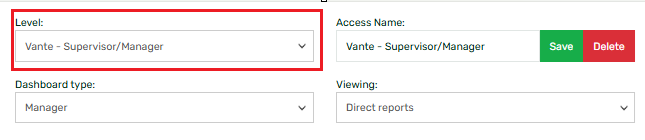
- Open the Navigation Access tab.

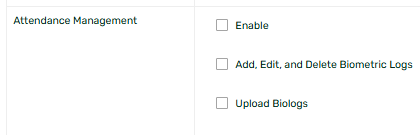
- Scroll down to the Attendance Management Module section.
- Tick the permissions you want to grant:
- Enable – Allows access to the Attendance Management module.
- Add, Edit, and Delete Biometric Logs – Allows management of attendance logs.
- Upload Biologs – Allows uploading of attendance records.
- Click Save.
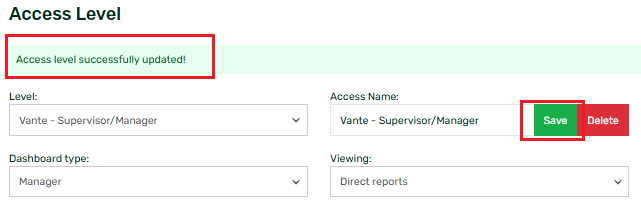
Once saved, the user should be able to access Attendance Management on the Administration Tools dropdown and will have access to features based on the permissions granted.
Note: Users can only view the employees based on the Employee viewing access assigned to their Access Level. To know more, you may also check this article: What Is Employee Viewing? (Access Levels).
Related Articles- How to View Biologs in the Attendance Management
- How to Edit the Tagging of Logs (Log Mode IN/OUT)
- How to Delete Biologs
- How to Manually Add Biometric Logs
- How to Restore Biologs through the Attendance Management
Important Reminders
- Attendance Management is recommended for users with at least a Manager to Admin Dashboard (What Are the Different Dashboard Types?).
- Attendance Manager is Sprout HR's enhanced Attendance Management experience and will continue to receive improvements and updates. Access to both Attendance Management and Attendance Manager is managed from the same section under the Navigation Tab (Why is Attendance Manager not appearing in Sprout HR?)
- If you cannot view the logs of resigned employees, refer to How Come I Can No Longer View the Biometric Logs of Resigned Employees?
Want real-time responses? Explore Sidekick, your 24/7 guide for product inquiries!