
Successfully transitioning an employee to maternity leave requires a few specific administrative updates within the system. This guide breaks down the process into three manageable steps: Updating employment status, Configuring the leave policy, and Manually managing credits.
Reminder: Please note that once the Employment Status is changed, all accruals from the leave plans assigned to the employee will stop, since the Leave Policy only applies to Regular and Probationary employees. Hence, STEP 1 is very important.
Step 1: Preserving Records: Why You Must Save the Leave Report Before Starting Maternity Leave Process
When an employee goes on maternity leave, you have to change their status in Sprout HR. But before you click that button, you need to download their Remaining Leave Report. Think of it as taking a "before" photo. Here is why it’s so important:
1. It Freezes the Leave Credits
Being on maternity leave requires you to change the employee’s Employment Status. And, as stated above, changing the Employment Status will stop the leave accrual of the employee.
2. For the employee’s Peace of mind.
If the employee comes back and asks, "Wait, didn't I have three vacation days left?" you won't have to guess. You can simply pull up the report you saved to show their exact balance on the day their leave started.
3. It’s Your Backup Plan
Systems are great, but records are better. Keeping a copy in the employee’s folder ensures that even if there’s a glitch or a calculation error later on, your "paper trail" is safe.
Step 2: Configure the Maternity Leave Plan
NOTE: If you have already created a Maternity Leave Policy, you may proceed to STEP 3.
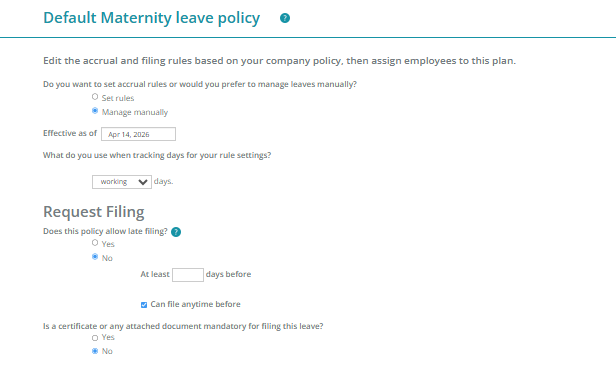
Since maternity policies often vary based on local mandates or specific company benefits, you will need to create and assign a dedicated leave type.
Setting Up the Policy
- Create a New Leave Type: Go to your leave settings and define "Maternity Leave" as a new category.
- Define Policy Rules: Set the policy based on your company's discretion/rules.
- Assign the Employee: Once the plan is created, ensure it is assigned only to the specific employee(s) currently eligible for the leave.
Please refer to the image below:
[TIP] Refer to the Understanding Leave Policy Questions documentation to ensure your settings align with the legal mandates applicable to your region.
Step 3: Update Employment Status
This is to ensure the employee’s profile accurately reflects their current work status.
- Action: Navigate to the Employee Profile and update the Employment Status to Maternity.
- Why it matters: This ensures payroll and reporting modules recognize the employee is on a protected leave rather than being active or terminated.
Step 4: Manage Credits and Applications
Currently, the system does not automatically accrue maternity credits. These must be handled manually to ensure the employee's balance is correct.
Manual Credit Allocation
- Navigate to the Leave Plan and Usage section of the employee's profile.
- Manually add the total number of Maternity Leave days the employee is entitled to. Here’s how: How to Manually Add or Deduct Leave Credits
Filing for Past Dates
If the employee’s leave began before the system update was finalized, you can file on their behalf to ensure historical accuracy:
- Use the Resolution Center Widget.
- Select the Quick Access Icons to file the leave application for the relevant past dates.
- The Resolution Center is meant to correct missing logs (like forgetting to clock out yesterday) or discrepancies (like a biometric error from last week). Since you haven't worked "tomorrow" yet, there are no missing logs or errors to resolve.
- Lastly, you can only file the application per date. Date Range is not yet being catered in the Resolution Center.
We understand that filing the leave on a per-date basis will take time. As a workaround:
- You can manually add logs in the employee’s Attendance to avoid any deductions.
- Then, manually deduct the leave credits of the employee and add remarks for monitoring purposes.
Filing for Future Dates
Before the Maternity Leave starts, regardless if the maternity if paid or unpaid, kindly advise them to do an advance filing for the Maternity Leave. Here: How to File for a Leave Application.
Approver is on Maternity Leave
The user can pass the approval to the other active managers. Here: Can I Pass On Approvals to Another Supervisor/Manager?
If ever the Approver is on Maternity leave, has already taken her leave, and there are still pending applications, you may temporarily change the approval level of the employees under her approval so the employees can update the applications to be redirected to the new assigned approver. You may also refer on this article: What to do if the last approver is no longer Available ( Sequential Approval Flow)
Employee came back from Maternity Leave
Once the employee comes back from her Maternity Leave, you will have to revert the original Employment Status, and if there are credits that should be credited during her leave, you will have to manually add them back to the employee’s profile.
If she’s part of the approver, and if she was temporarily removed from the approval list, don’t forget to add her again as an approver.
Or, if the Fill In button is enabled, don’t forget to turn it OFF.
Payroll Run process for Employees on Maternity
You may refer to this article for the full details of the process. Here: Maternity Leave Payroll Process.
Want real-time responses? Explore Sprout Info, your 24/7 guide for product inquiries!